Sharing a Stream Router
Sharing a stream router allows other users to change routes or both change routes and configure the stream router. If your stream router is within an organization, you can also give other members admin access.
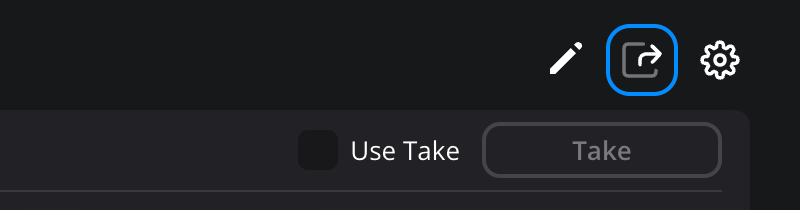
To start sharing a stream router, click the share icon in the toolbar.
The ‘share stream router’ options will open. In the ‘add members’ field enter the Blackmagic Cloud email address of the person you want to share the stream router with. If your stream router is within an organization, you can enter the persons name or the name of a group. Click the ‘add’ button.
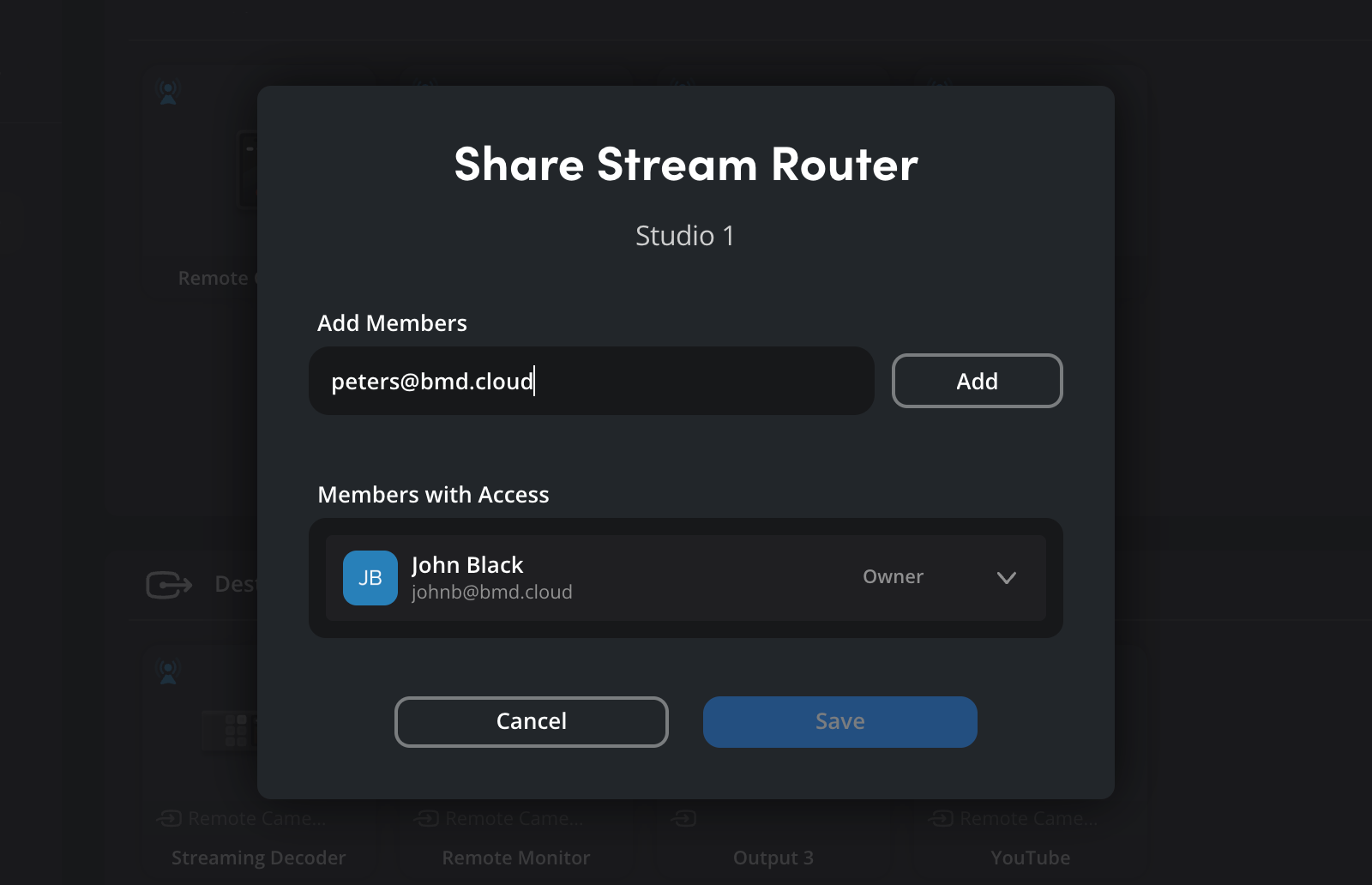
The new user will be added to the ‘members with access’ list. If you are adding a new member to a stream router in your personal profile, they will be sent a confirmation email.
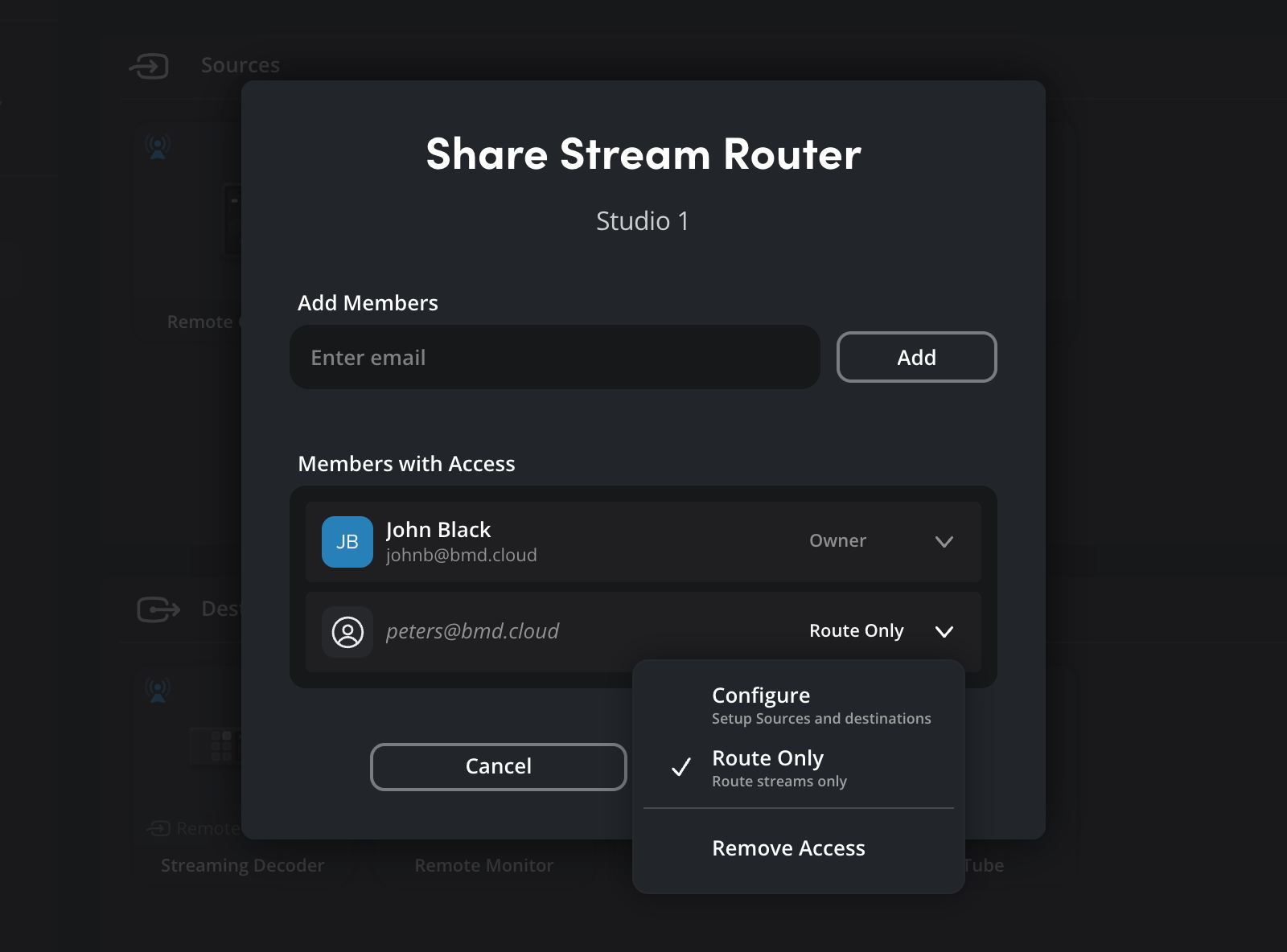
By default, new members are given ‘route only’ access, allowing them to route streams. To change the level of access, open the menu next to their email address in the ‘members with access’ panel and select another setting. In personal profiles you can allow members to configure the stream router, this lets them setup inputs and outputs. In organization profiles you can also give members ‘admin’ access, allowing them to manage all aspects of the stream router. Once you’ve made your selection, click ‘save’.
You can remove a members access to a stream router at anytime by selecting ‘remove access’ and clicking ‘save’.