
Connecting to Sources and Destinations
Once you have configured the sources and destinations on your stream router, you can connect your Blackmagic Design applications and equipment. These could include Blackmagic Camera App, Blackmagic Streaming Processors and Blackmagic Remote Monitor. A full list of supported products is provided later in this section.
The instructions below are an overview for connecting to a Blackmagic Cloud Stream Router input or output. For more detailed information on connecting refer to your Blackmagic Design unit’s manual at https://www.blackmagicdesign.com/support/
To connect to a stream router input or output:
- Log into your Blackmagic Cloud account on your Blackmagic Design application or equipment.
- In the menu, open the ‘live stream’ settings.
- Select ‘Blackmagic Cloud’ as the streaming platform.
- In the ‘source’ or ‘destination’ menu select the stream router input or output that you want to connect to.
- If you are connecting to a stream router input, select a streaming quality from the ‘quality’ menu. The options are ‘streaming low’, ‘streaming medium’ and ‘streaming high’. Data rates for each streaming quality are provided in the next section.
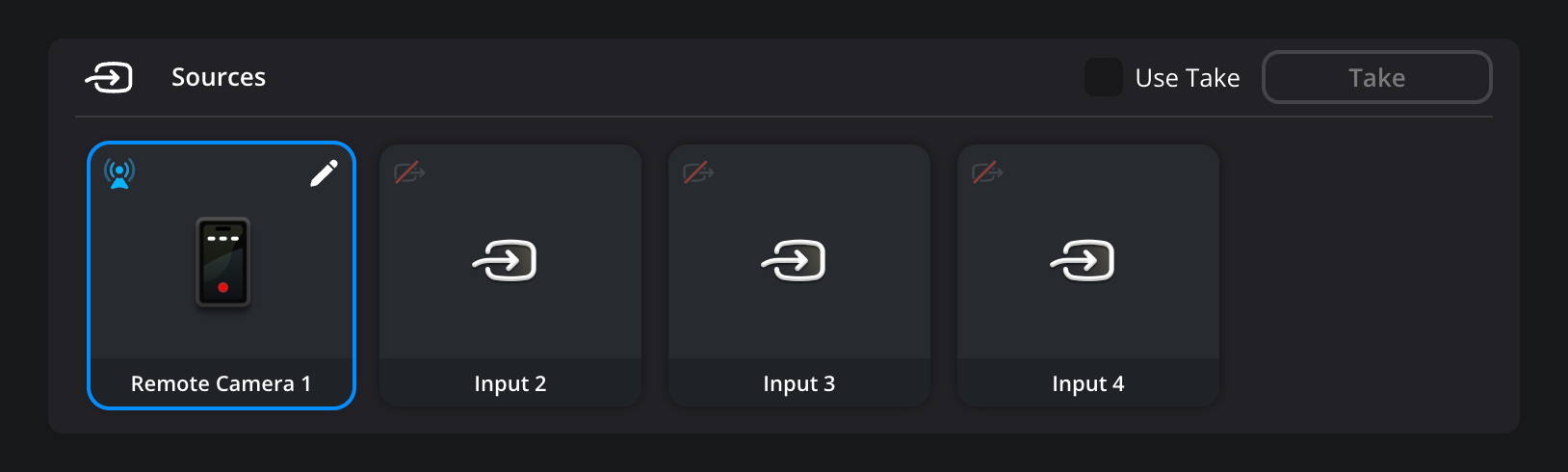
To test your connection to a stream router input, switch ‘live stream’ to ‘on’. In your stream router, a blue streaming icon will appear next to the connected input.
Streaming Quality Data Rates
The tables below provide information on the data rates for each streaming quality.
| H.264 | |
|---|---|
| Quality | Data Rates |
| Streaming Low | 3 to 4.5 Mb/s |
| Streaming Medium | 4.5 to 7 Mb/s |
| Streaming High | 6 to 9 Mb/s |
| H.265 | |
|---|---|
| Quality | Data Rates |
| Streaming Low | 0.8 to 2 Mb/s |
| Streaming Medium | 1.5 to 3 Mb/s |
| Streaming High | 2.3 to 4.5 Mb/s |
Supported Sources and Destinations
The equipment and applications currently supported for Blackmagic Cloud Stream Router are listed below. For more information about a particular unit, refer to the full instruction manual at https://www.blackmagicdesign.com/support/
Sources
- Blackmagic Streaming Encoder 4K and Streaming Encoder HD
- Blackmagic Camera App
- Blackmagic PYXIS 6K
- ATEM Mini Pro, ATEM Mini Pro ISO, ATEM Mini Extreme, ATEM Mini Extreme ISO
- ATEM SDI Pro ISO, ATEM SDI Extreme ISO
- ATEM Television Studio HD8, ATEM Television Studio 4K8
- DaVinci Resolve Timeline Monitoring
Destinations
- Blackmagic Steaming Decoder 4K
- Blackmagic Remote Monitor App on Mac and Windows
- Blackmagic Remote Monitor App on Linux (DaVinci Resolve Studio)
- Blackmagic Remote Monitor App on iOS and Android
Sources and Destinations
- ATEM Television Studio HD8 ISO
- ATEM Mini Extreme ISO G2

