Organization Management
Blackmagic Cloud organizations give you the flexibility to remove members, change the role of a member, plus leave an organization you have been added to. You will need to be an organization ‘owner’ if you want to remove a member or change their role.
To remove a member:
-
Log in to the organization that you want to remove the member from and click the ‘settings’ icon in the Blackmagic Cloud dashboard.
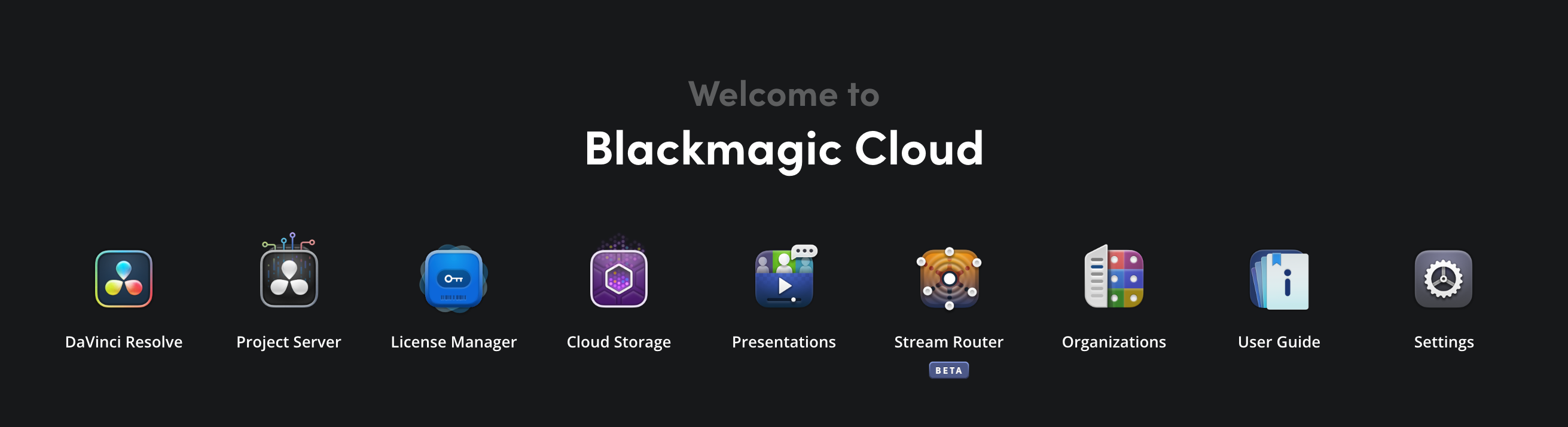 Alternatively, you can click the ‘organizations’ icon in the Blackmagic Cloud dashboard, click the 3 dot menu for the organization that you want to remove the member from and select ‘manage organization’. If you are not logged in to the organization, you will be prompted to automatically switch profile.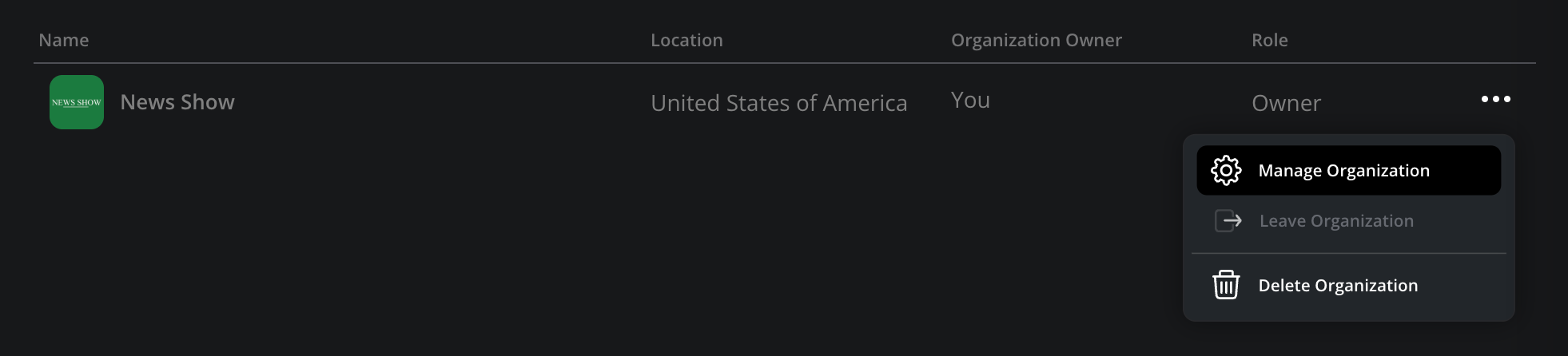
-
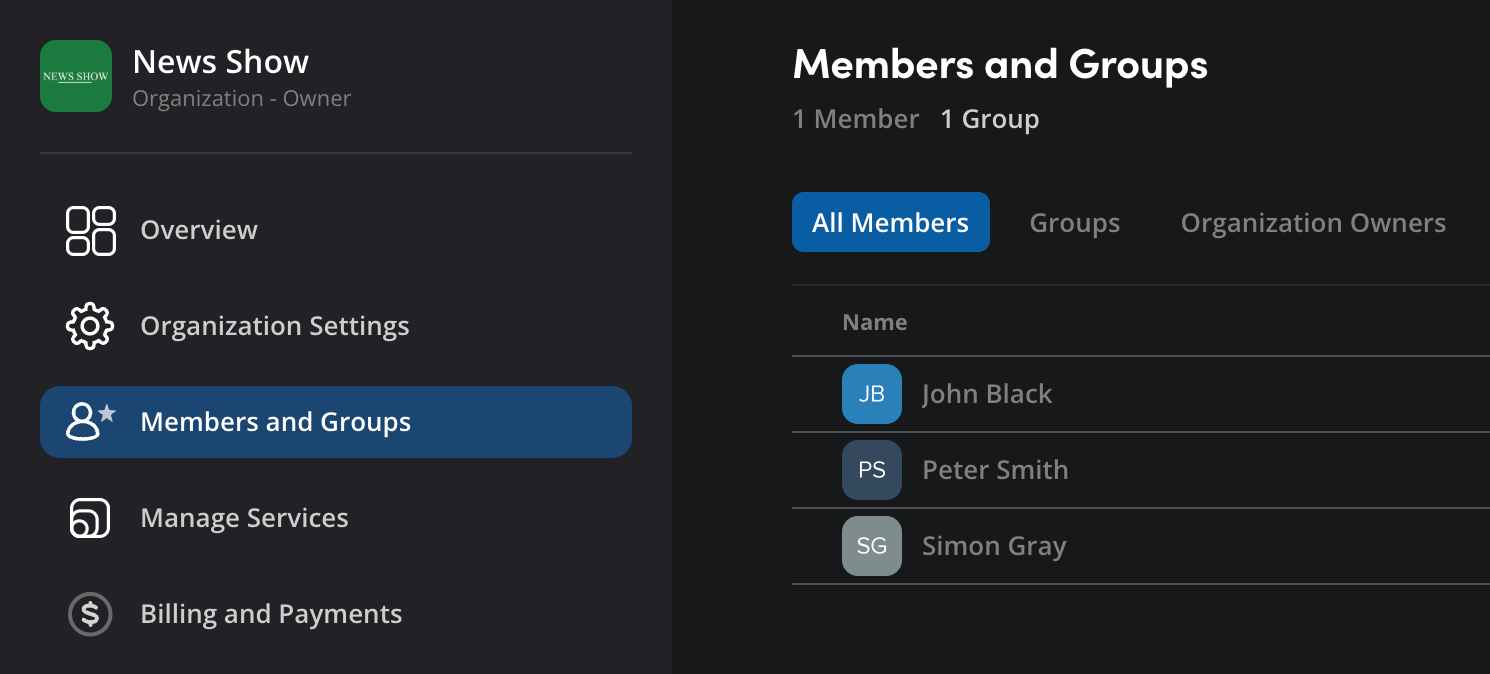
In the ‘settings’ page, click ‘members and groups’ in the sidebar.
-
In the ‘all members’ tab, click the 3 dot menu next to the member that you want to remove and select ‘remove member’.
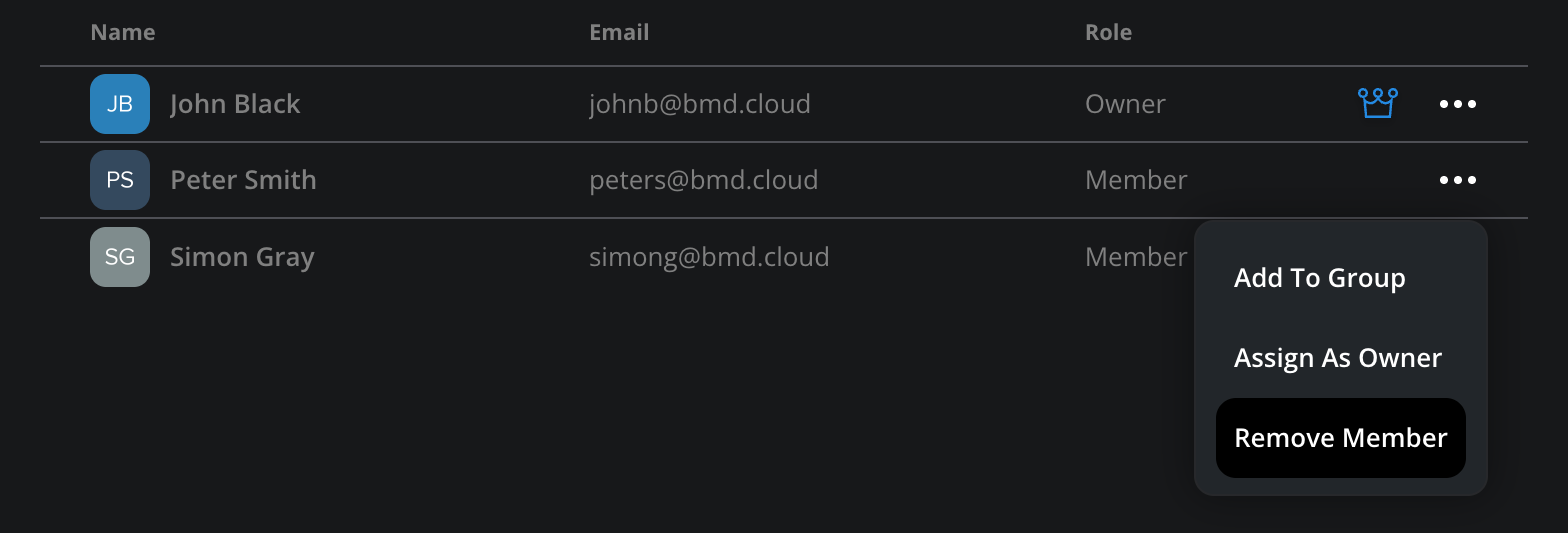
-
A confirmation window will be displayed, click ‘continue’ to remove the member from the organization.
The member will be removed from the organization immediately and lose access to any shared assets or services.
Roles
Organization roles are divided into ‘owners’ and ‘members’. Organization ‘owners’ have full control over all aspects of the organization, including the ability to add and remove users, plus access to managing services and billing options. Organization ‘members’ can be given access to project libraries and cloud storage plus added to groups by an organization owner. The table below shows what each role can do within an organization.
| Capability | Member | Owner |
|---|---|---|
| Access shared projects, storage, and presentations | ✓ | ✓ |
| Use of assigned DaVinci Resolve licenses | ✓ | ✓ |
| Add or remove members | ✗ | ✓ |
| Create or manage groups | ✗ | ✓ |
| Manage billing and invoicing | ✗ | ✓ |
| Purchase or allocate storage, servers, and licenses | ✗ | ✓ |
| Create or delete the organization | ✗ | ✓ |
| Access the central admin portal | ✗ | ✓ |
When you create an organization you are automatically assigned the role of ‘owner’. Any users that you add will be assigned a ‘member’ role. You can switch roles and make a ‘member’ an ‘owner’, or an ‘owner’ a ‘member’. However, an organization must always have at least one ‘owner’.
You can see the role of each member in the ‘all members’ tab in ‘members and groups’ in the ‘settings’ page. Organization owners are listed in the ‘organization owners’ tab.
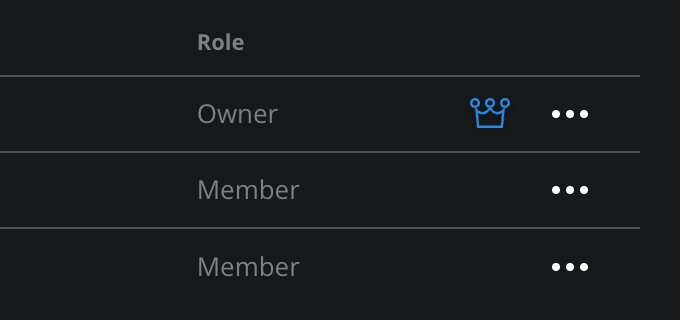
To switch a role:
-
In the ‘all members’ tab, click the 3 dot menu next to the user whose role you want to change.
-
To make a ‘member’ an ‘owner’, click ‘assign as owner’. To make an owner a member, click ‘remove owner’.
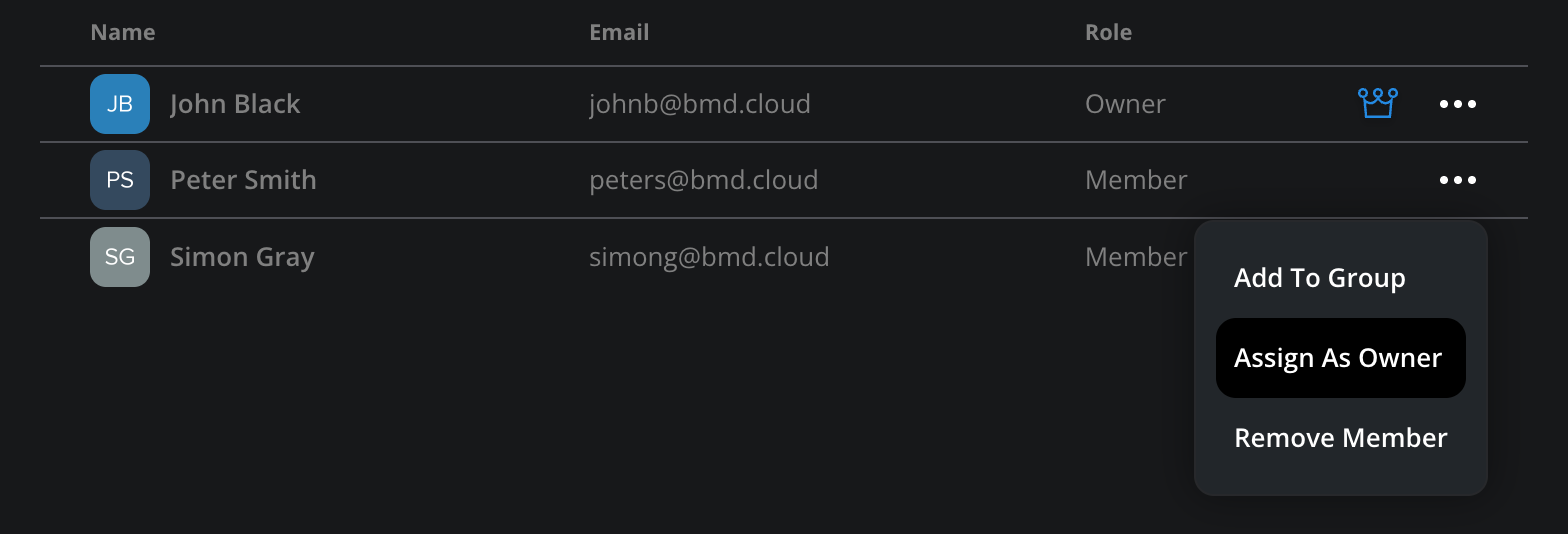
-
You will be prompted to confirm the role change.
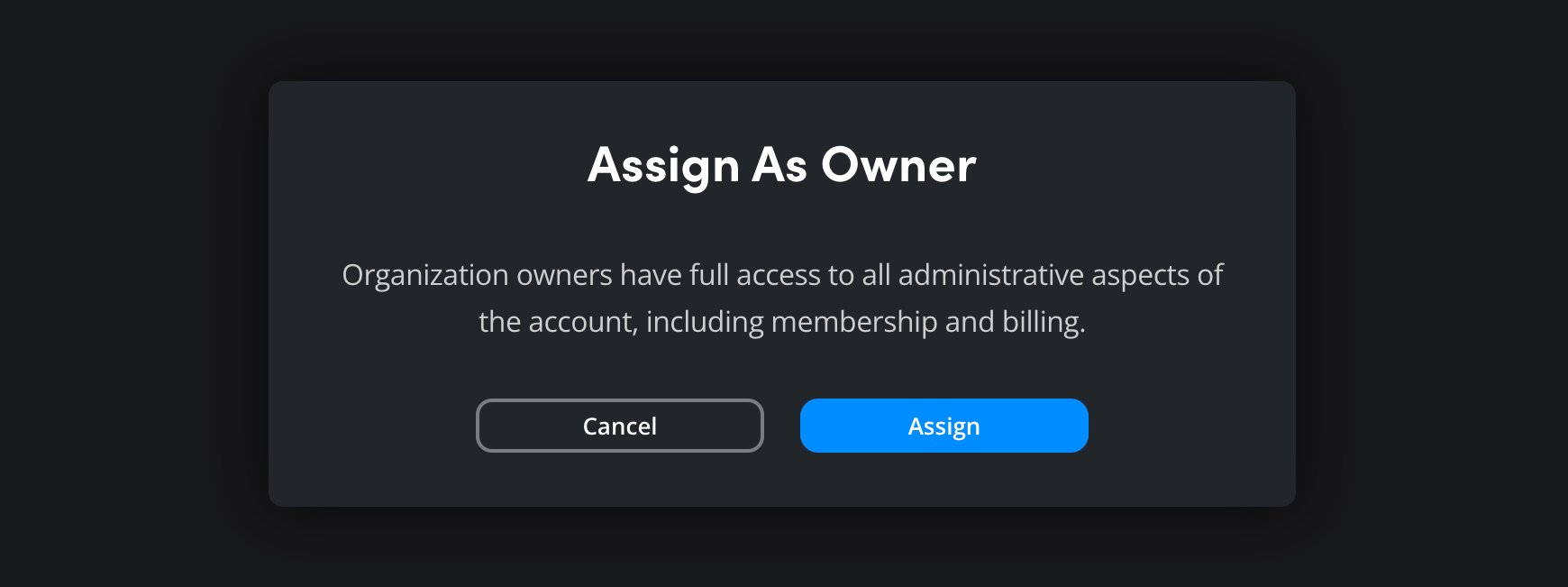
Leaving an Organization
You can leave an organization that you have been added to at any time. It is worth mentioning that you will not be able to rejoin the organization unless you are sent a new invitation from an owner of the organization.
-
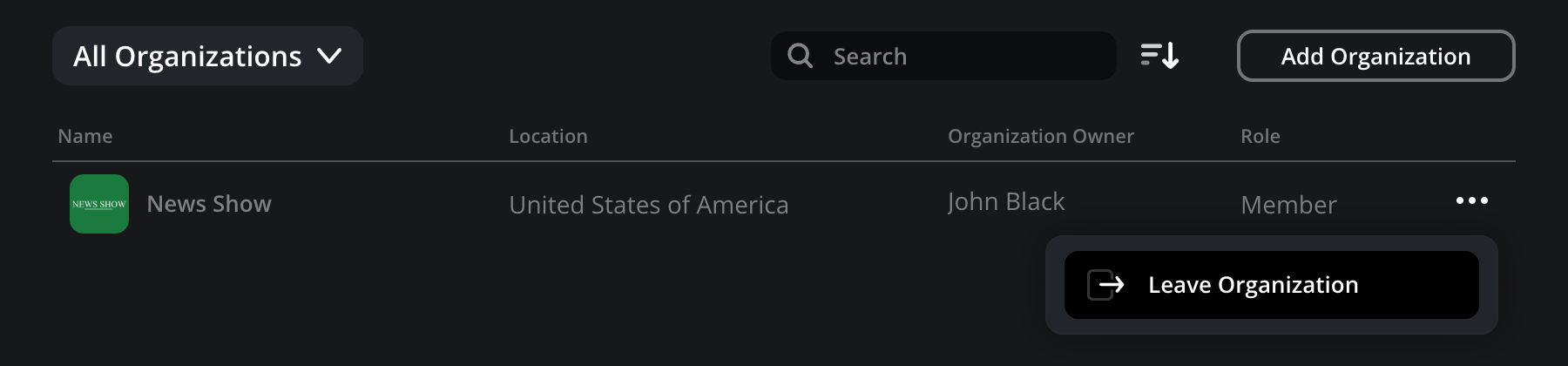
Click the ‘organizations’ icon in the Blackmagic Cloud dashboard.
-
In the list of organizations, find the organization that you want to leave and click the 3 dot menu. Select ‘leave organization’.
-
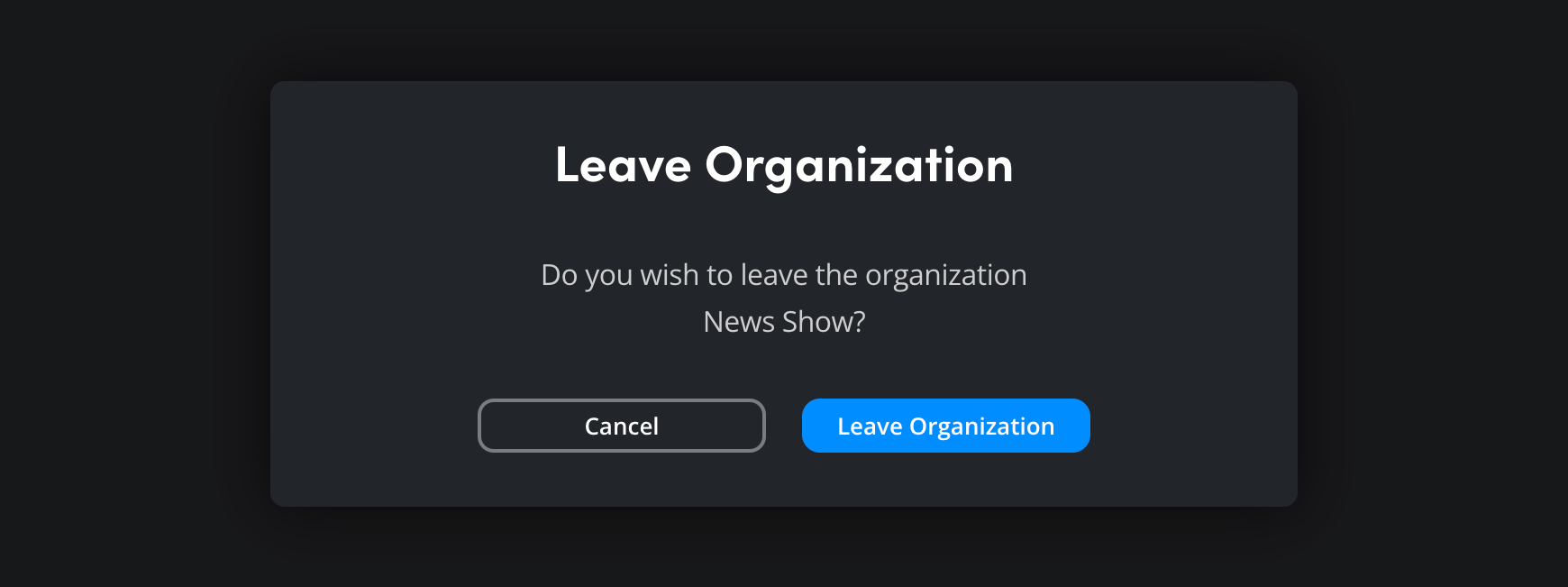
You will be asked to confirm your choice. Click ‘leave organization’ to continue. You will be removed from the organization immediately.