
Billing and Payments
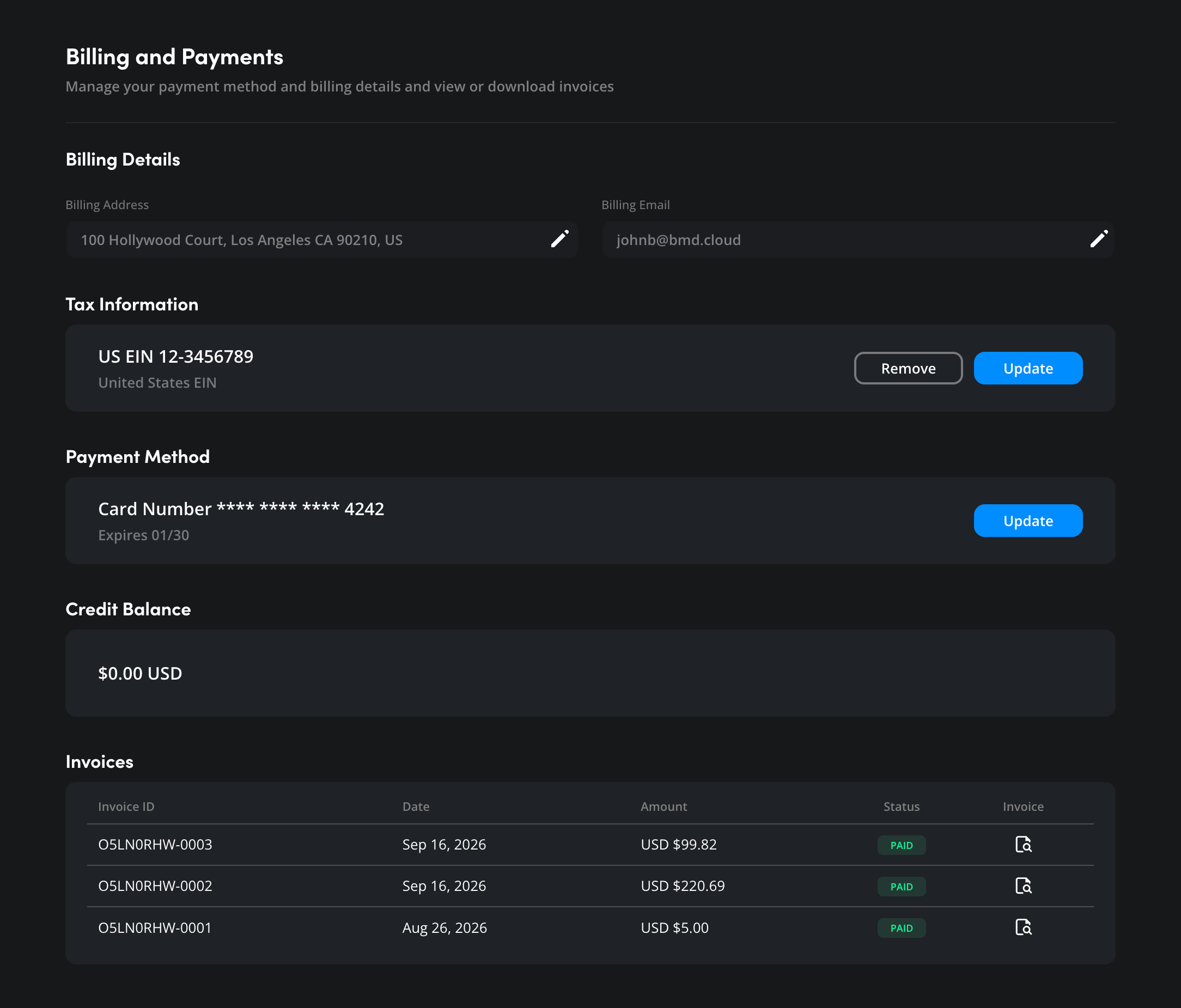
The ‘billing and payments’ section of the ‘settings’ page includes your billing details, tax information, payment methods, credit balance and monthly invoices.
Billing Details
The ‘billing details’ section contains your billing address and billing email. Blackmagic Cloud invoices will be sent to the billing email address.

To edit the billing address:
- Click on the pencil icon to the right of the billing address.
- In the ‘edit address’ window update the address fields and press ‘save’.
It’s worth noting that for Blackmagic Cloud organizations, the country or region selected when the organization was first created cannot be changed.
To edit the email address:
- Click the pencil icon in the ‘billing email’ field.
- Type in a new email address and click ‘save’.
Tax Information
The ‘tax information’ section of the ‘billing and payments’ page lets you enter a tax ID for billing purposes, the tax ID type will vary depending on your region.
To add a Tax ID:
- Click the ‘add’ button.
- In the ‘add tax ID’ window, select an ID type from the list and enter your tax ID information. Click ‘add’.
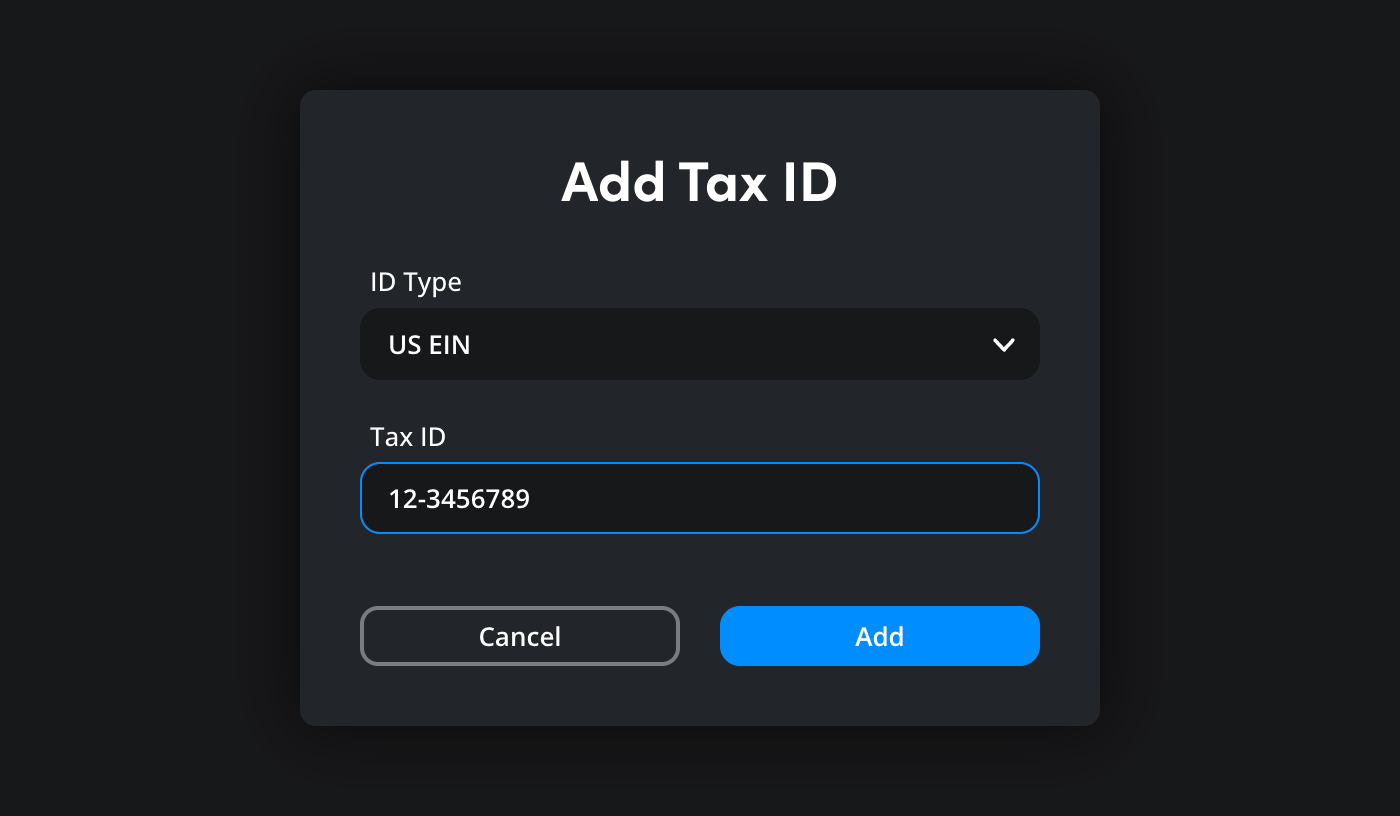
Once you have added your tax ID information, you can use the ‘remove’ or ‘update’ buttons to make changes.

Payment Method
Use the ‘payment method’ section to add a credit or debit card to your account profile.
To add a payment method:
- Click the ‘add’ button.

- In the ‘add card’ window, enter your card information and billing address. Click ‘add’.
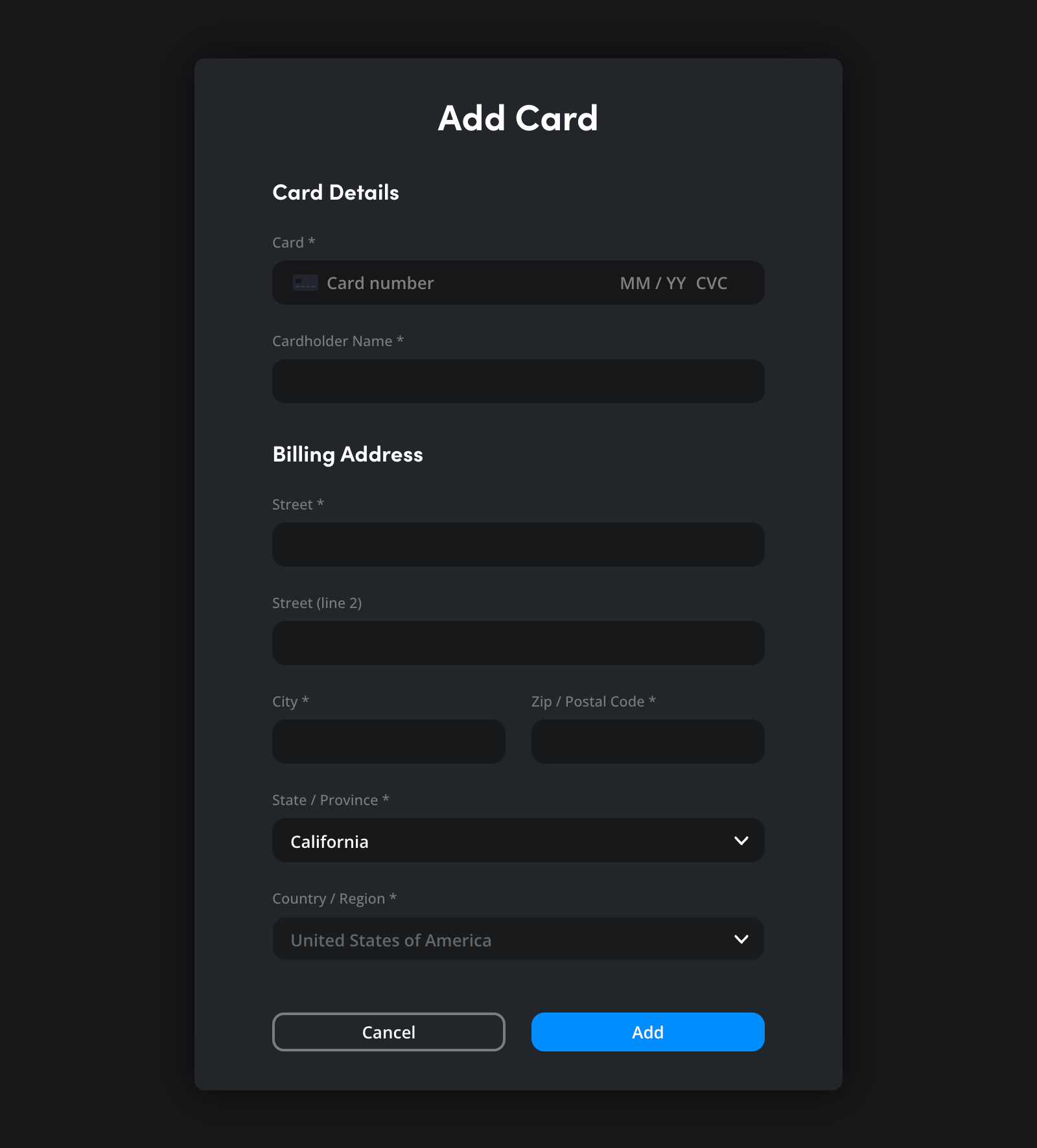
- A confirmation window will be displayed and your payment method will be added to your account profile.
Updating Payment Details
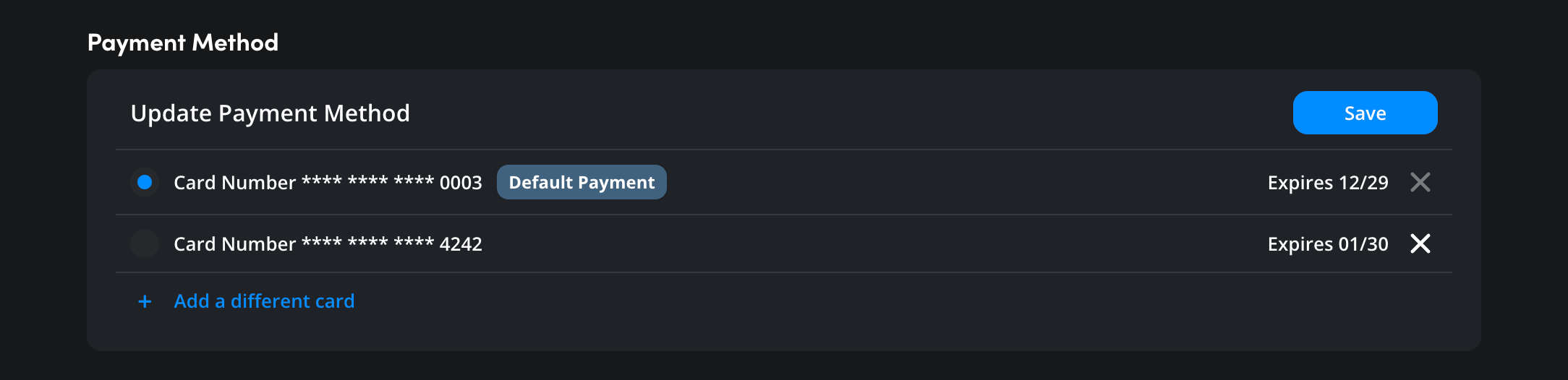
Once you have added a payment method, you can add an additional card or remove a card.
- Click the ‘update’ button next to your current payment method.

- Click ‘add a different card’. Enter the new card’s details in the ‘add card’ window and click ‘add’.
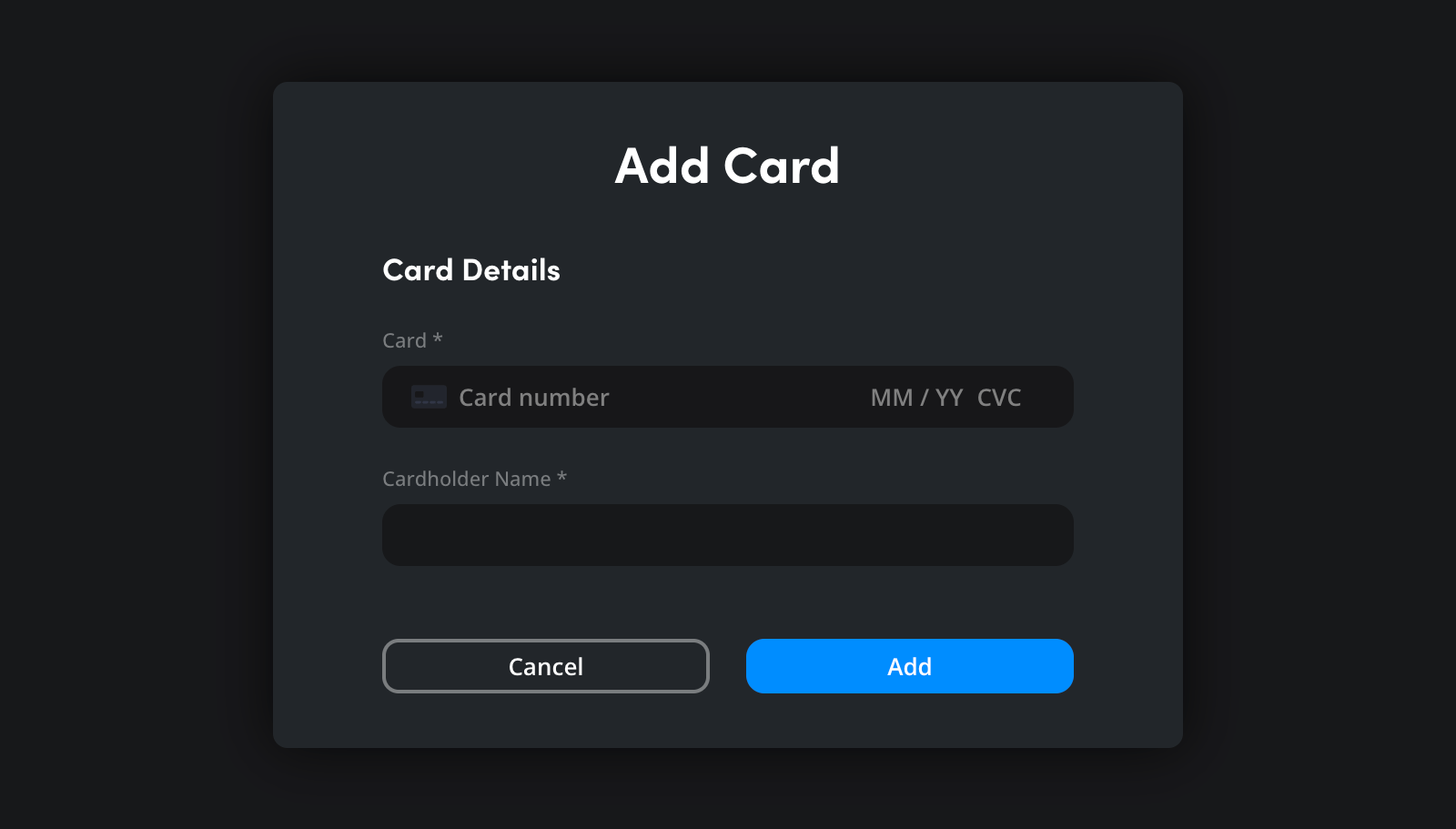
- A window will appear asking if you want to set the new card as the default payment method. Click ‘OK’ to make it the default or click ‘cancel’ to save the new card without setting it as the default. You can change the default payment method at any time by selecting its radio button and clicking ‘save’.
Removing a Payment Method
You can delete a payment method that you no longer want to use. However, it’s worth mentioning that you won’t be able to remove a default payment method if you have any ongoing charges for Blackmagic Cloud services until the services have been canceled.
To remove a payment method:
- Click the ‘x’ beside the card’s expiry date. A ‘remove card’ window will appear asking you to confirm that you want to remove the card. Click ‘remove’.
- A window will appear letting you know the card has been successfully removed. Click ‘ok’.
Credit Balance
If your account is in credit, the credit balance will be displayed here.
Invoices
Previous invoices are listed at the bottom of the billing and payments page, along with the invoice amount and the payment status.
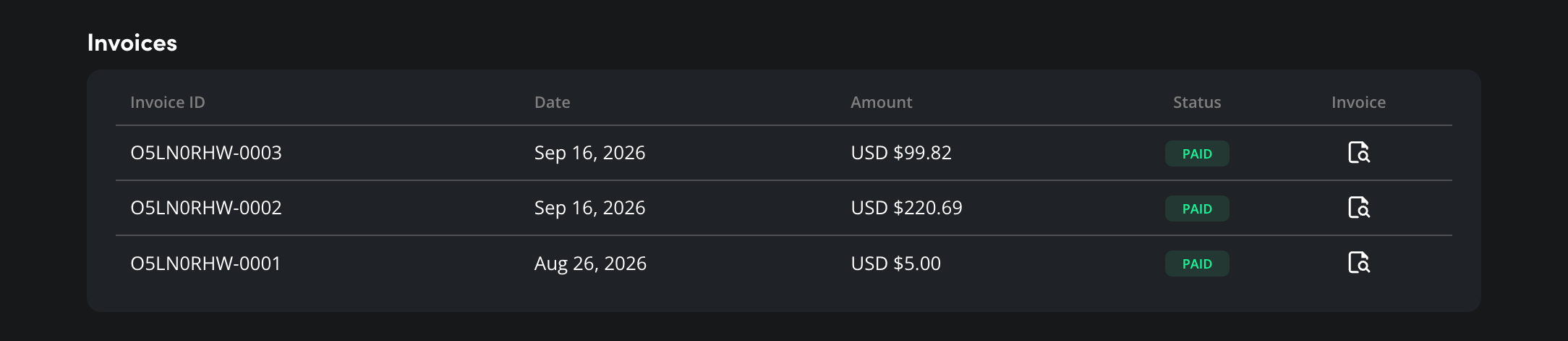
To download an invoice, click the icon in the ‘invoice’ column. A PDF of the invoice will download to your computer.

