Deleting an Organization
Only organization owners can delete an organization. It’s worth noting that deleting an organization will permanently delete both the organization and all of its associated data. Once an organization has been scheduled for deletion, you have up to 5 days to cancel the process.
To delete an organization:
-
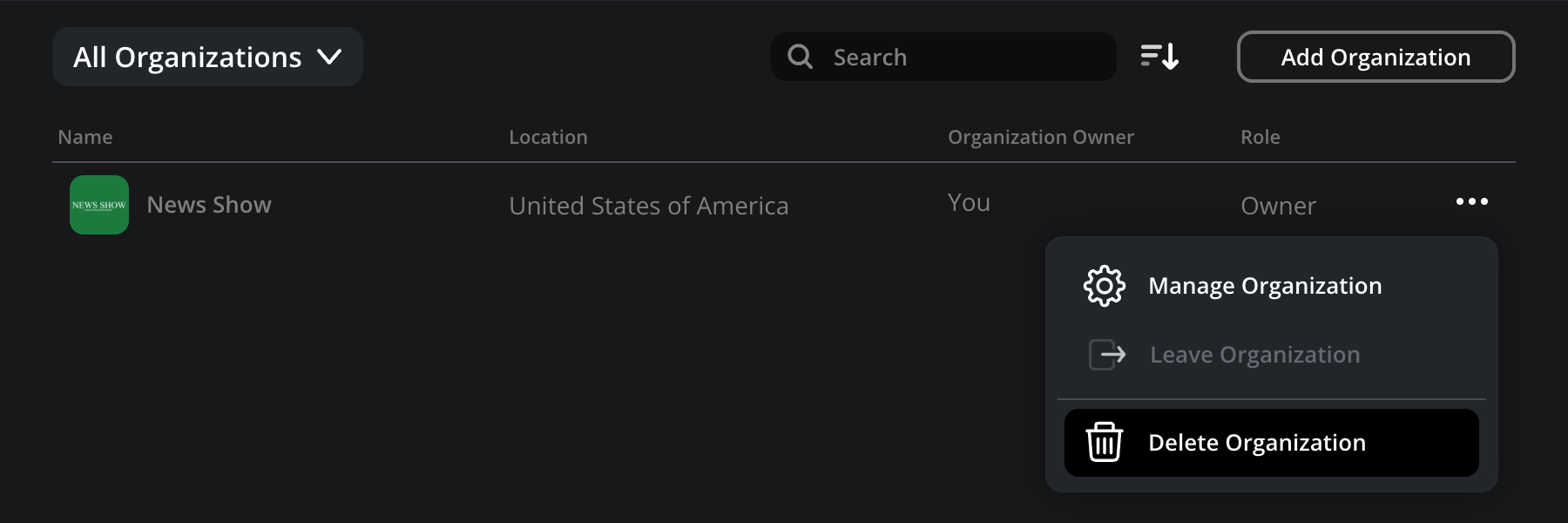
From the ‘organizations’ page, click the three dot menu next to the organization that you want to delete and click ‘delete organization’ to open the ‘delete organization’ window.
 Alternatively, if you are logged in to the organization that you want to delete, go to the ‘settings’ page, open ‘organization settings’ and click the ‘delete organization’ button.
-
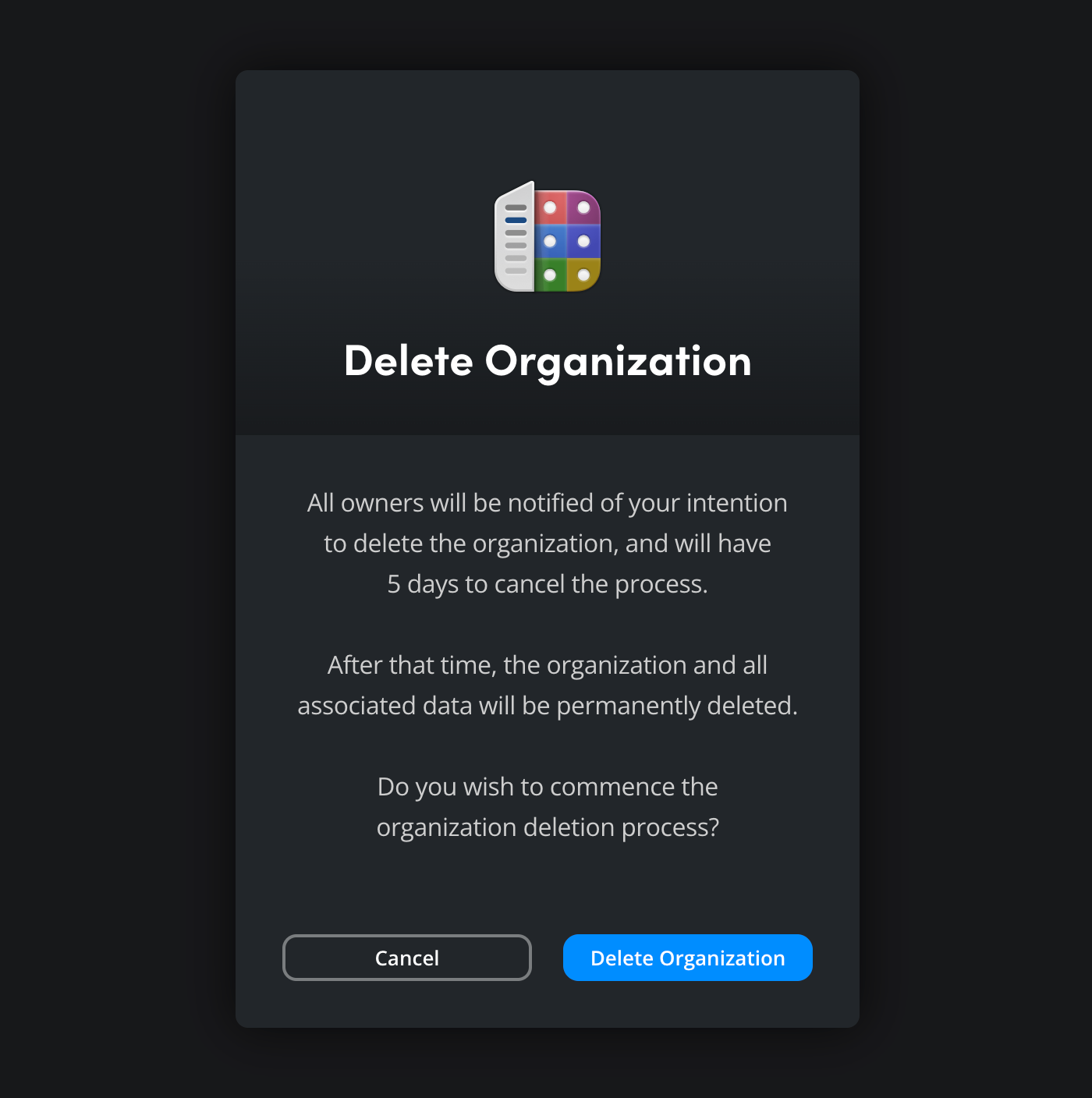
The ‘delete organization’ window will open. If you want to continue with the deletion process, click the ‘delete organization’ button.
An email will be sent to all members in the organization to let them know that the organization has been scheduled for deletion. The organization’s settings will also be removed on the ‘settings’ page to prevent changes.
Canceling the Deletion Process
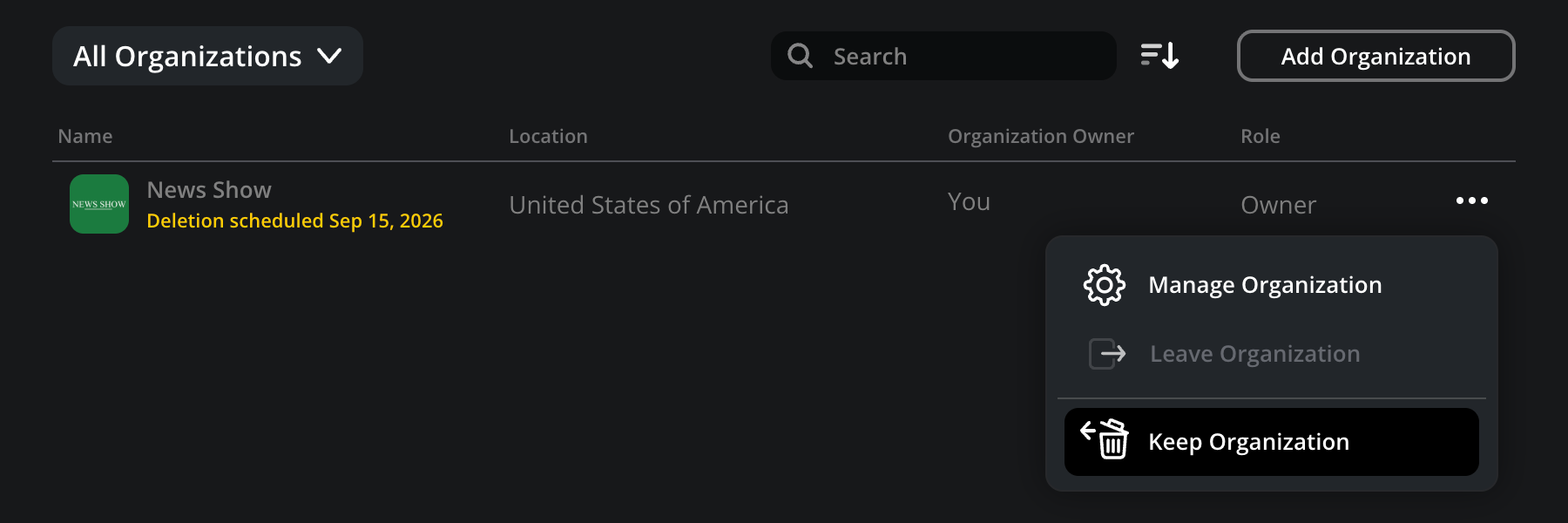
Once the deletion process has been started, you have up to 5 days to cancel the process. To cancel deletion and keep an organization, open the ‘settings’ page and click the 3 dot menu next to the organization that is due to be deleted and click ‘keep organization’.
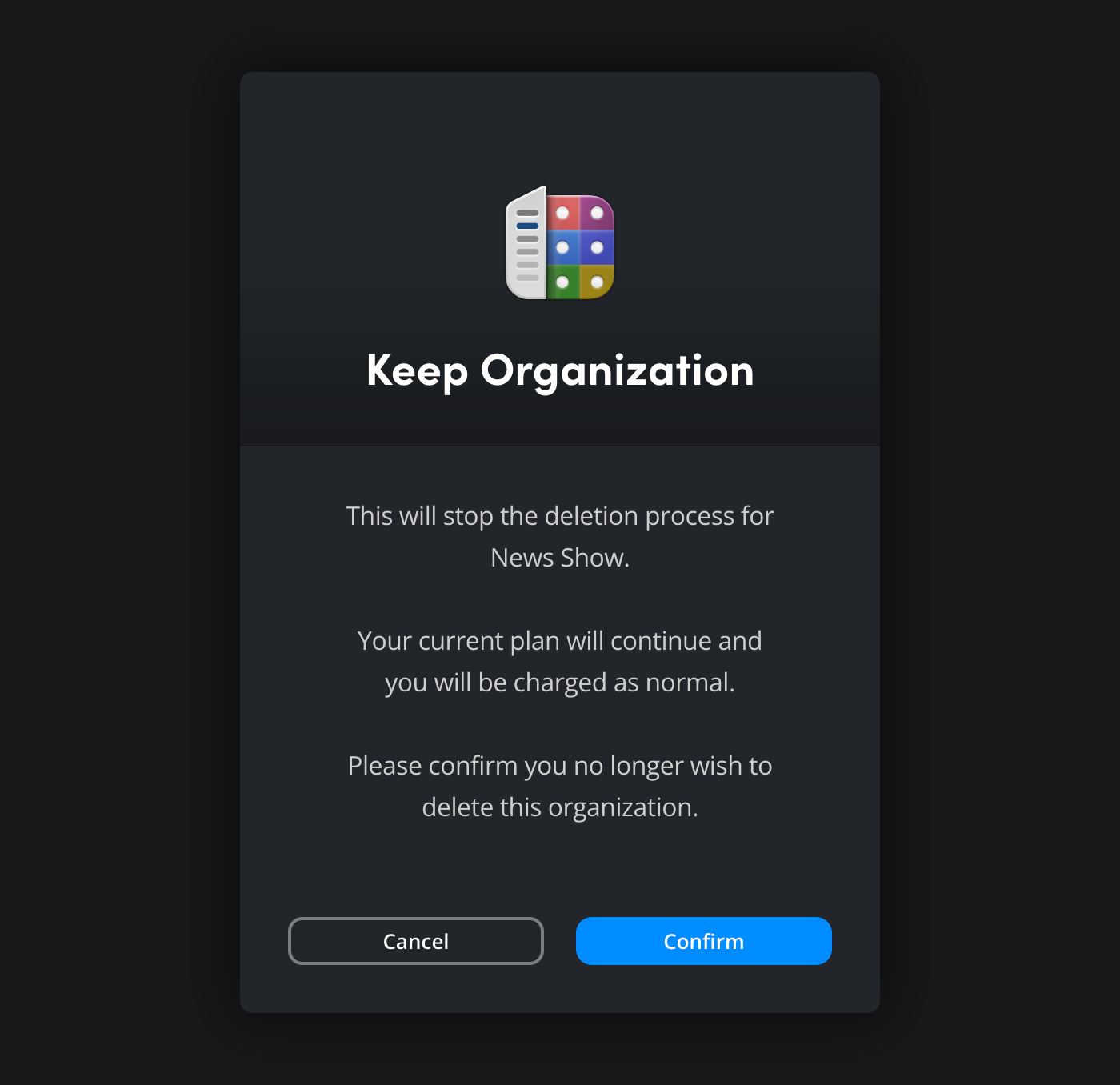
You will be asked to confirm that you want to keep the organization, to continue click ‘confirm’.