
Configuring Inputs and Outputs
The next step in setting up your stream router is to configure the inputs and outputs. This includes setting the names and icons for each connection. You can also choose to assign a connection to another Blackmagic Cloud user, or to an organization member or group.
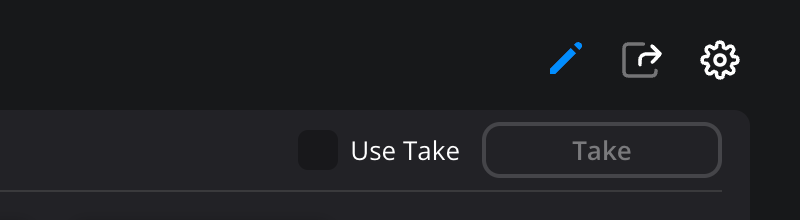
To configure a connection, hover your mouse pointer over an input or output and click the pencil icon. Alternatively, click the pencil icon in the toolbar, then click the input or output that you want to configure.
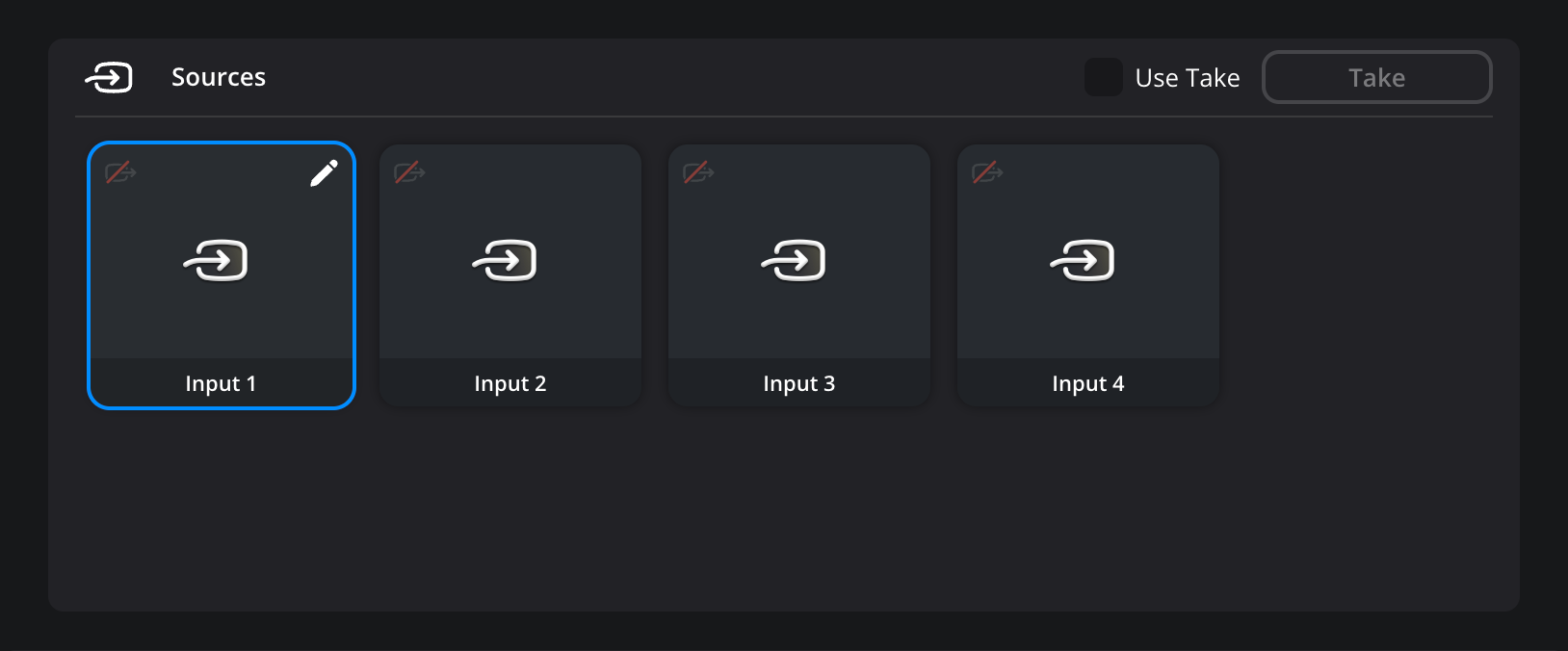
A ‘setup’ panel will open on the right of the screen, displaying the connection’s setup settings.
To set a name and icon:
-
Click in the name field and give the connection a suitable name. For example, ‘remote camera 1’.
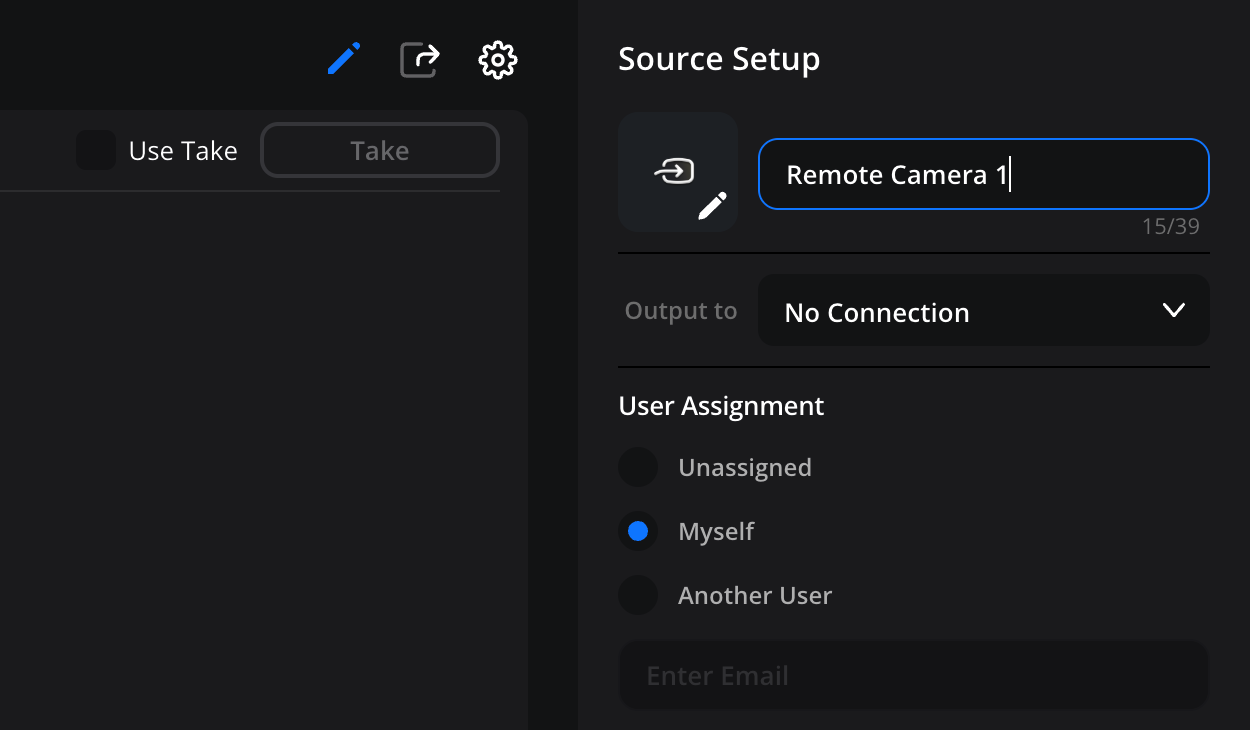
-
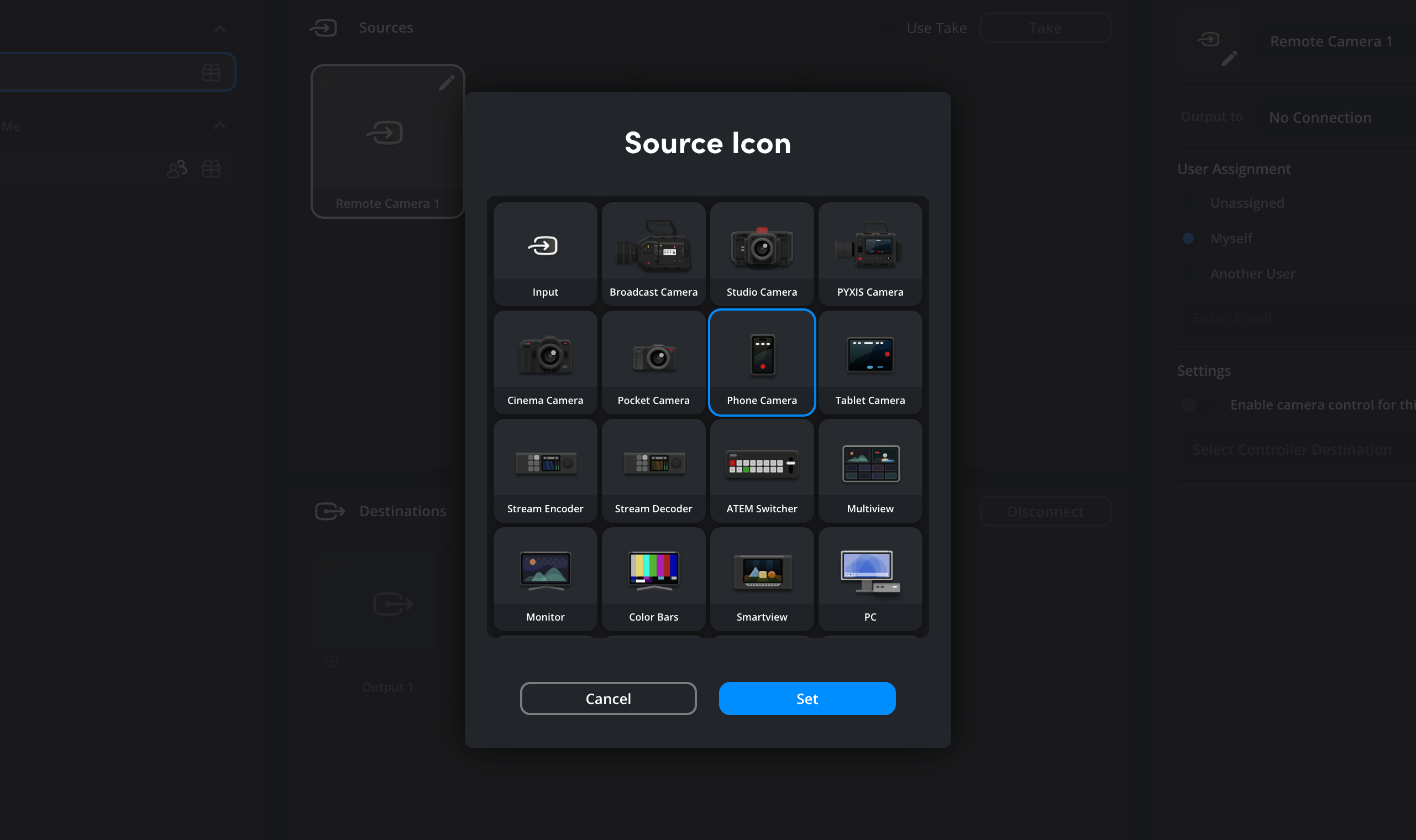
Next, click the pencil icon to the left of the name field to open the icon options, select a suitable icon for the connection and click ‘set’.
User Assignment
The ‘user assignment’ options let you assign an input or output to another Blackmagic Cloud user. These options will vary slightly depending if your stream router is within a personal or organization profile.
Personal Profile
If your stream router is in your personal profile, all the inputs and outputs will automatically be assigned to you.
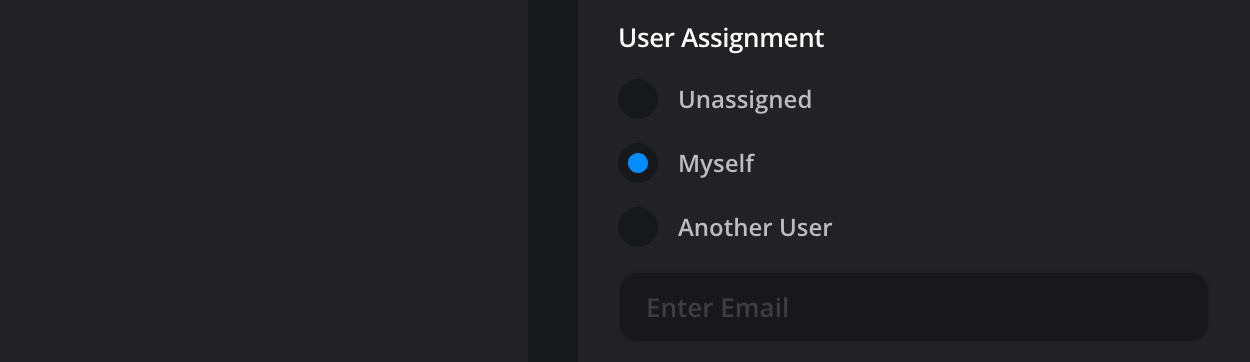
You can assign a connection to another user by entering their Blackmagic Cloud email address in the ‘another user’ field and clicking the ‘save’ button at the bottom of the setup window. For example, you might want to assign an input to a remote camera operator who is using the Blackmagic Camera App.
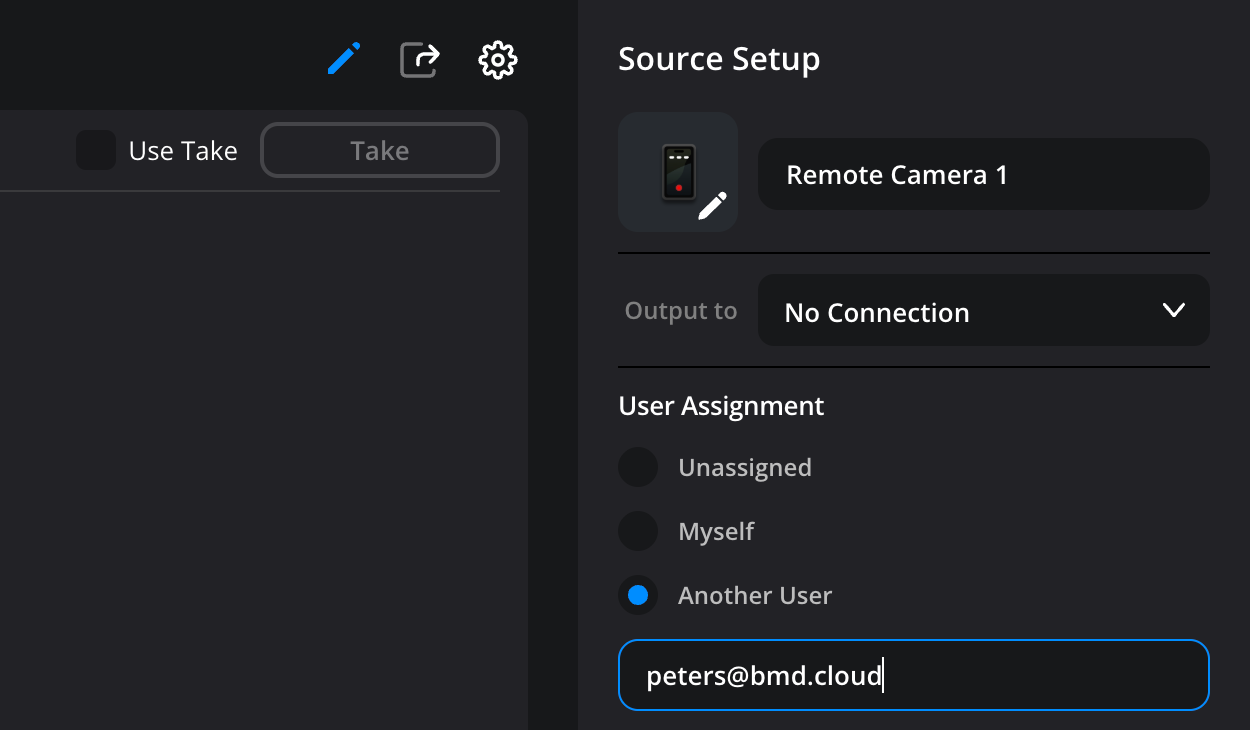
The new user will receive an email and a notification when they log into their Blackmagic Cloud account. They will then be able to connect to the router’s input when they log into the Blackmagic Camera App. More information on connecting to a stream router input or output is provided in the next section.
If you want to remove a user from a connection, select ‘unassigned’ and click ‘save’.
Organization Profile
When a stream router is created in an organization profile, each connection is unassigned by default.
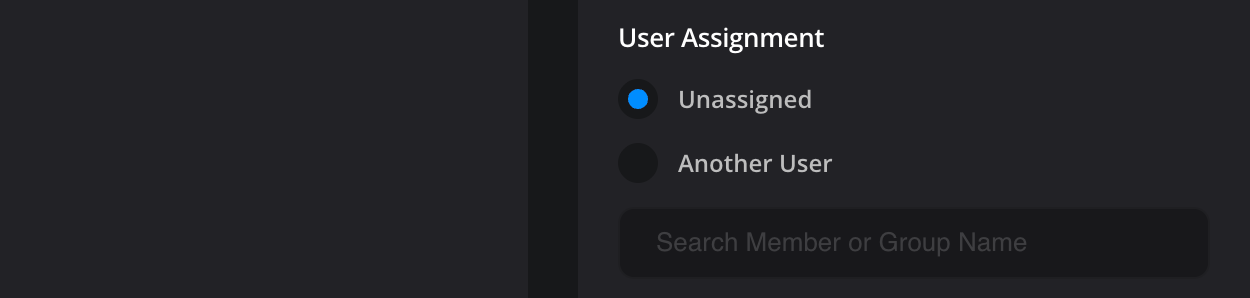
Stream router connections within an organization can be assigned to organization members or to a group. To assign a connection, select ‘another user’ and type in the user’s name or the name of a group. Once you have assigned an input or output, click the ‘save’ button at the bottom of the ‘setup’ panel.
When you have finished configuring your connections, click the blue pencil icon in the toolbar to close the connection’s setup settings.
Configuring a Streaming Output
Streaming outputs let you send a stream from a Blackmagic Cloud Stream Router to platforms such as YouTube, Instagram and Twitch.
To configure a streaming output:
- Choose the streaming output you want to configure by clicking its pencil icon.
-
In the ‘destination setup’ panel, give the streaming output a name.
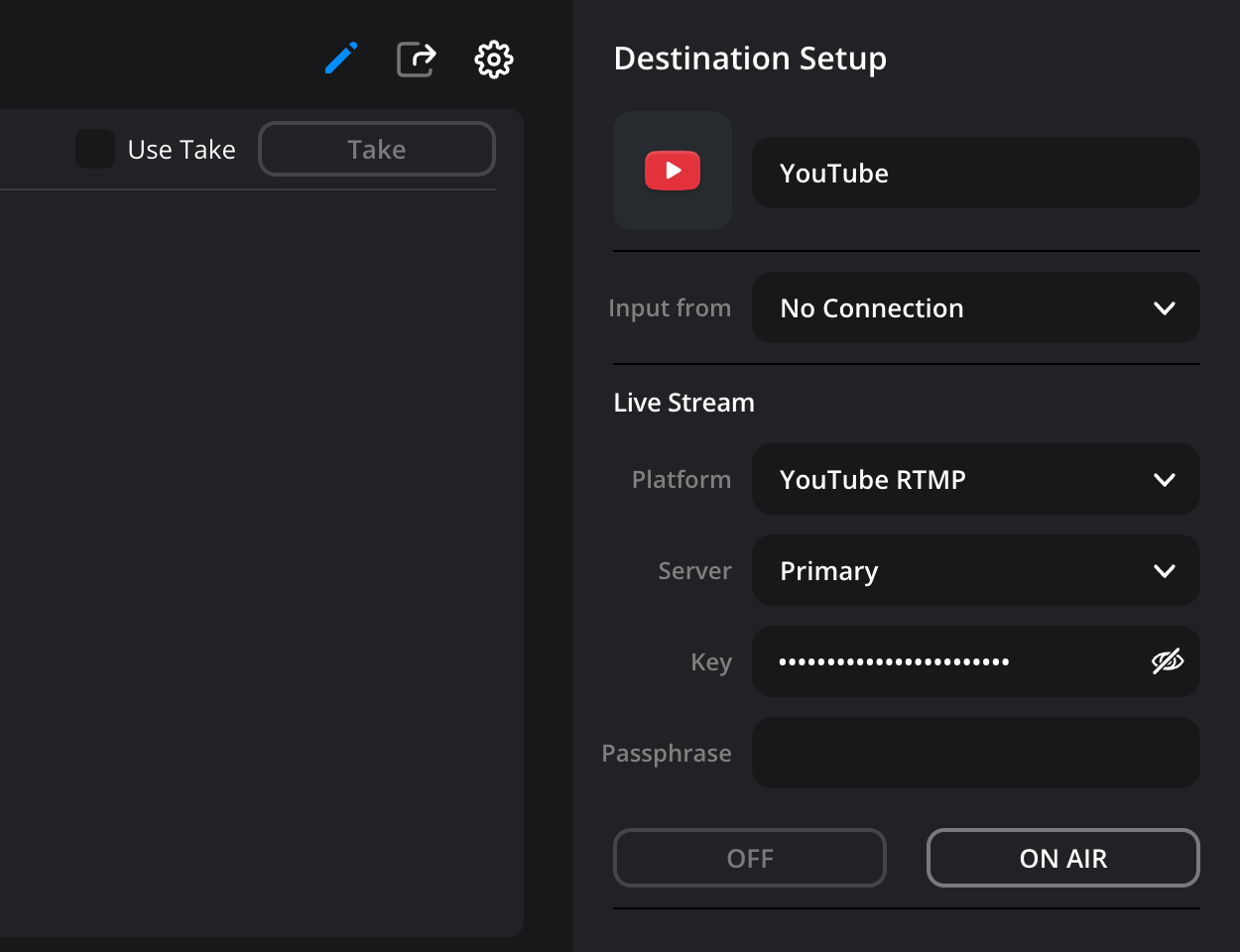
- In the ‘live stream’ settings, select a platform from the list. When you select a platform, its logo will automatically be set as the streaming output’s icon.
- Select a server and enter the key and passphrase for your streaming platform’s account. Click ‘save’.
Streaming Custom URLs
If you need to stream to a custom URL, you can contact Blackmagic Design support by going to https://www.blackmagicdesign.com/support/ and clicking ‘send us an email’.

