
Adding Members to an Organization
Adding members to your organization makes it easy to manage access to projects, storage and DaVinci Resolve rental licenses. All you need to invite someone to your organization is their email address. If they don’t already have a Blackmagic Cloud account, they will be prompted to create one when they receive your invitation.
To add a member to an organization:
-
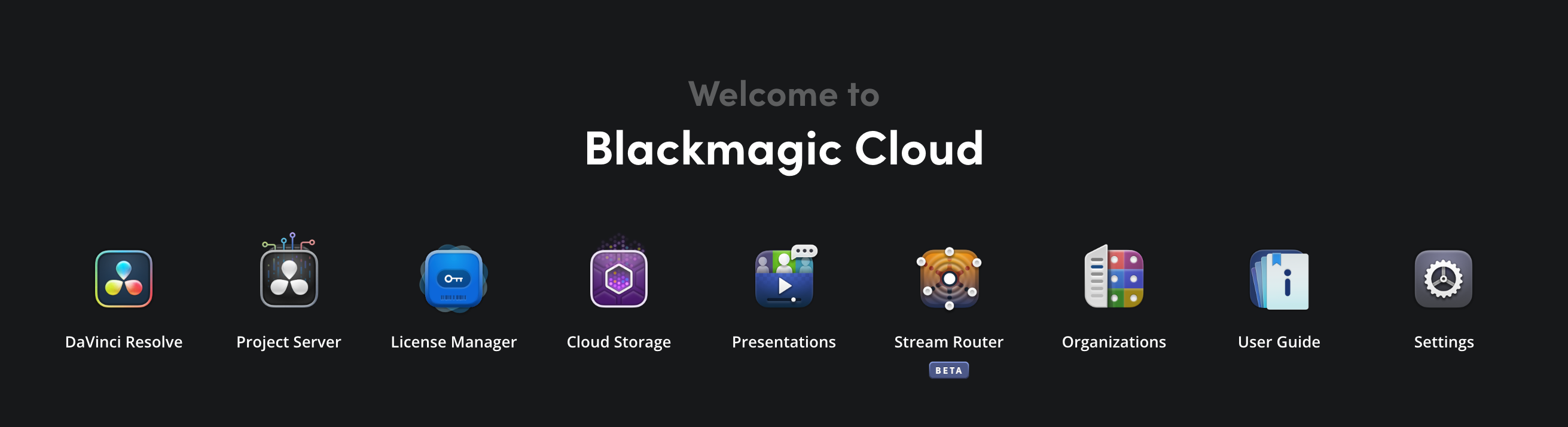
Sign in to the organization that you want to add members to. Click the ‘settings’ icon in the Blackmagic Cloud Dashboard.
-
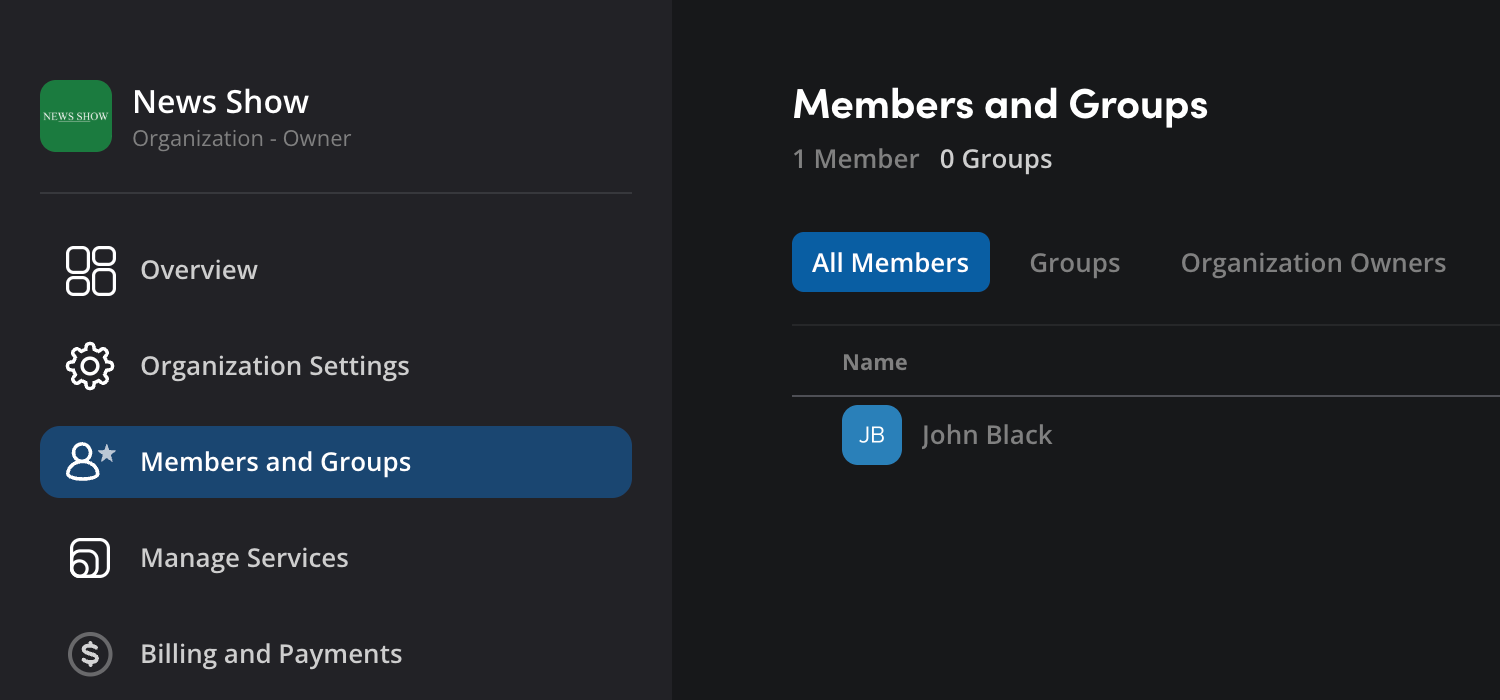
In the ‘settings’ page, click ‘members and groups’ in the left hand panel.
-
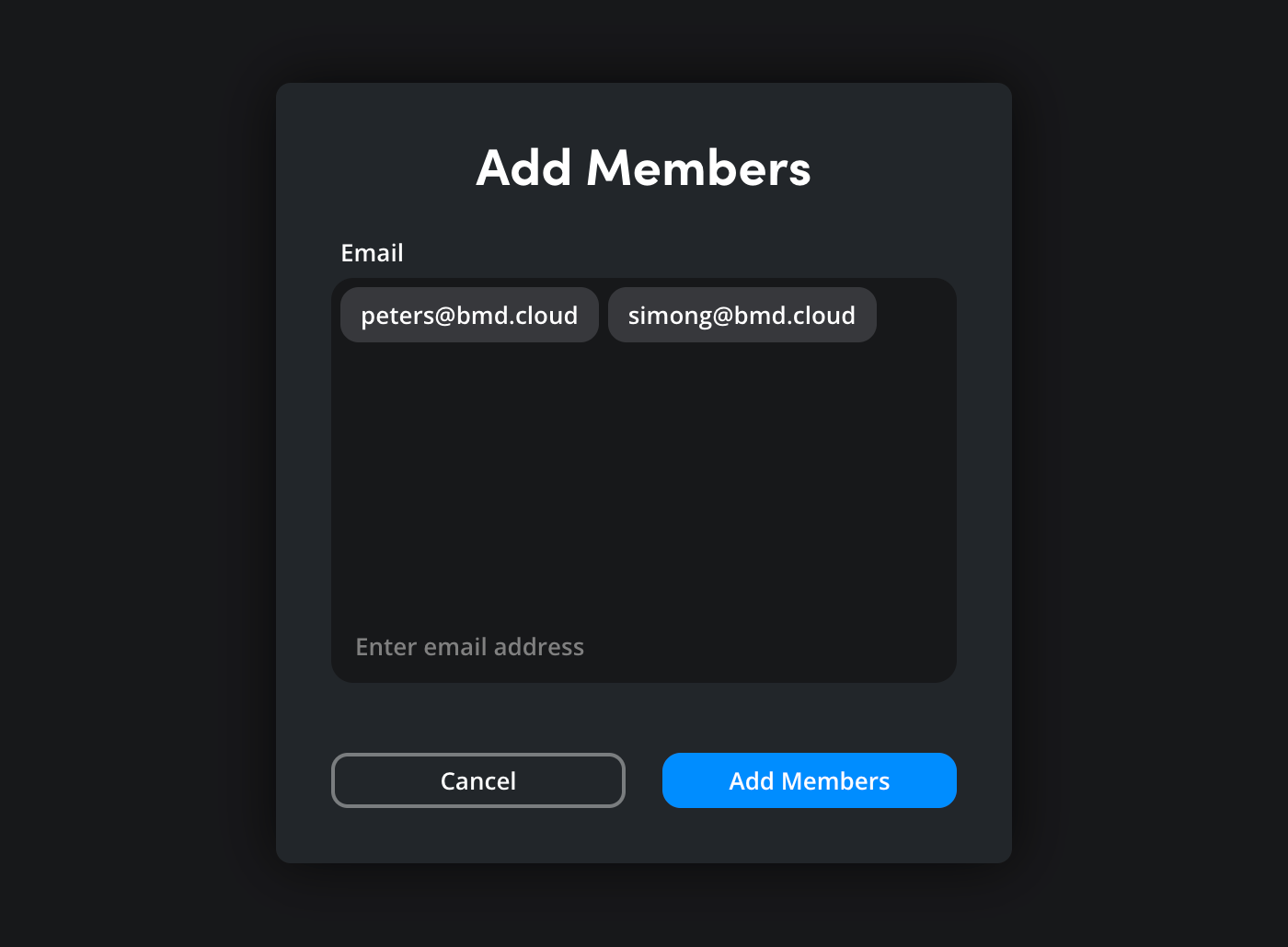
Click the ‘add members’ button. The ‘add members’ window will open. Type the email address of the Blackmagic Cloud user that you want to add to your organization. If you want to add more than one user, you can enter multiple email addresses by pressing the ‘enter’ key after each one.
-
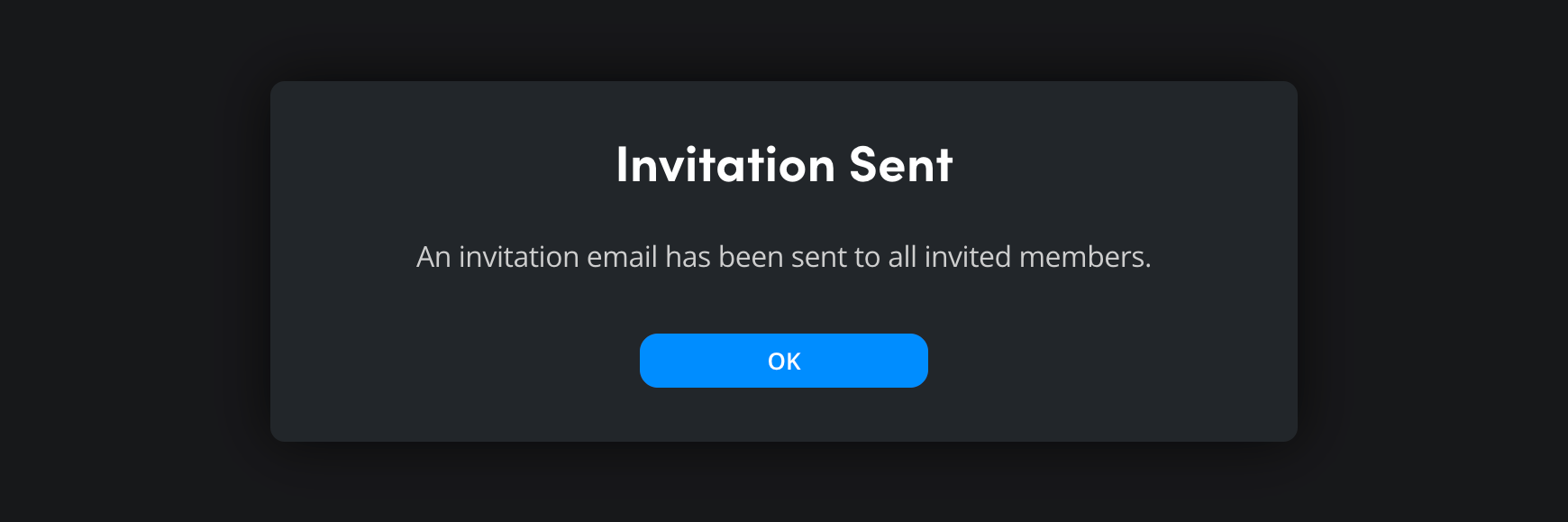
Click the ‘add members’ button. A message will be displayed confirming that an invitation email has been sent.
New members will be sent an email invitation to join the organization. They will also see an invitation when they are signed in to their Blackmagic Cloud account.
You can see each new member’s invitation status in the ‘all members’ tab on the ‘members and groups’ page, before an invitation is accepted, ‘member pending’ will be displayed in the ‘name’ field. Once an invitation has been accepted, the member’s full name will be displayed.
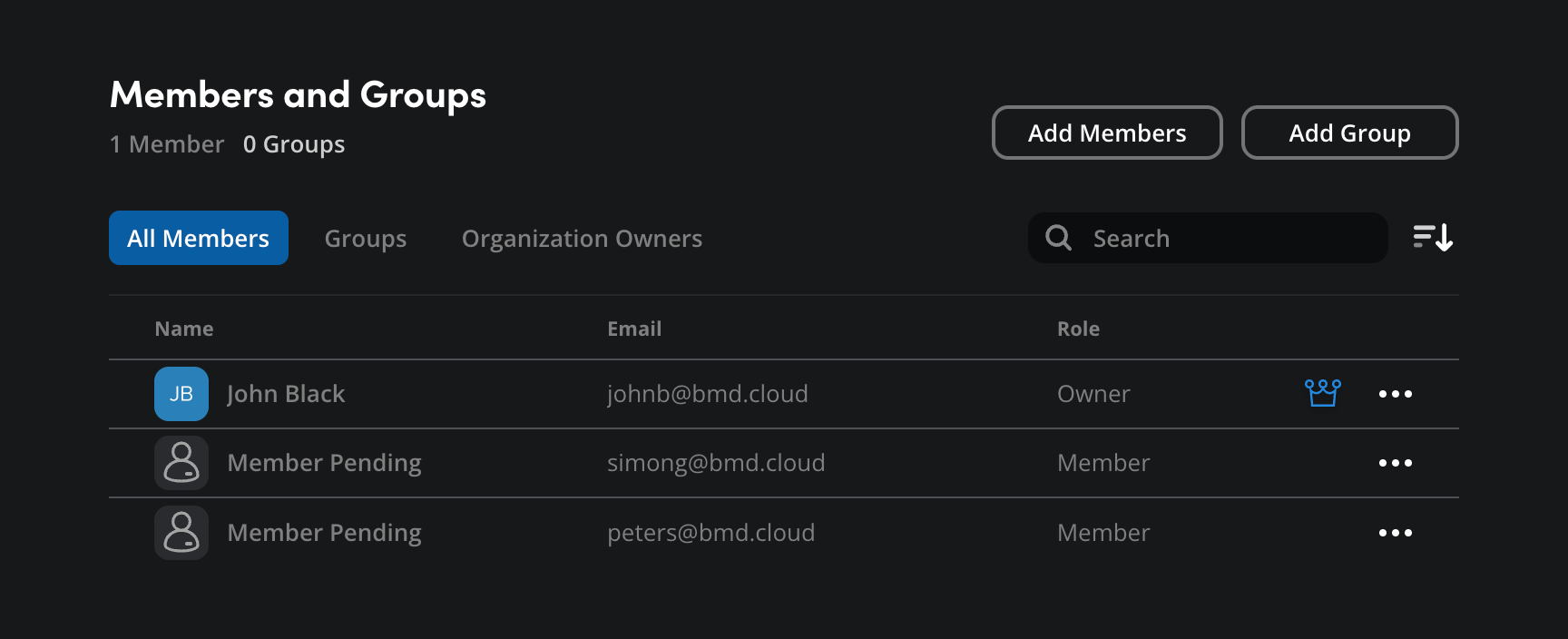
When a user accepts an invitation to an organization, they are automatically assigned a ‘member’ role. If you want to give a ‘member’ administration privileges to an organization, for example to allow them to add new members and access billing, you can do so in the ‘all members’ tab of the ‘members and groups’ page. More information is provided in the ‘organization management’ section.
Resending an invitation
If you need to resend an invitation, you can do so by clicking the 3 dot menu next to the invited member’s email address and clicking ‘resend invitation’.
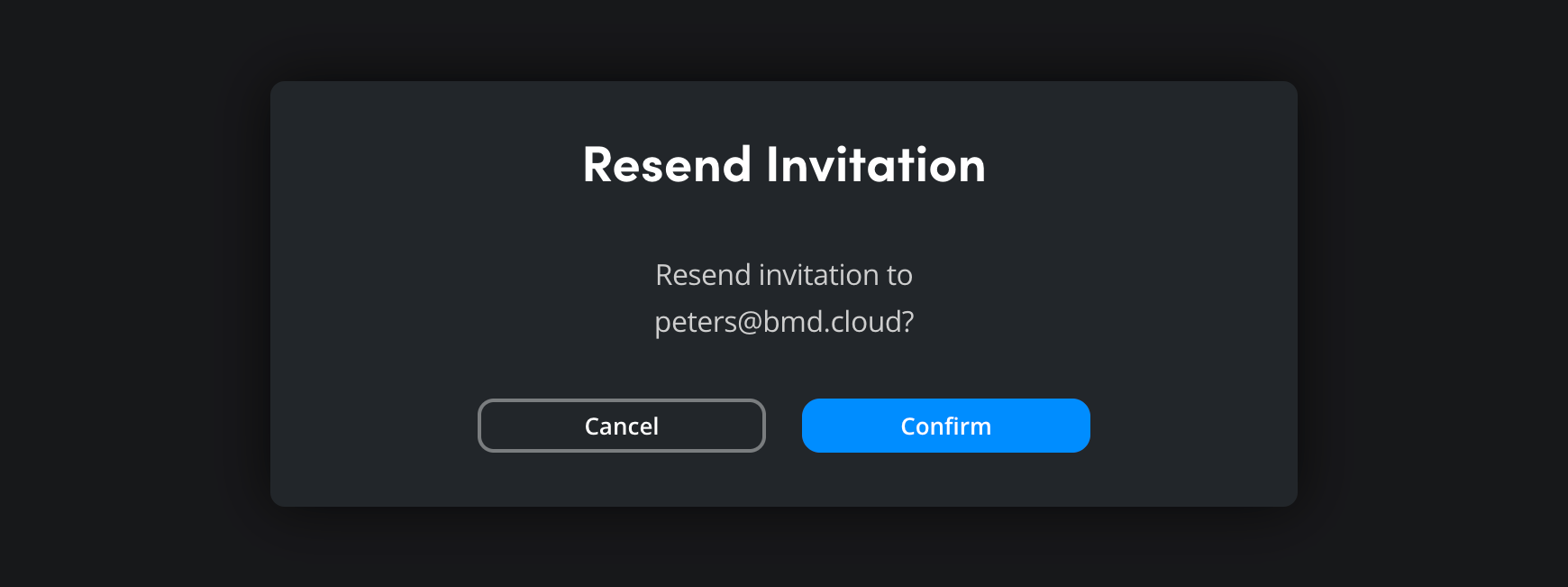
A confirmation window will open to confirm that a new invitation has been sent.
Removing an Invitation
You can remove an invitation before it has been accepted. For example, you may want to remove an invitation if you have entered an incorrect email address. To remove an invitation, click the 3 dot menu next to the invited member’s email address and select ‘remove invitation’.
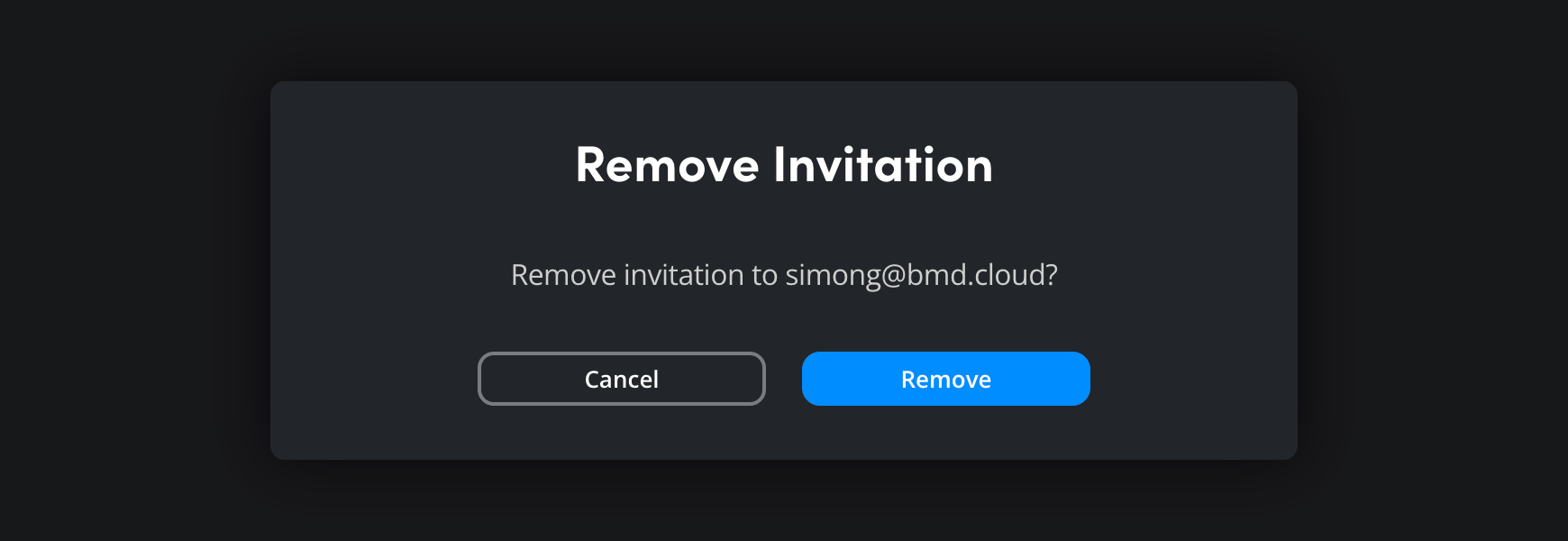
A confirmation message will be displayed. The invited user will no longer see an invitation in their Blackmagic Cloud account. If they click the link in the email invitation, they will be taken to Blackmagic Cloud, but not added to the organization.

