Organization Settings
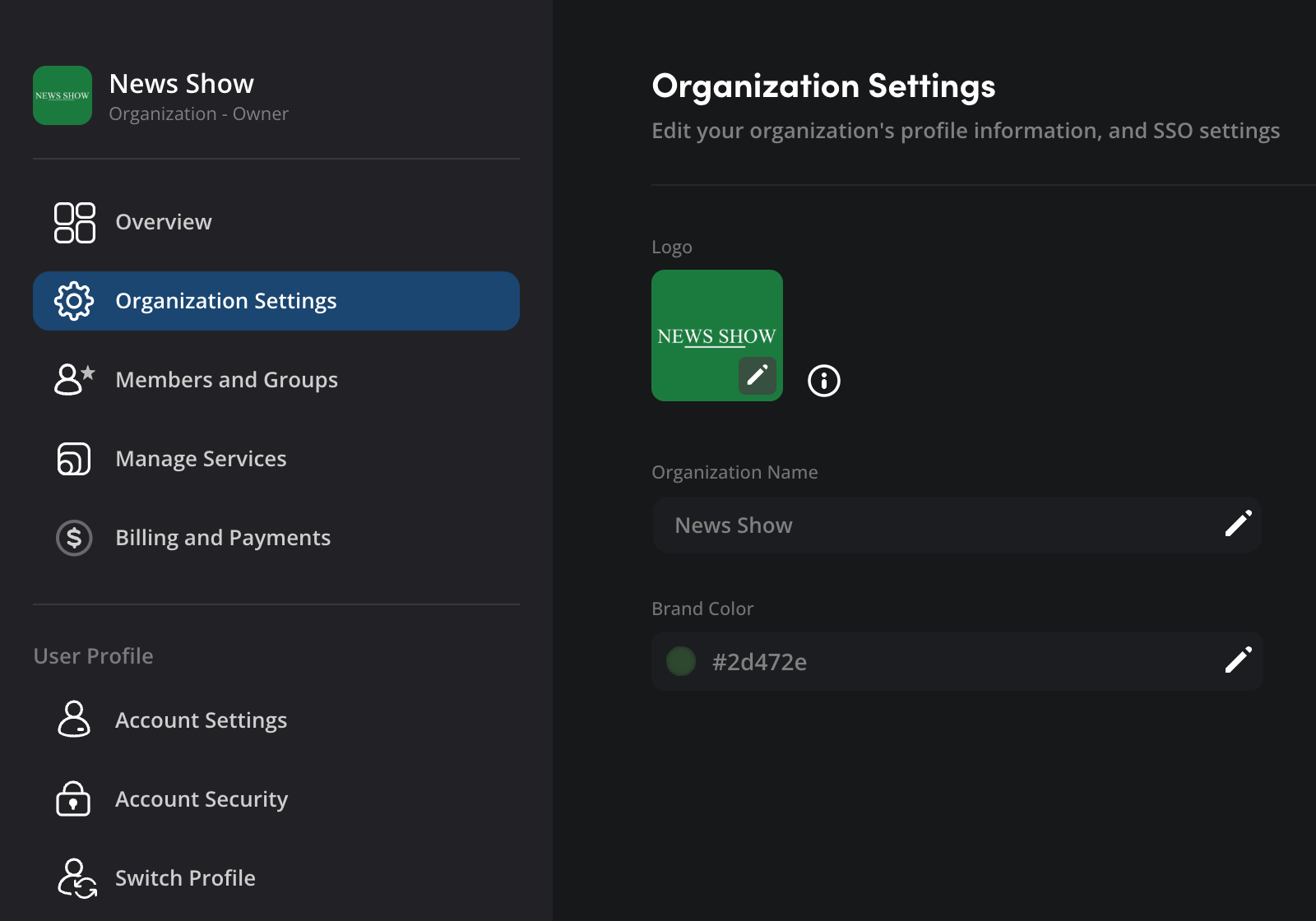
After creating an organization, you might want to customize some settings. The ‘organization settings’ include options to add your own logo, set a brand background color, plus change the organization’s name.
To change your organization’s settings:
-
Click the ‘settings’ icon in the Blackmagic Cloud dashboard.
-
In the ‘settings’ page, click ‘organization settings’ in the sidebar.
-
In the ‘organization settings’ page, upload a custom logo, change the organization name or add a brand color by clicking the pencil icon. If you are adding a custom icon, we recommend a minimum size of 480 x 480px at a 1:1 aspect ratio.
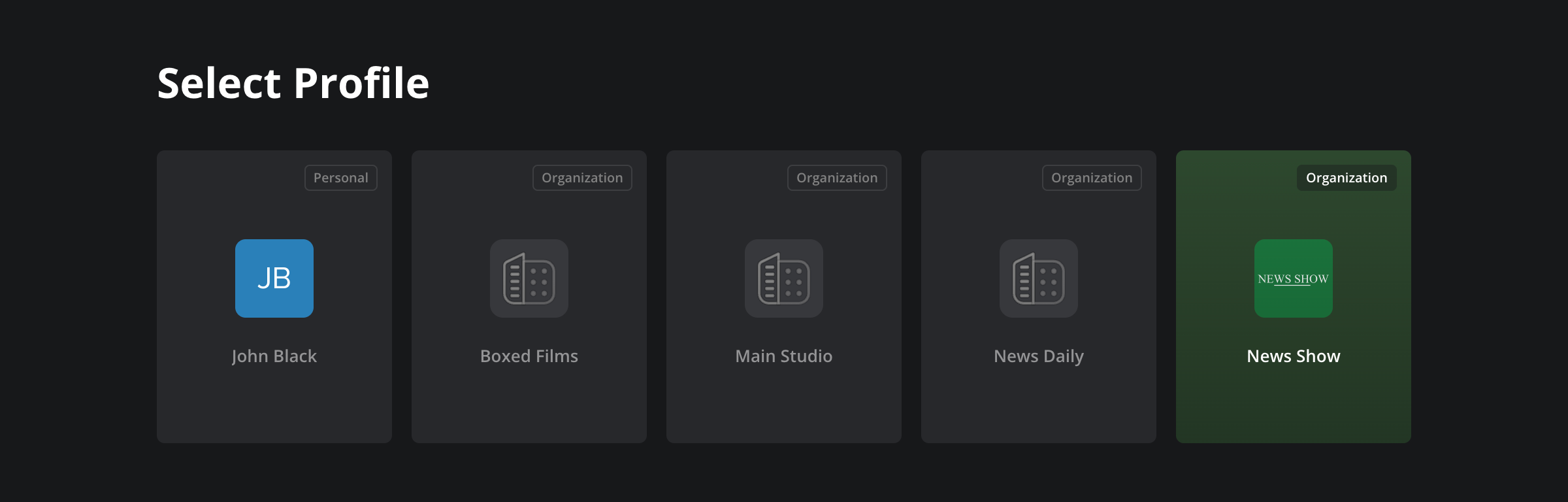
Once you’ve updated your organization’s settings, click your avatar and select ‘switch profile’. Any changes you have made will be displayed on the ‘select profile’ page.