
Starting a Presentation
All users in a presentation can view, add markers, comment and annotate any of the clips in a presentation independently of each other. Owners and members with the correct permissions can use the ‘sync player’ option to sync everyone’s viewer to their own. This means everyone can watch the same clip at the same time.
Selecting a Clip
To select a clip to view, click on the clip’s thumbnail in the ‘clips’ tab in the right hand sidebar. The clip will load in the viewer ready for you to view.
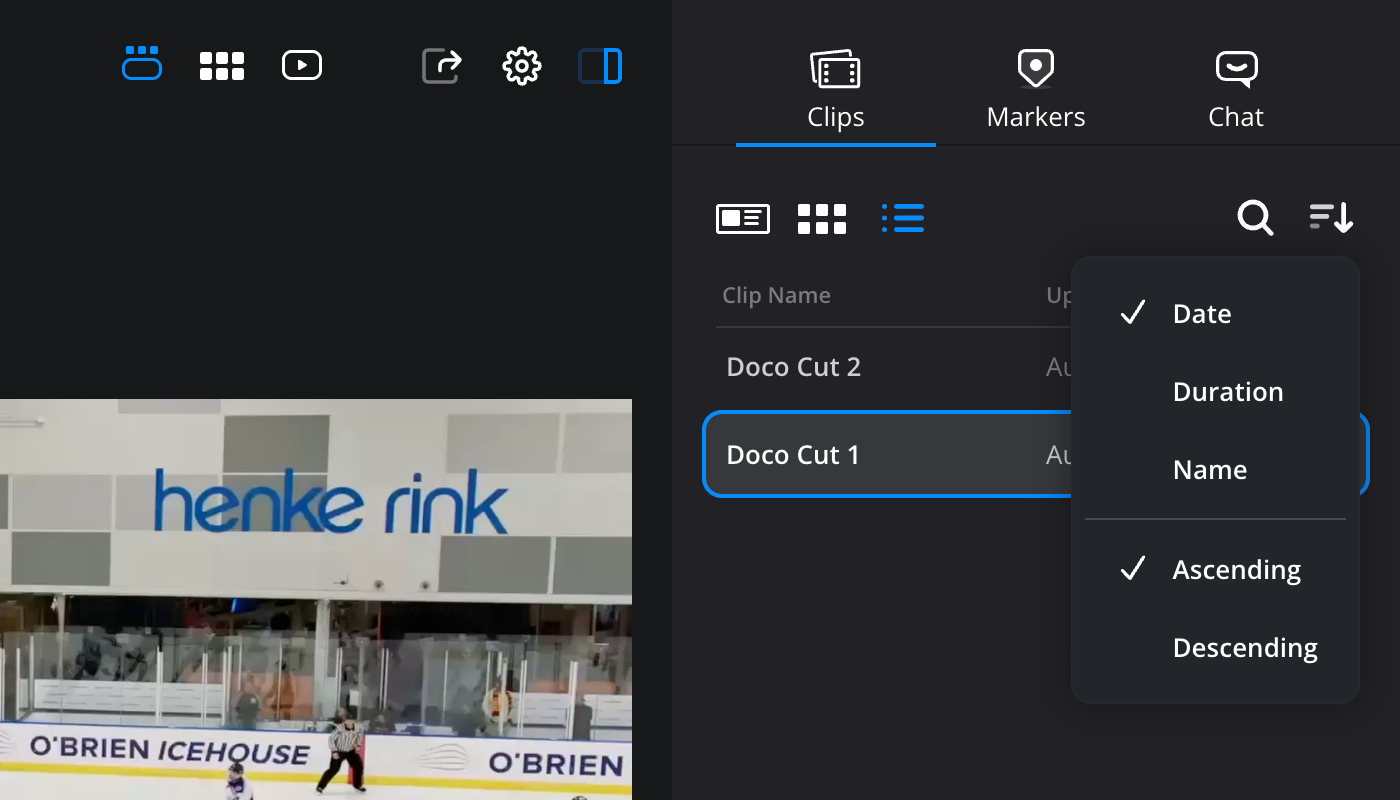
Clips can be sorted by date, duration or name and arranged in ascending or descending order by opening the ‘sort’ menu in the ‘clips’ tab. You can also search for a clip by name by clicking the search icon.
The three icons in the top left of the ‘clips’ tab let you switch between metadata, thumbnail and list views. Hovering your mouse over a clip in metadata or thumbnail view allows you to scrub through the video.
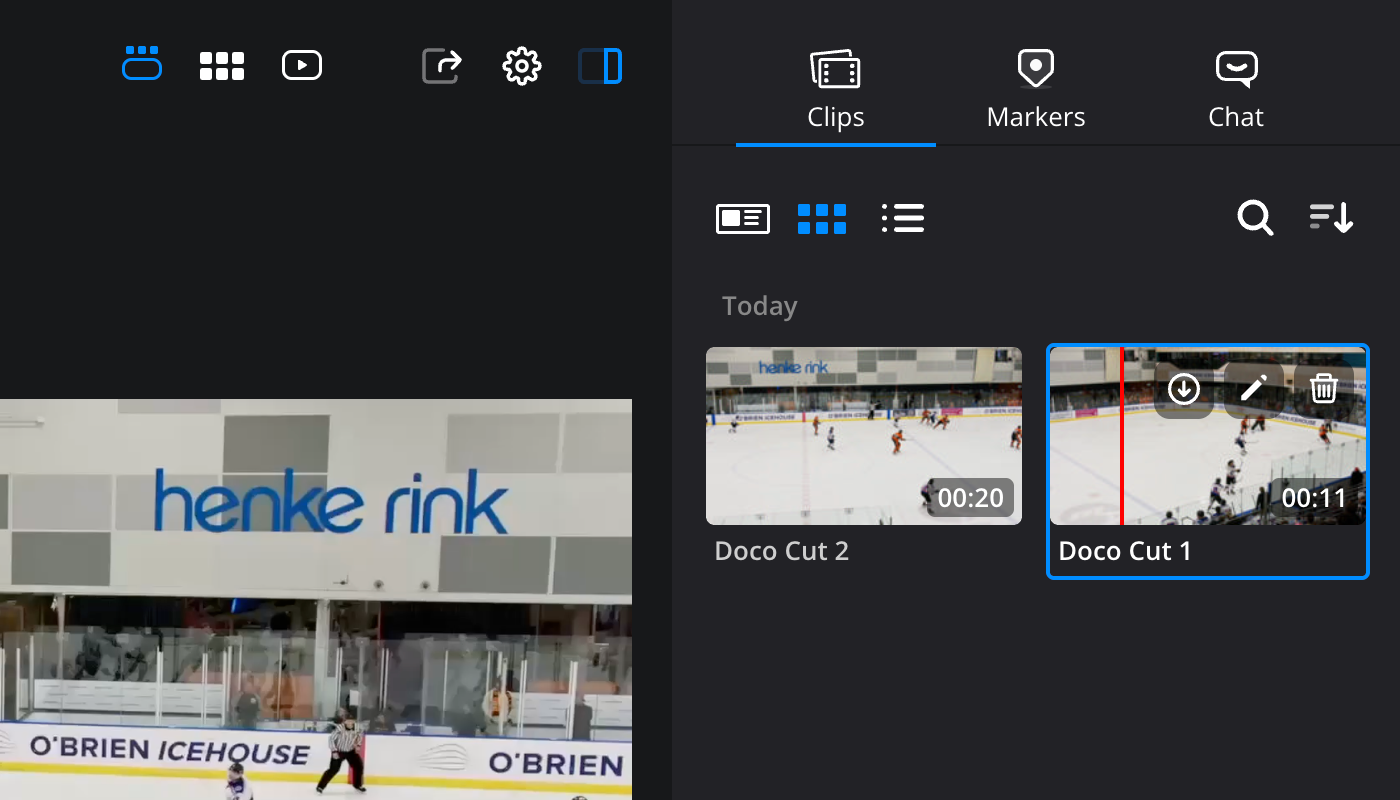
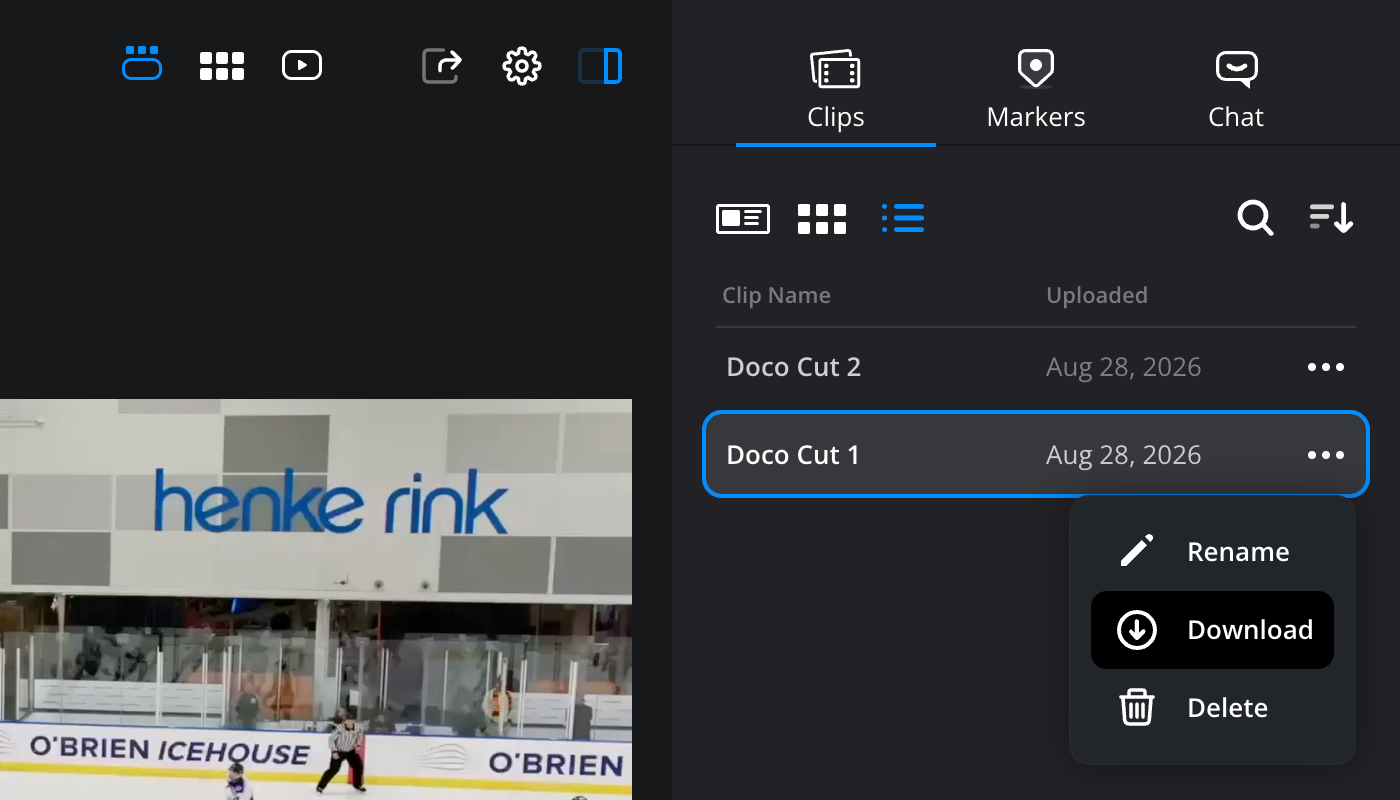
If you are a presentation owner or a member with the correct permissions, you can also rename, download and delete clips by clicking the icons when in metadata or thumbnail view. In list view, you can access these options by clicking the 3 dot menu next to the clip.
Starting a Sync Session
If you are a presentation owner, or a member with the correct permissions, you can use the ‘sync player’ option. When the ‘sync player’ option is enabled, everyone’s viewer will be synced to the same clip at the same time.
To sync a clip:
-
Select a clip from the ‘clips’ tab for everyone to view.
-
When you are ready to play the clip, click the ‘sync player’ tab at the bottom of the viewer. All the other users in the presentation will now see the selected clip and a message will be displayed to let them know a sync session has been started.
 When a sync session is in progress, only the person who started the sync will be able to control clip playback. The playback controls for everyone else will be grayed out.
 -
To end a sync session, simply click the ‘stop sync’ button.


