Additional Stream Router Settings
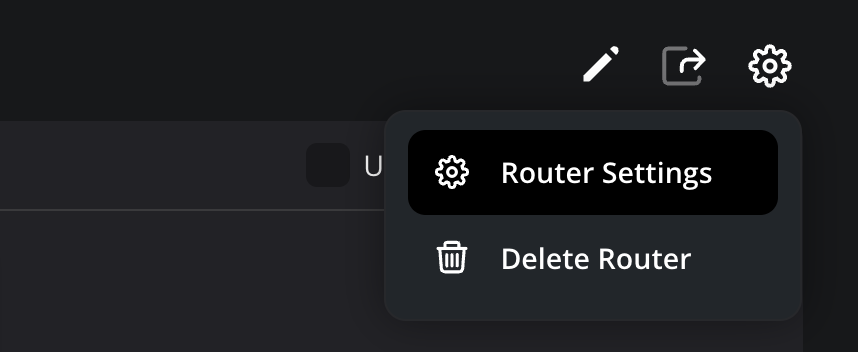
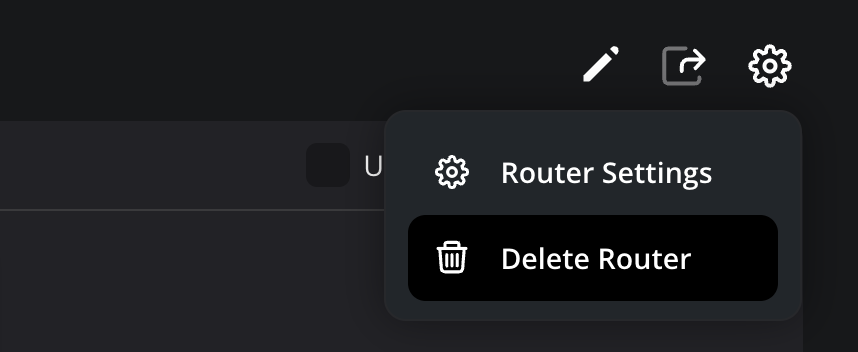
Click the settings cog in the top right corner of the screen to open your stream router’s additional settings. These options let you rename or delete your stream router, change the region of a free trial stream router and leave a shared stream router.
Router Settings
Click ‘router settings’ to change your stream routers name or to change the region of a free trial stream router.
Changing a Stream Router name
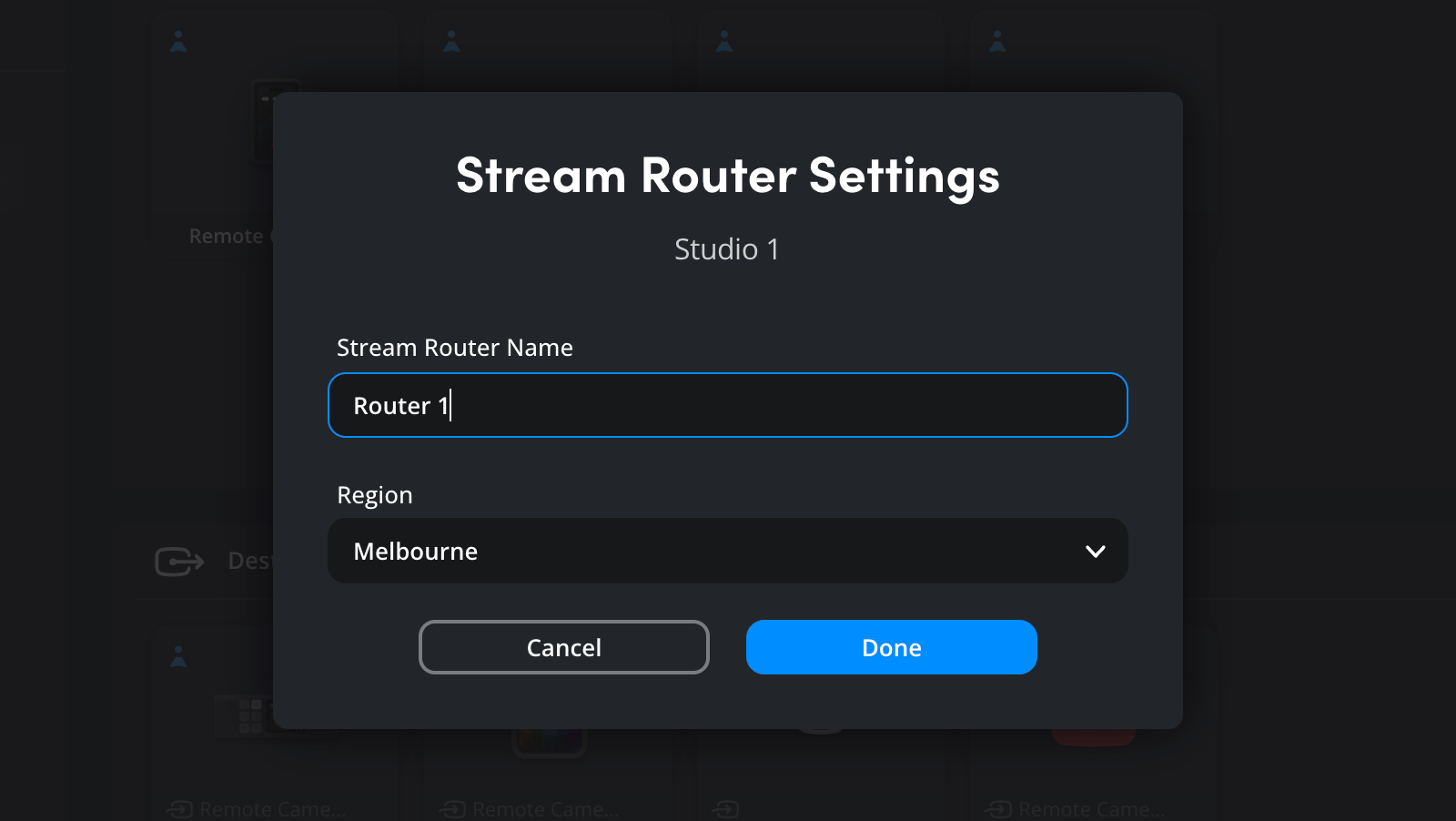
To change the name of a stream router, enter a new name in the ‘stream router name’ field and click the ‘done’ button. It’s worth noting that this will also change the name in the list of stream router sources or stream router destinations in any connected products.
Changing the Region of a Free Trial Stream Router
If you are using a free trial stream router, you can change the region by selecting a different region and clicking the ‘done’ button.
Adding and Removing Router Inputs and Outputs
If you are using a paid Blackmagic Cloud Stream Router you can add and remove inputs and outputs as your requirements change.
Before adding inputs or outputs to your stream router you will need to make sure you have purchased additional outputs in the ‘manage services’ section of your account settings.
Adding Inputs and Outputs
- Open the stream router you want to add inputs or outputs to, click the settings icon at the top right of the page and select ‘router settings’.
- In the ‘connections’ panel of the ‘stream router settings’ window add the required number of inputs, standard stream outputs and streaming outputs.
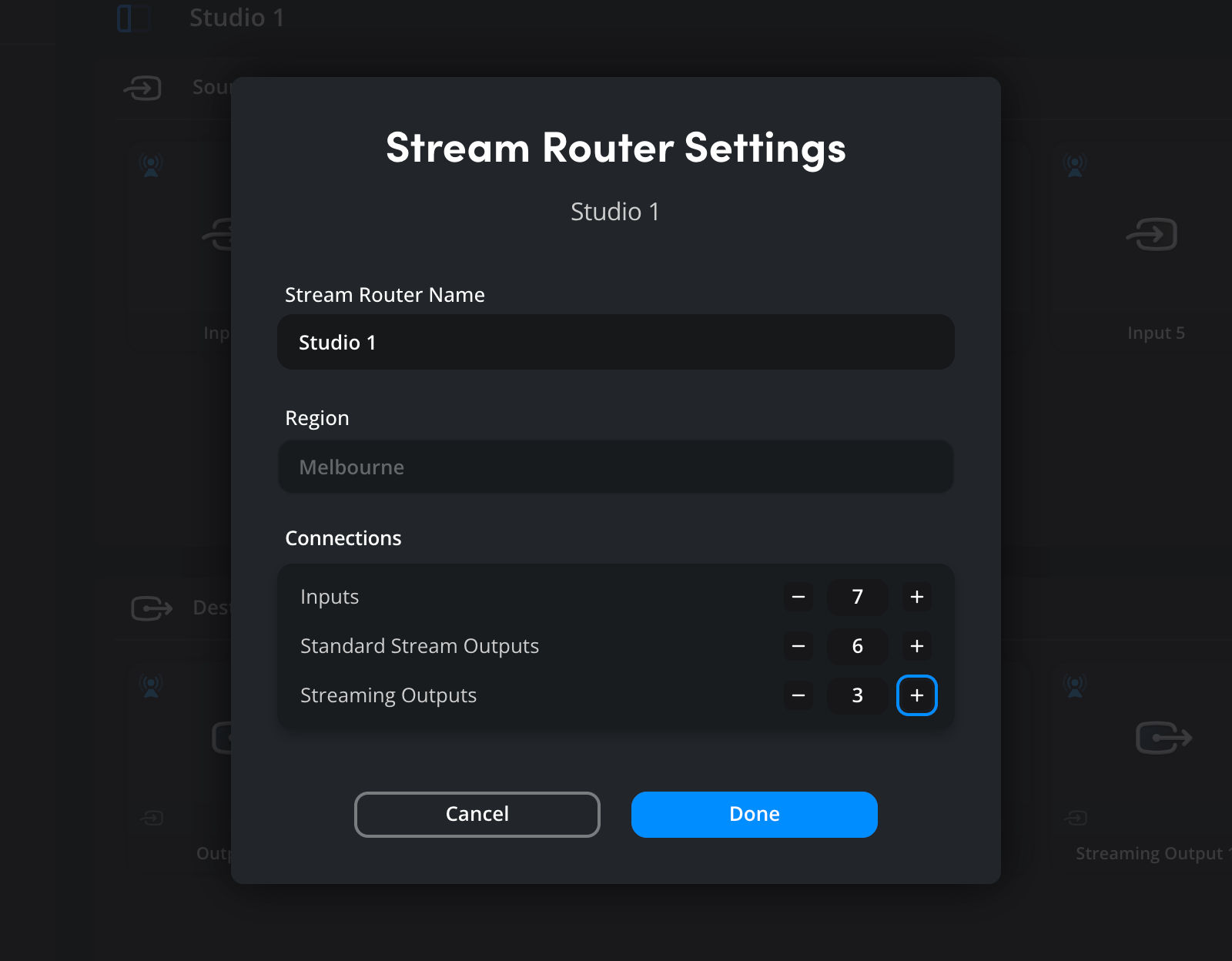
- Click ‘done’ to close the ‘stream router settings’ window. Your stream router will automatically update with the new inputs and outputs.
Removing Inputs and Output
- Open the source or destination ‘setup’ panel by clicking the pencil icon on an individual input or output, or the pencil icon in the top right of the page.
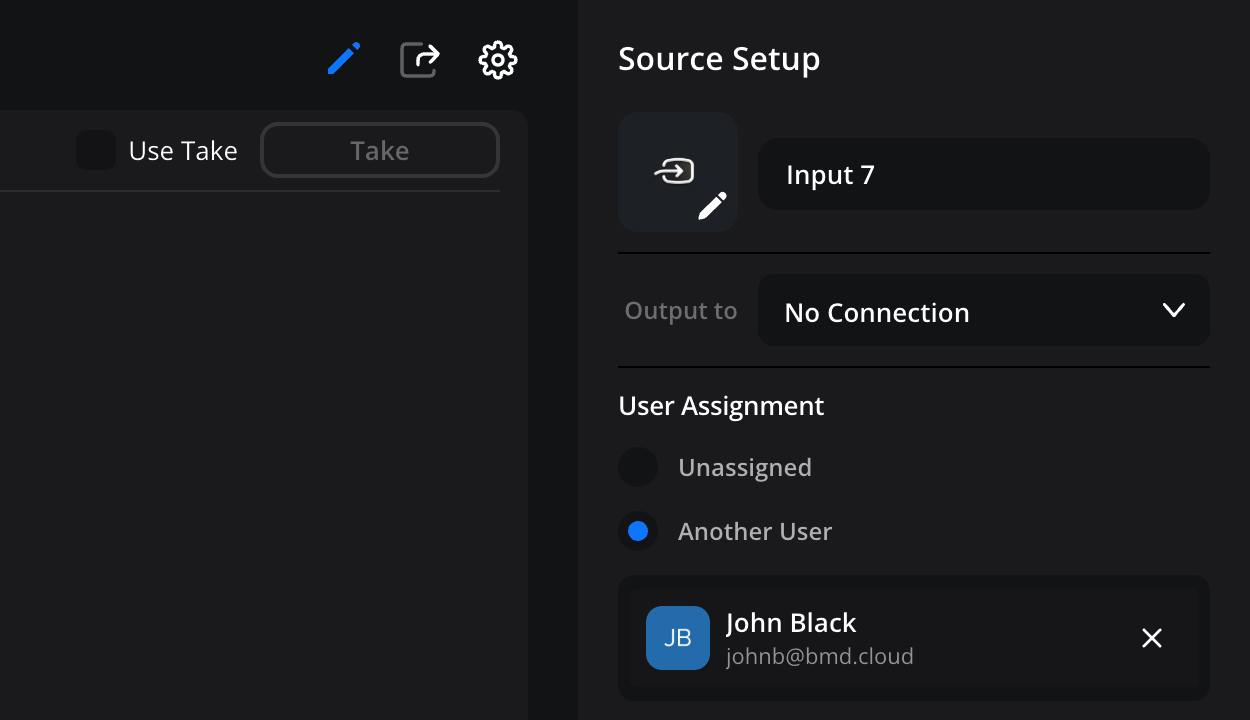
- In the source or destination ‘setup’ panel set each input or output that you want to remove to ‘unassigned’ and click ‘save’.
- Click the settings icon at the top right of the page and select ‘router settings’. In the ‘connections’ panel of the ‘stream router settings’ window remove the required number of inputs, standard stream outputs and streaming outputs and click ‘done’.
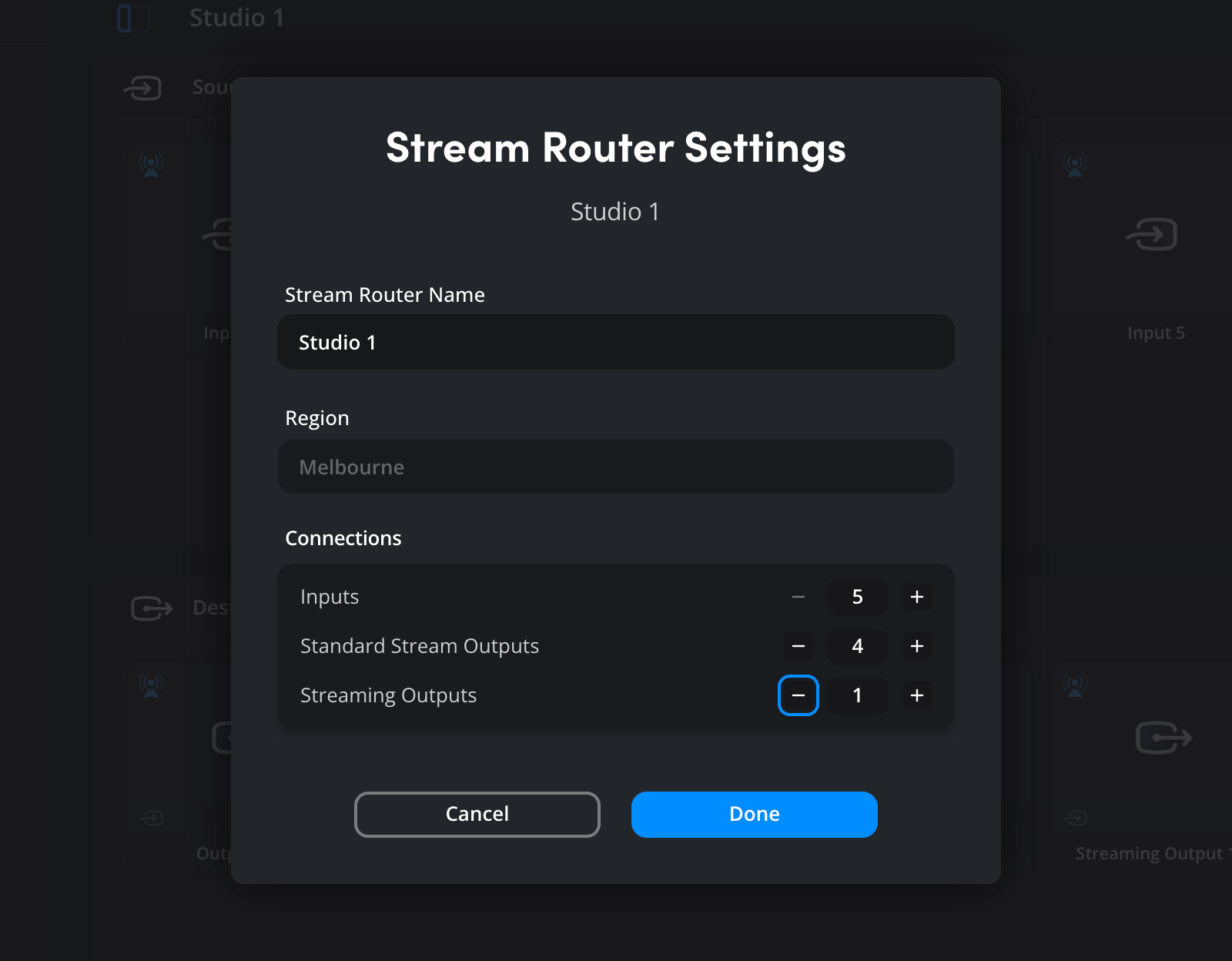
Your Blackmagic Cloud Stream Router will update with the revised number of inputs and outputs. If you want to remove unused outputs from your Blackmagic Cloud account, you can do so in the ‘manage services’ section of your accounts settings.
Leaving a Shared Stream Router
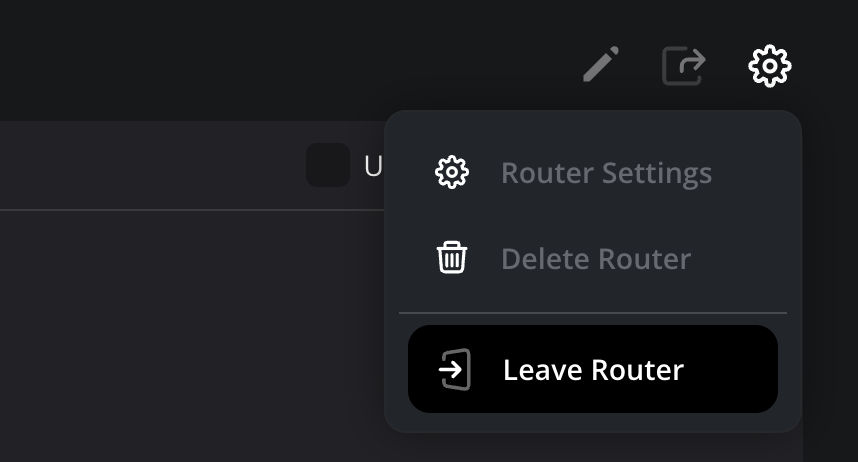
If you want to leave a shared stream router, you can do so by selecting ‘leave stream router’ from the menu.
To confirm your choice click ‘leave’.
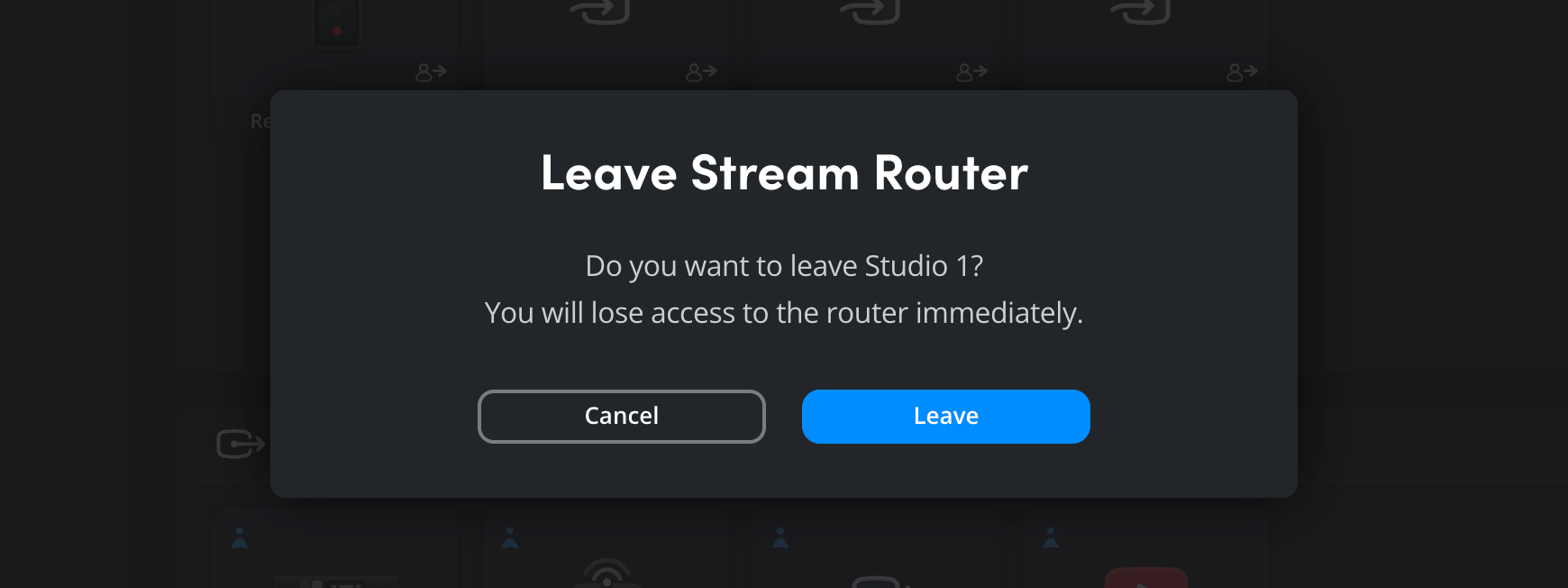
The shared stream router will be removed from the list of available stream routers in your Blackmagic Cloud account.
Deleting a Stream Router
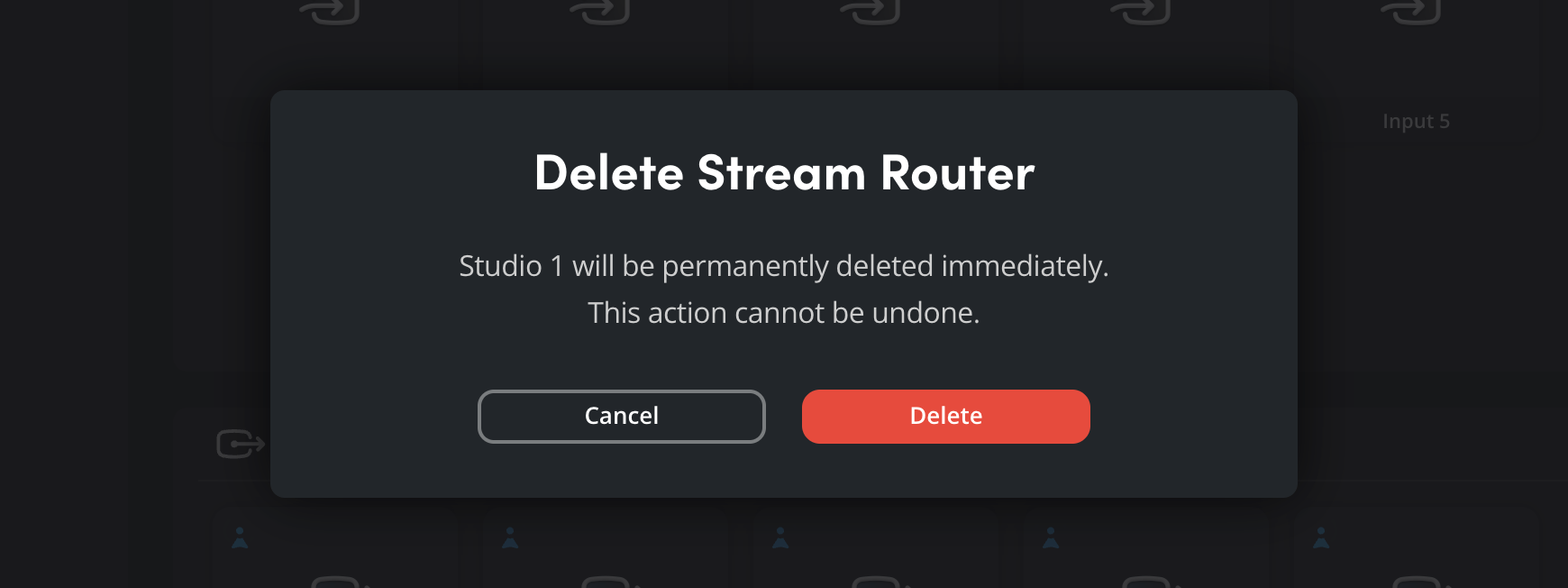
To permanently delete a Blackmagic Cloud Stream Router, click the settings cog in the top right of the stream router page and select ‘delete router’ from the menu.
A dialogue box will appear asking you to confirm your action.
Click ‘delete’ to permanently delete your stream router. It is important to note that this action cannot be undone.