
Assigning Licenses
In a Blackmagic Cloud organization, licenses can be assigned to individual members or to a group by an organization owner or administrator. In a personal profile, licenses can be assigned to the profile owner.
To assign licenses in an organization:
-
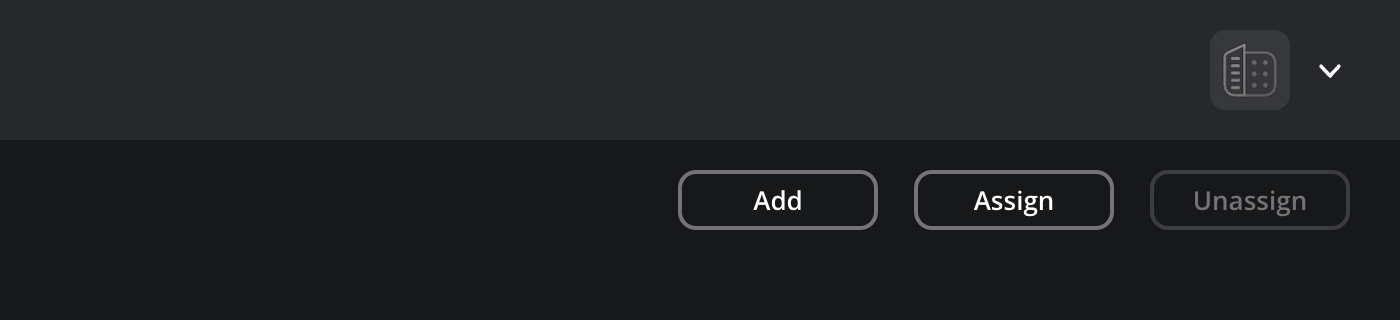
In the ‘license manager’ page, click the ‘assign’ button.
-
In the ‘assign licenses’ window, enter the name of the Blackmagic Cloud group or the name of the organization member that you want to assign the licenses to. Click the assign button.
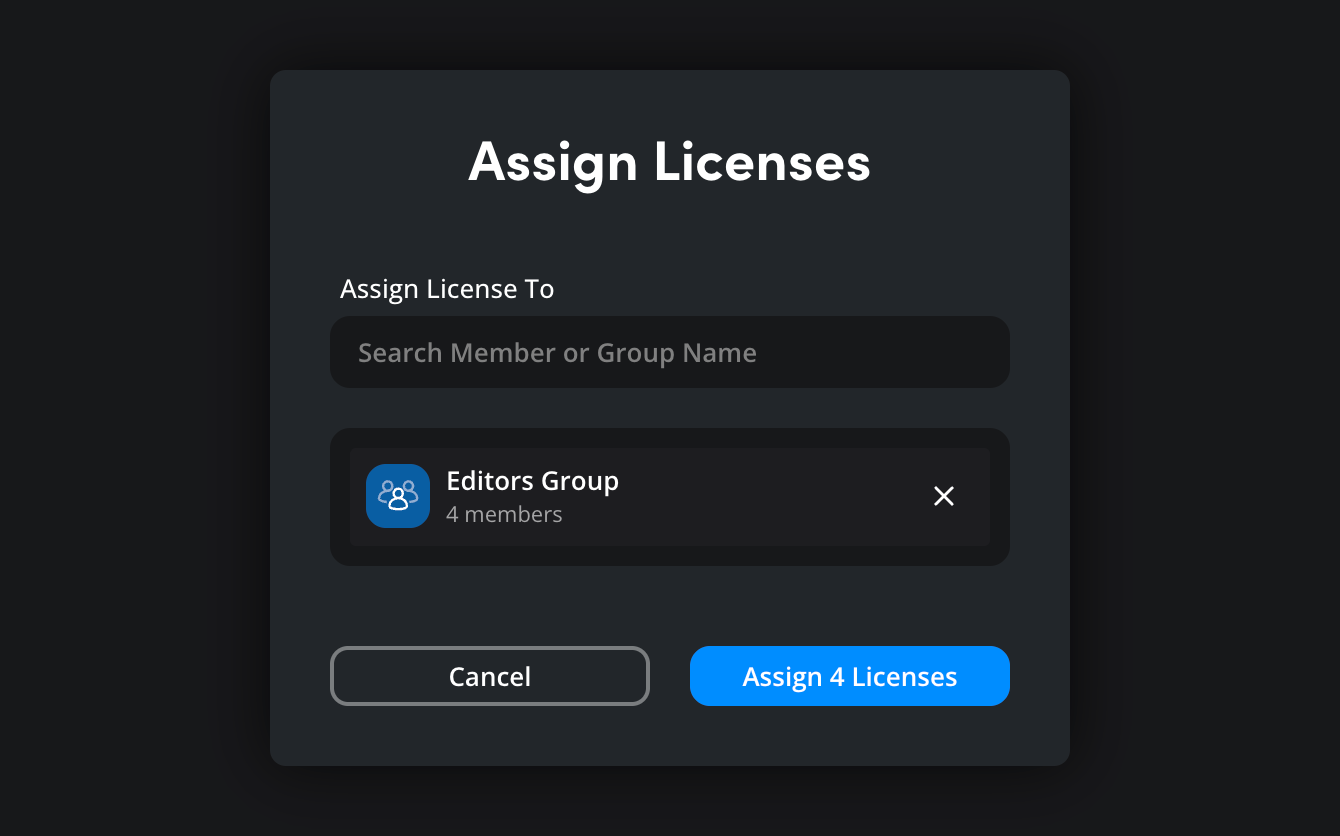
It’s worth noting that if you are assigning licenses to a Blackmagic Cloud group, you will need to have enough available licenses for all the group members. For example, if there are four group members, then you will need at least four available licenses.
Once licenses have been assigned, you can add new group members via the ‘settings’ page. New group members will automatically be assigned a license once purchased.
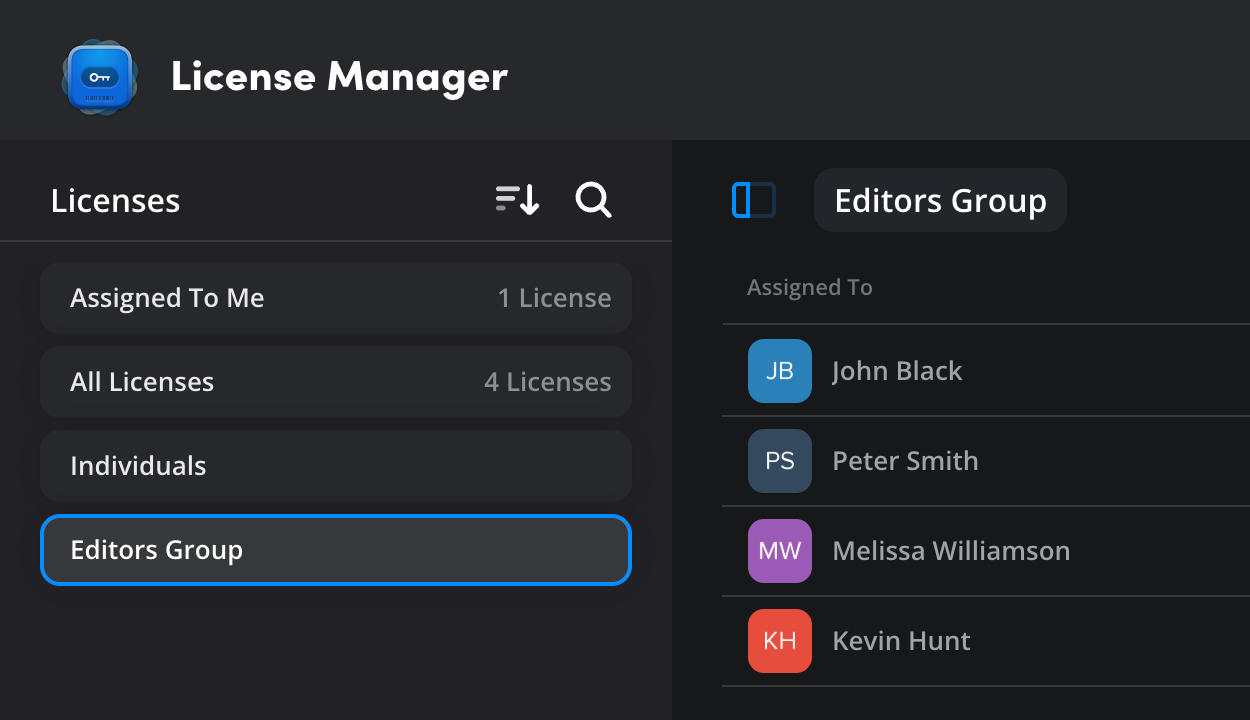
When you assign licenses, the ‘licenses’ panel will update. If you have assigned licenses to a Blackmagic Cloud group, the group name will be listed.
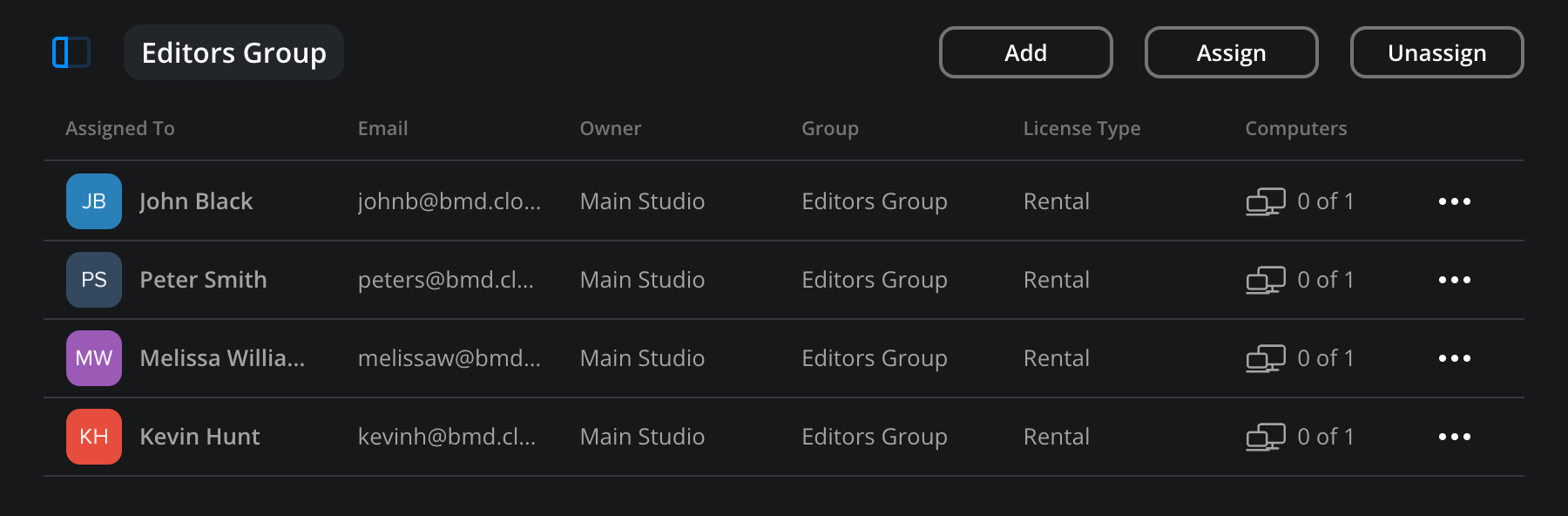
Click a license category to see more information about license allocation, including user names, email addresses, group membership and license use.
To assign a license in a personal profile:
-
In the ‘license manager’ page, click the ‘assign’ button.
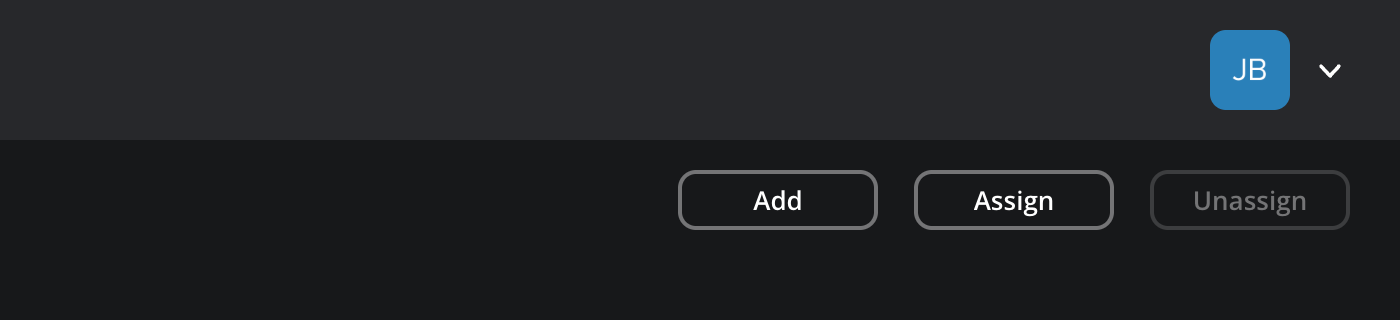
-
You will be asked to confirm that you want to assign yourself a license. Click ‘assign license’ to confirm your choice.
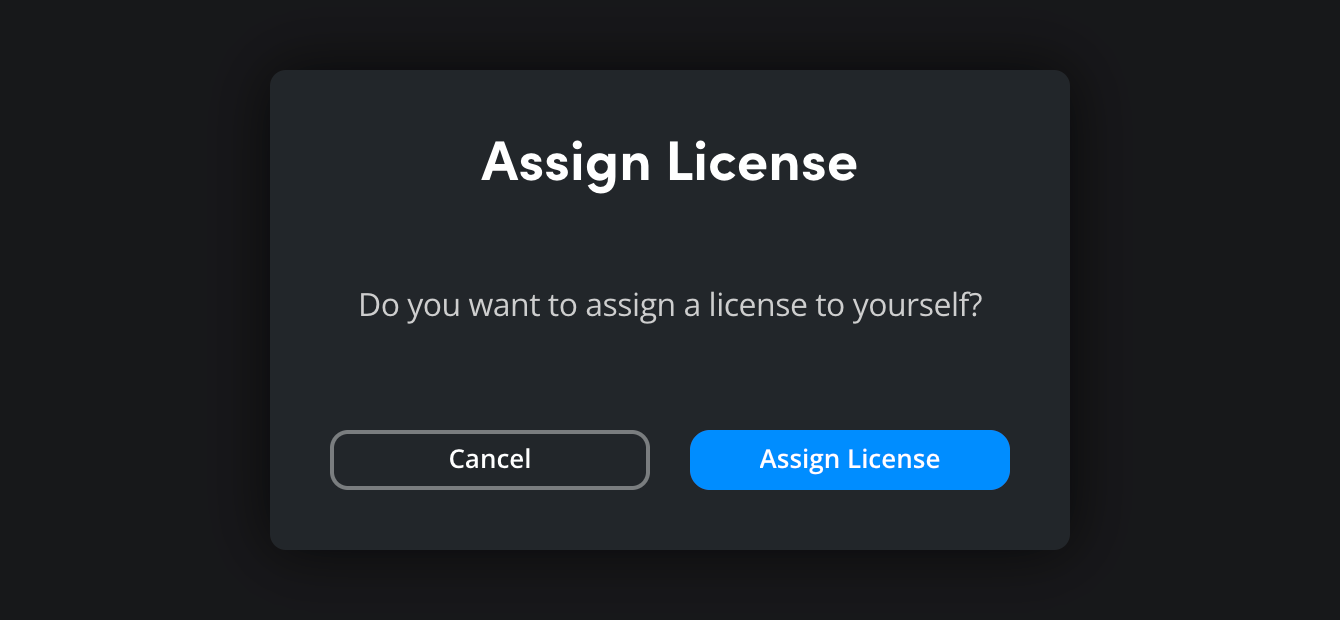
You can now log in to DaVinci Resolve Studio using your rental license. More information is provided in the next section of this guide.
You can download the latest version of DaVinci Resolve Studio at https://www.blackmagicdesign.com/support/family/davinci-resolve-and-fusion

