
Sharing a Presentation
Presentations can be shared with individual Blackmagic Cloud members and groups within an organization. If you have created a presentation within a Blackmagic Cloud Organization, all the organization owners will automatically be added to the presentation. A presentation can contain a maximum of 10 participants.
You can also share a presentation with anyone who does not have a Blackmagic Cloud account by sending them an email link.
To share a presentation:
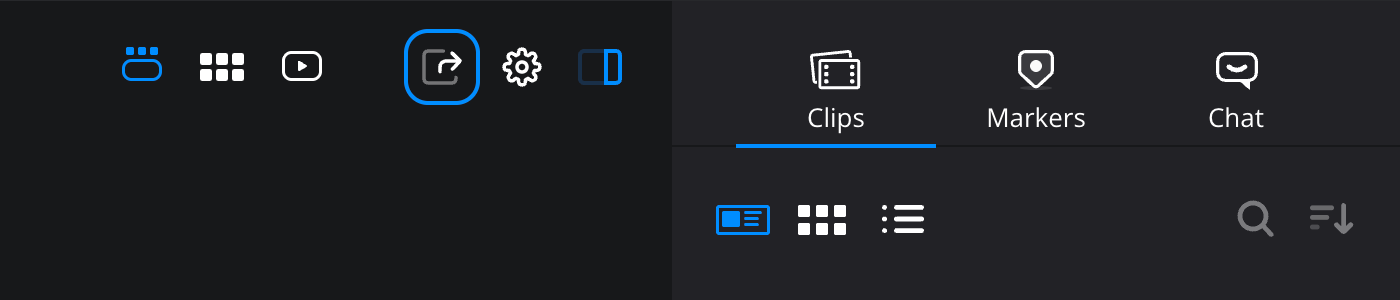
- Click the ‘share’ button at the top of the viewer.
- In the ‘share presentation’ window, enter the email address for any Blackmagic Cloud members you want to add, or the name of the group. The members or groups will be added to the ‘members with access’ list.
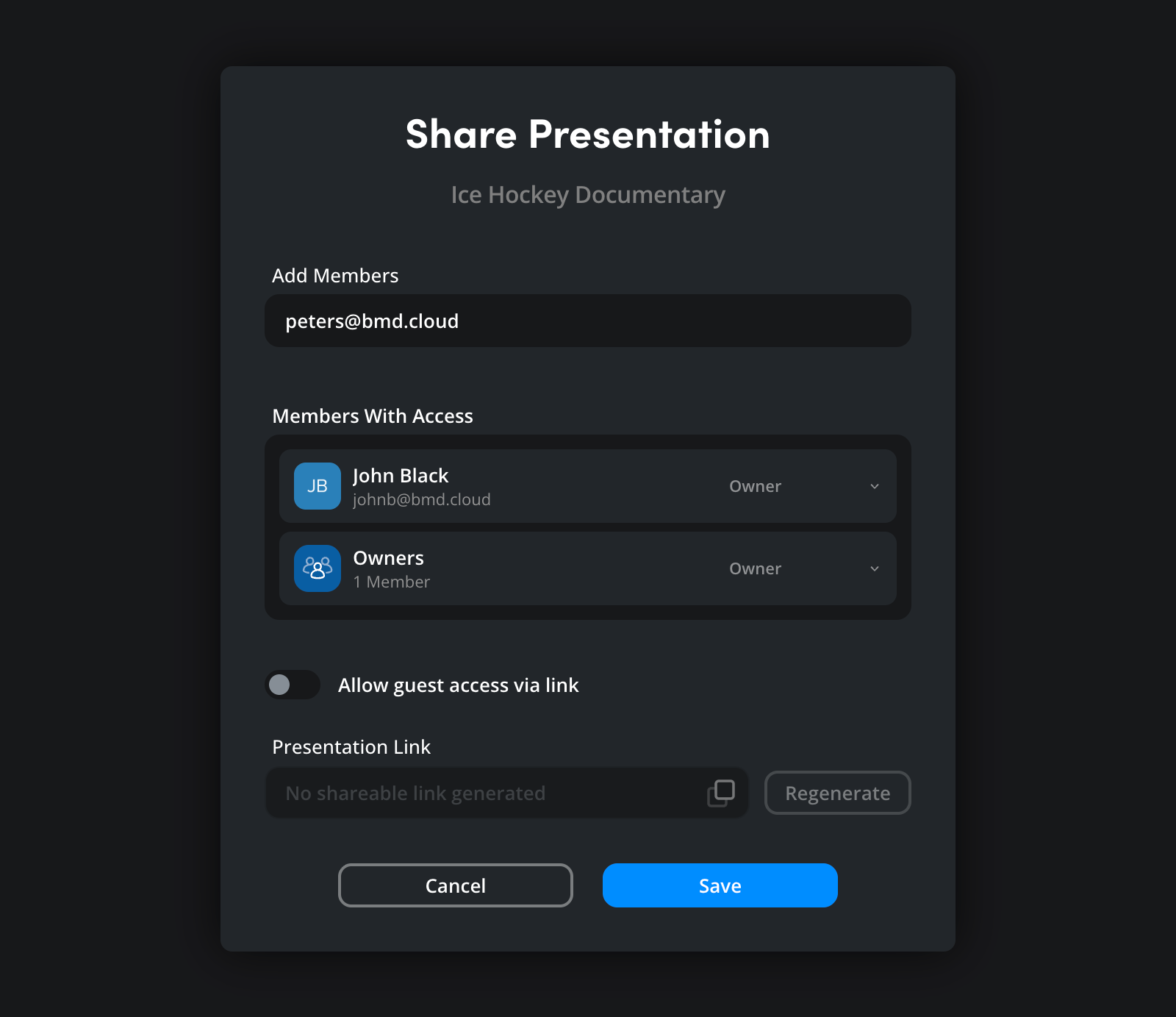
- In the ‘members with access’ list, set the level of access for the group or member by opening the menu next to their name. By default, members or groups added to a presentation will be given ‘viewer’ access. This allows them to view clips and create markers. Giving a member or a group ‘editor’ access will allow them to upload and rename clips, however, as a safety measure they will not be able to delete clips from a presentation.
If you want to remove a member or group from a presentation, click ‘remove access’. -
To invite a guest to your presentation who does not have a Blackmagic Cloud account, enable the ‘allow guest access via link’ toggle switch.
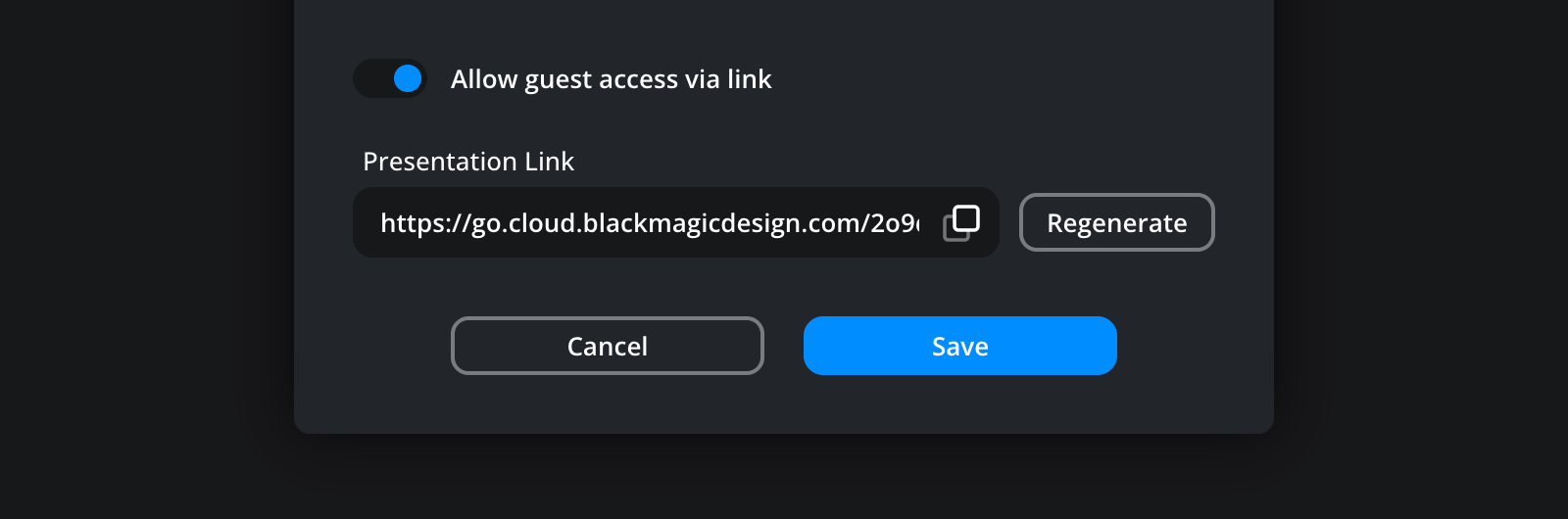 When the toggle switch is enabled, a presentation link will be created in the ‘presentation link’ box. Copy the link and send it to the guests you want to invite. Information on joining a presentation is provided in the ‘joining a presentation’ section.
You can create a new link to a presentation by clicking the ‘regenerate’ button. When you do this, the previous link will no longer work. Any guests who have the previous link will no longer be able to access the presentation.
- Click the ‘save’ button to close the ‘share presentation’ window. You can reopen the sharing options at anytime to add or remove presentation members.

