Renting DaVinci Resolve Studio Licenses
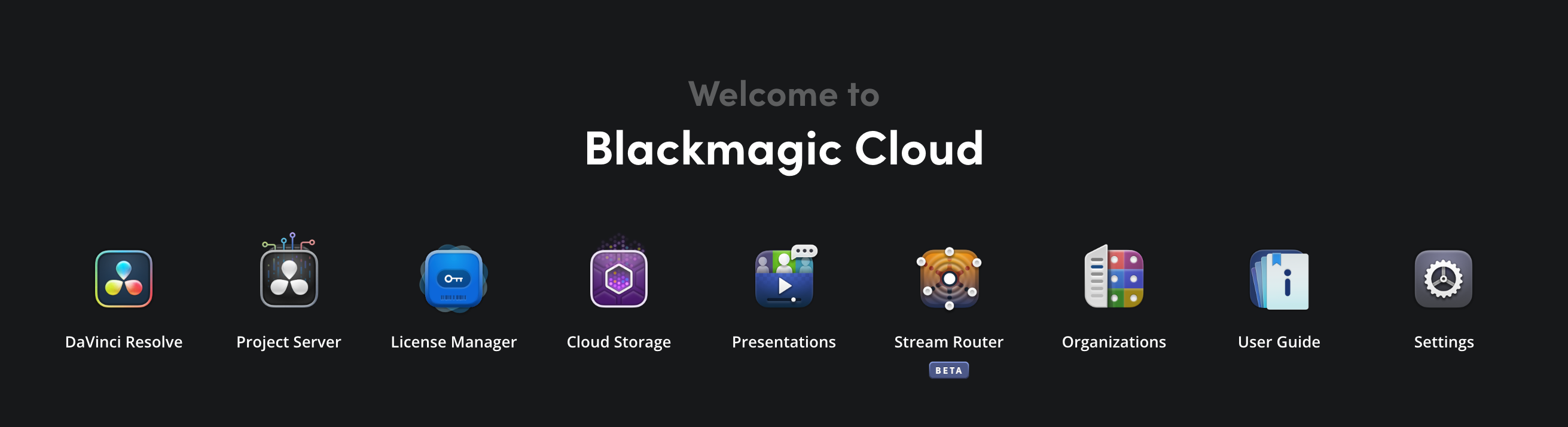
Before you rent a DaVinci Resolve Studio license, log in to the personal or organization profile that you would like the license to be linked to. Next, click the ‘license manager’ icon in the Blackmagic Cloud dashboard to open the ‘license manager’ page.
Renting a License
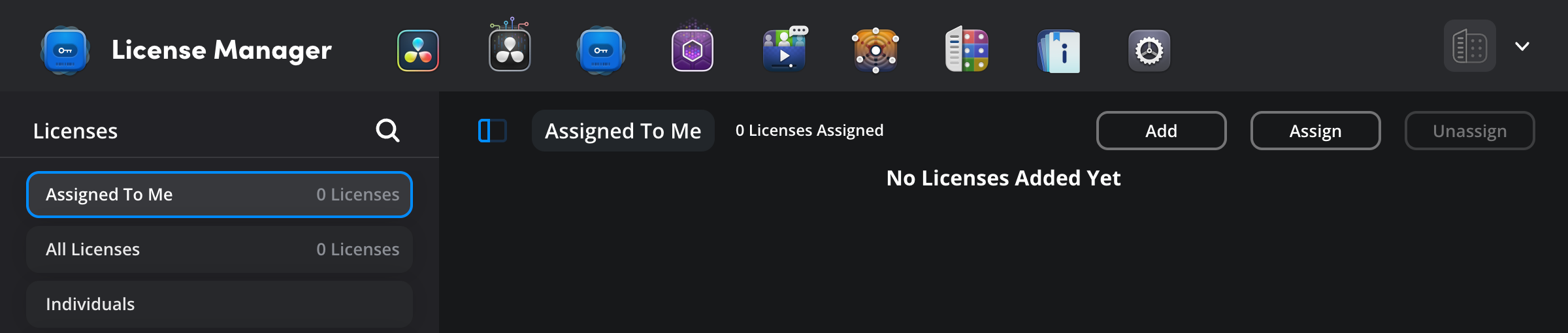
To rent a DaVinci Resolve license, click the ‘add’ button at the top right of the ‘license manager’ page.
The ‘manage services’ options will open in your account’s ‘settings’ page.
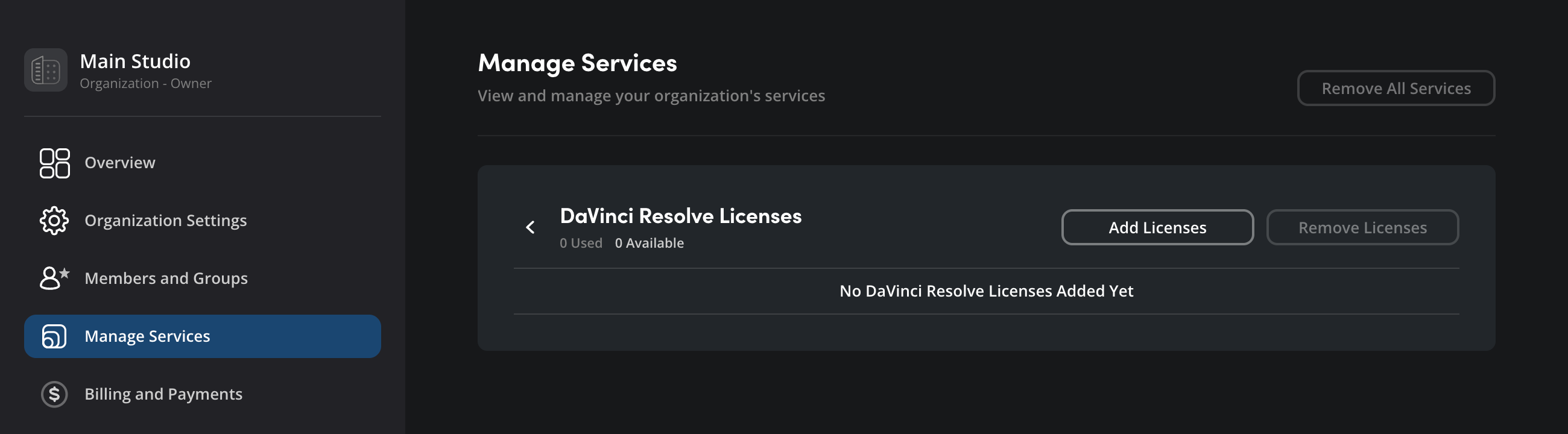
Click the ‘add licenses’ button. In the ‘add DaVinci Resolve licenses’ window, select the number of licenses you want to rent and click ‘add to cart’.
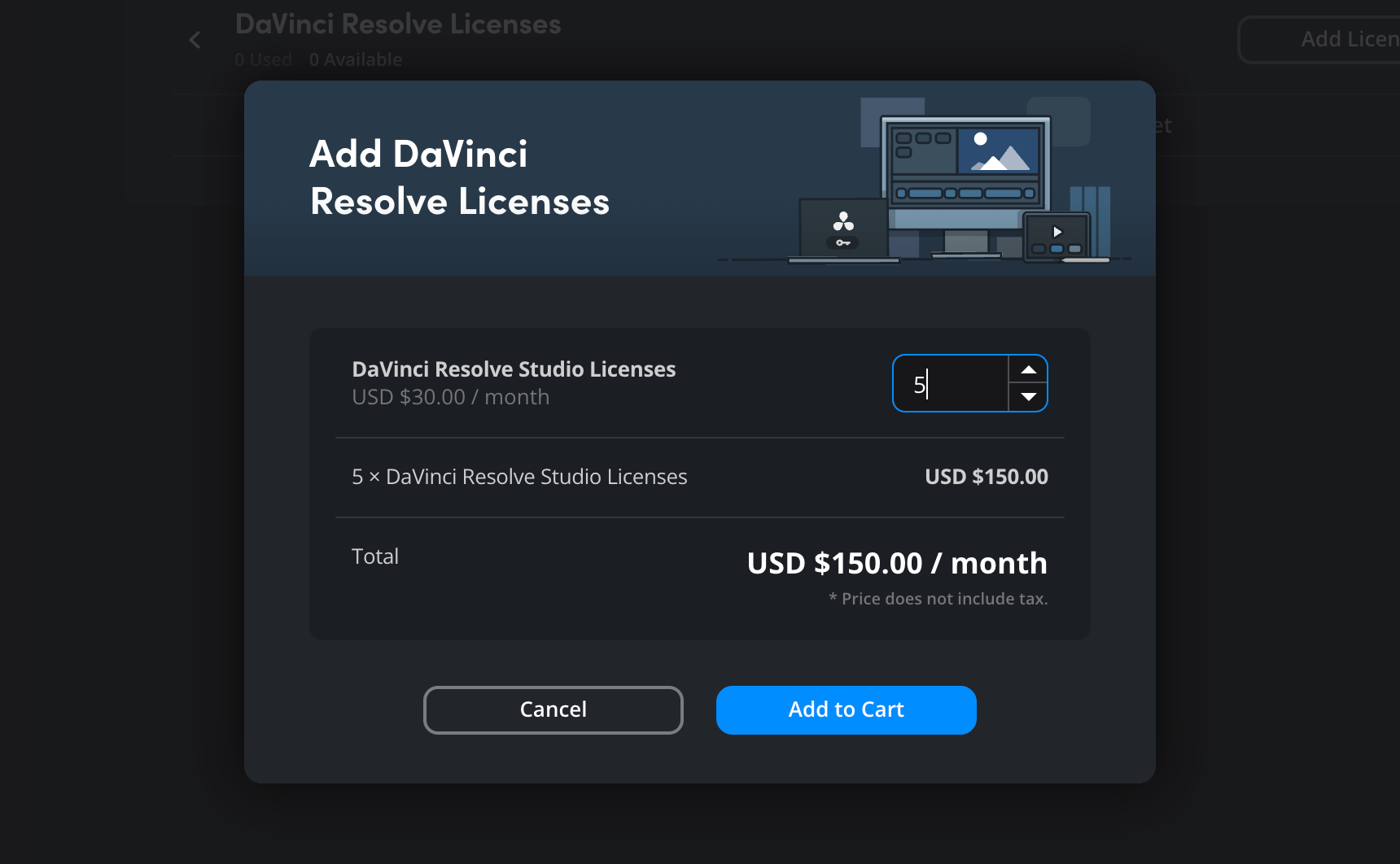
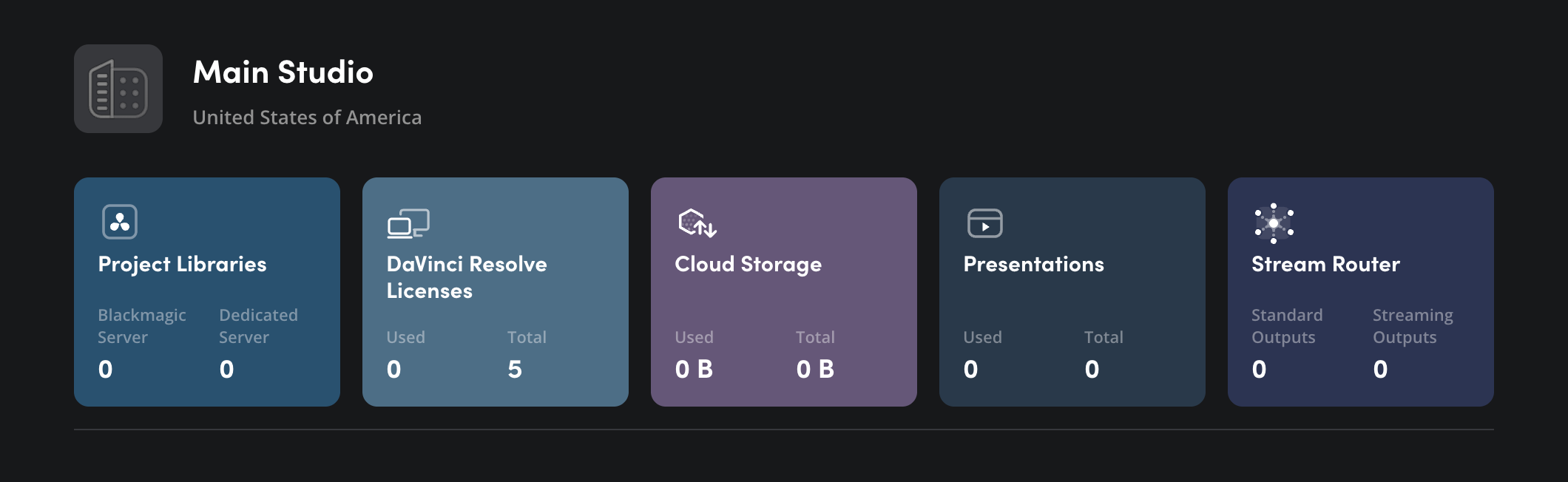
Once you have added licenses to your cart, click the cart icon and complete your purchase using your preferred payment method. You can confirm the number of available licenses by clicking the ‘overview’ tab in the ‘settings’ page.
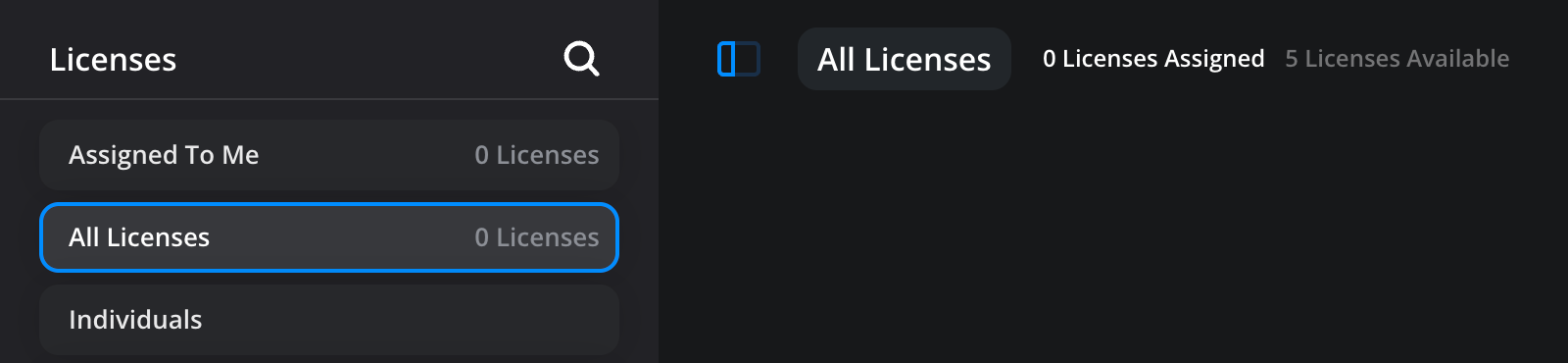
In the ‘license manager’ page, the number of available and assigned licenses is displayed at the top of the page. If you are logged into your personal profile, click the ‘owned by me’ button in the ‘licenses’ panel. In an organization, click ‘all licenses’.