Creating a New Organization
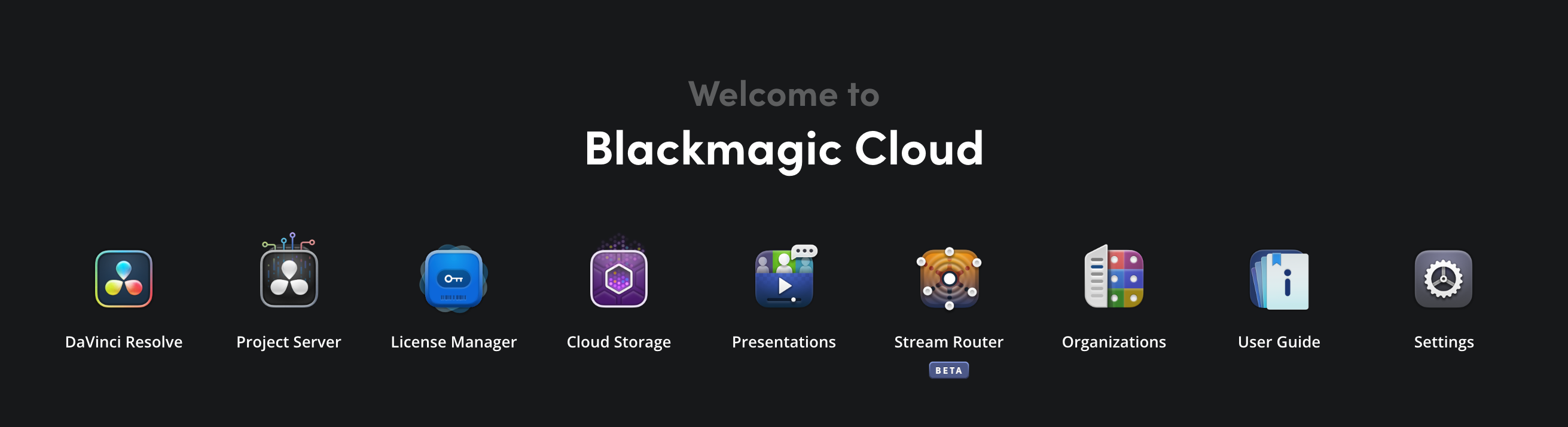
To create a new organization, log in to your Blackmagic Cloud account and click the ‘organization’ icon in the Blackmagic Cloud dashboard.
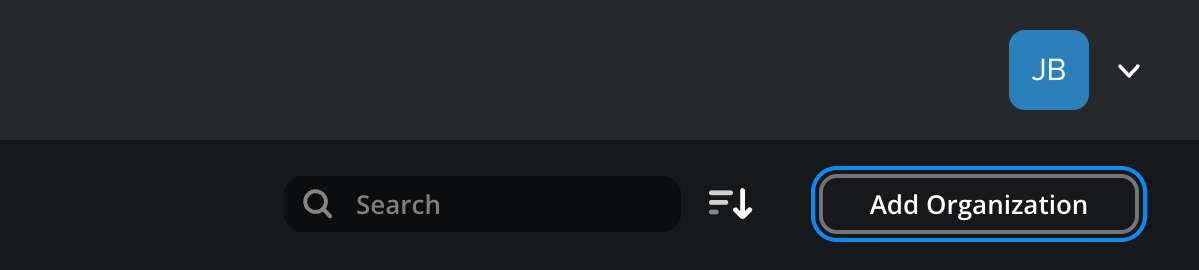
If you are not a current member of an organization, the ’add organization’ window will open straight away. If you are already a member of an organization, the main organization page will open. Click the ‘add organization’ button.
In the ‘add organization’ window, enter a name for your organization and select a country. The country option sets the organization’s location for billing purposes.
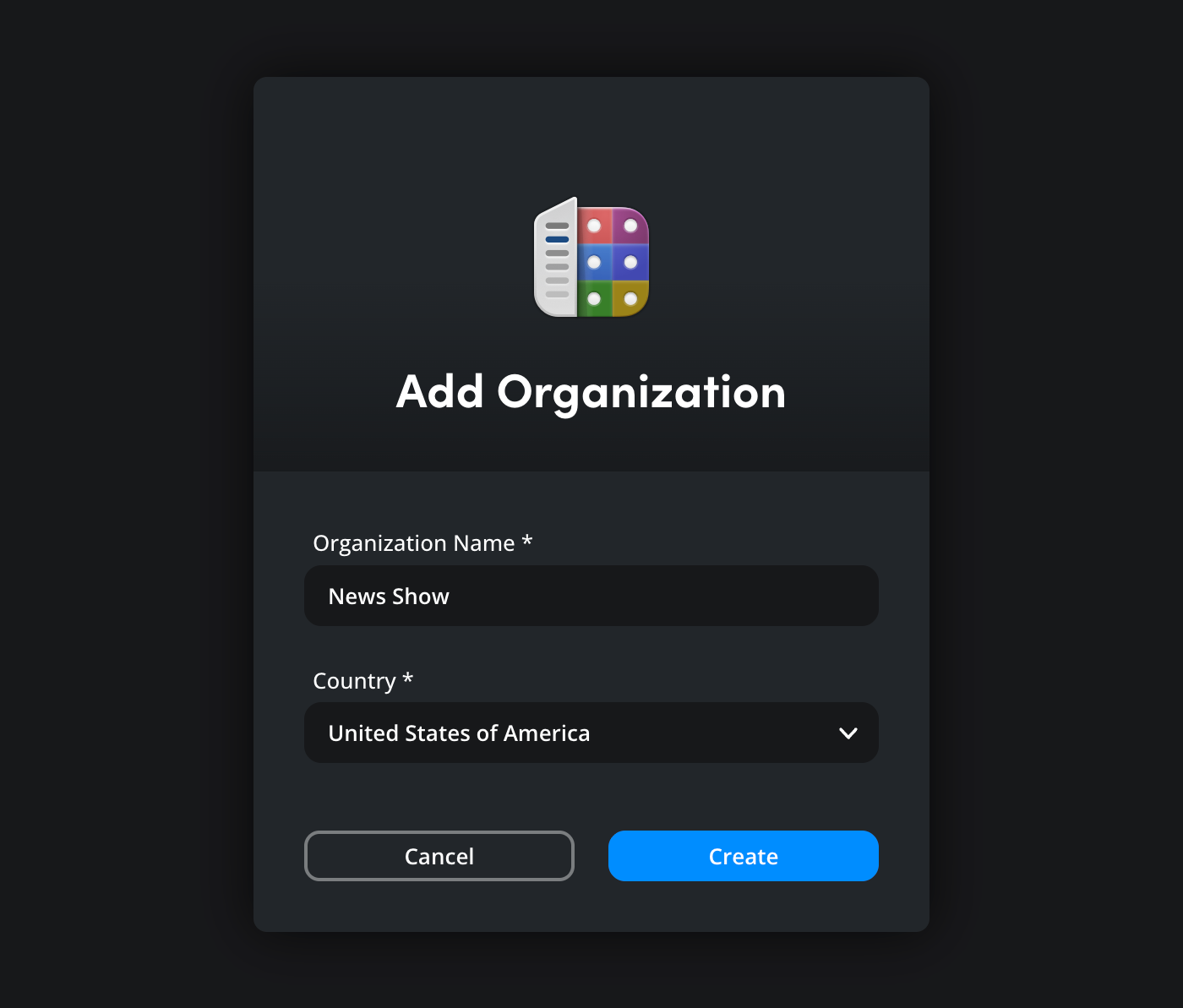
Click ‘create’. The new organization will now be listed in the organization page.

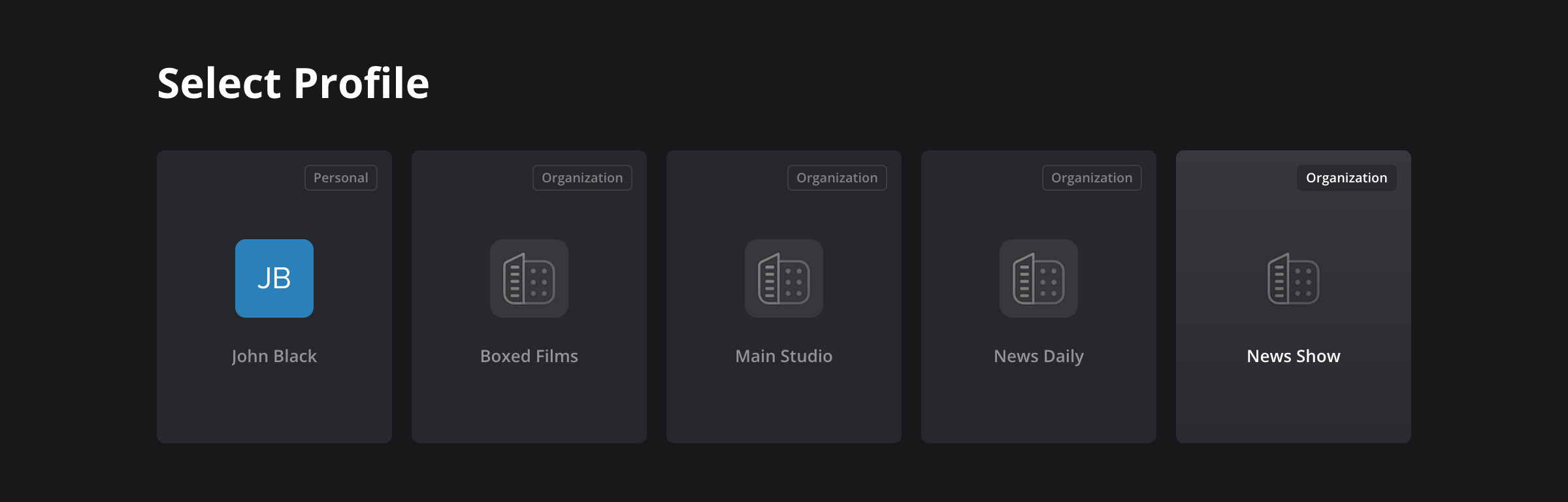
Once you have created a new organization, you can sign in to it by clicking your account avatar in the top right of the ‘organizations’ page and selecting ‘switch profile’. In the ‘select profile’ page, click on the organization’s icon.