Removing All Services
If you want to remove all the current services from your Blackmagic Cloud profile, you can do so by clicking the ‘remove all services’ button. The ‘remove all services’ button is located in the ‘overview’ page and at the top of the ‘manage services’ pages.
To remove all Blackmagic Cloud services:
- Click the ‘remove all services’ button.

- A confirmation window will be displayed.
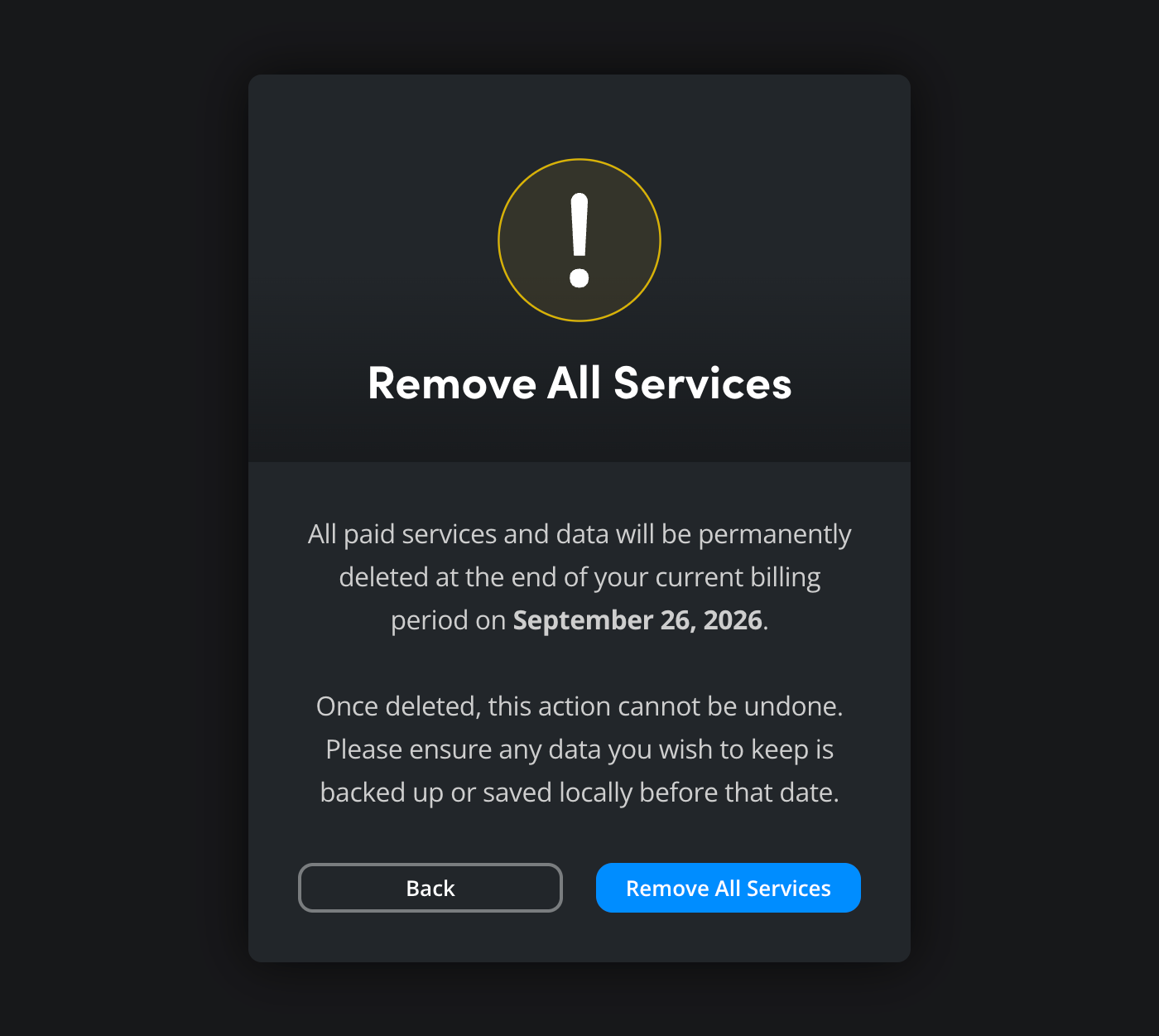 The confirmation window includes information about the end of the current billing cycle, after this date all paid services and data will be deleted. It’s important to note that once deleted, any data will not be recoverable. It is a good idea to make a backup of any important files, folders or DaVinci Resolve projects.
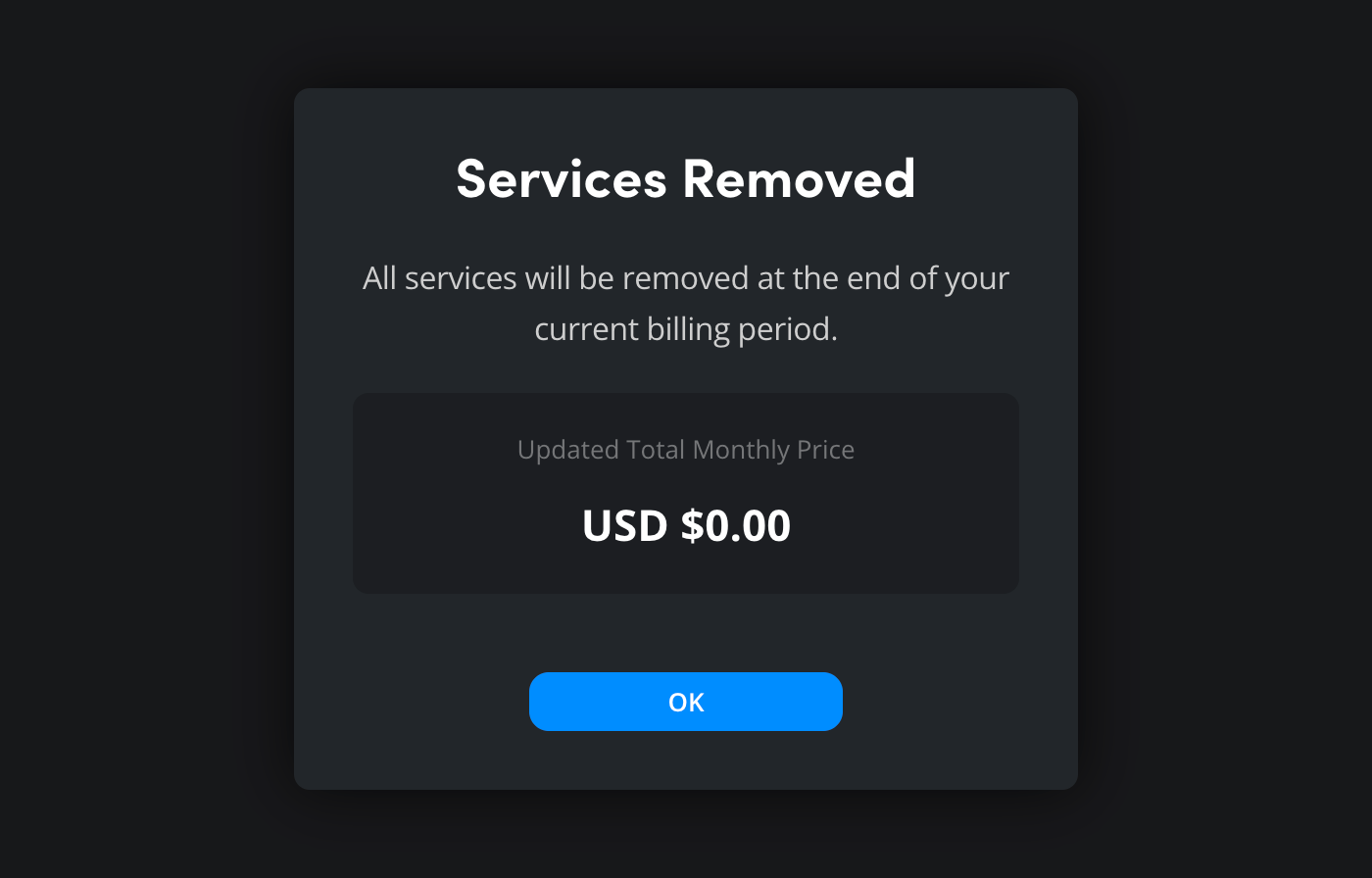
To continue, click ‘remove all services’. - A second confirmation window will open to confirm that all Blackmagic Cloud services will be removed at the end of the current billing cycle, along with the updated monthly total. Click ‘ok’ to continue.
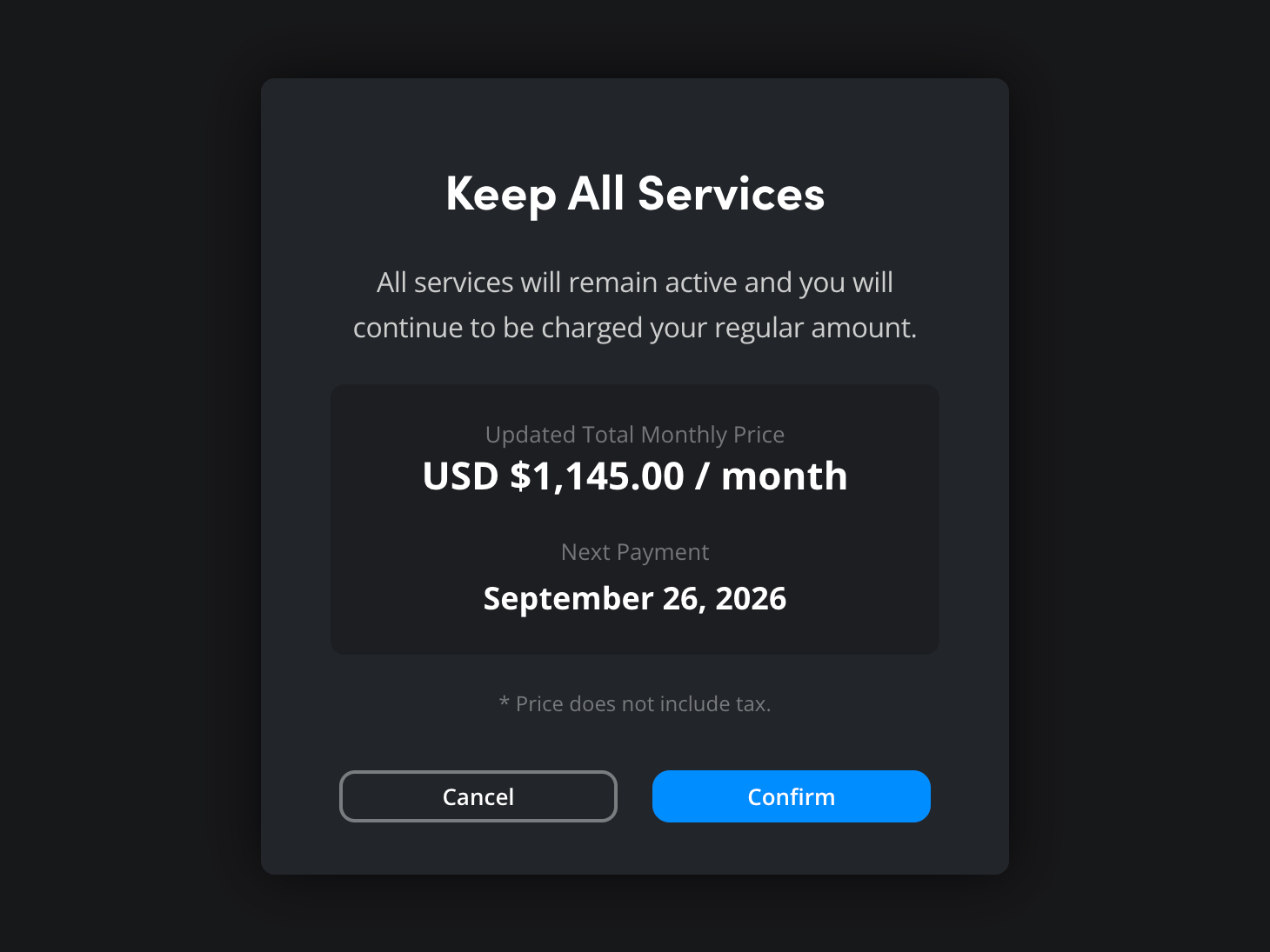
In the ‘overview’ page, a reminder will be displayed to let you know that your Blackmagic Cloud services are scheduled to be removed. If you change your mind and want to keep your Blackmagic Cloud services, click ‘do not remove’.

In the ‘keep all services’ window, you’ll see your monthly payment amount along with the next payment date. Click ‘confirm’.