
Creating a Stream Router
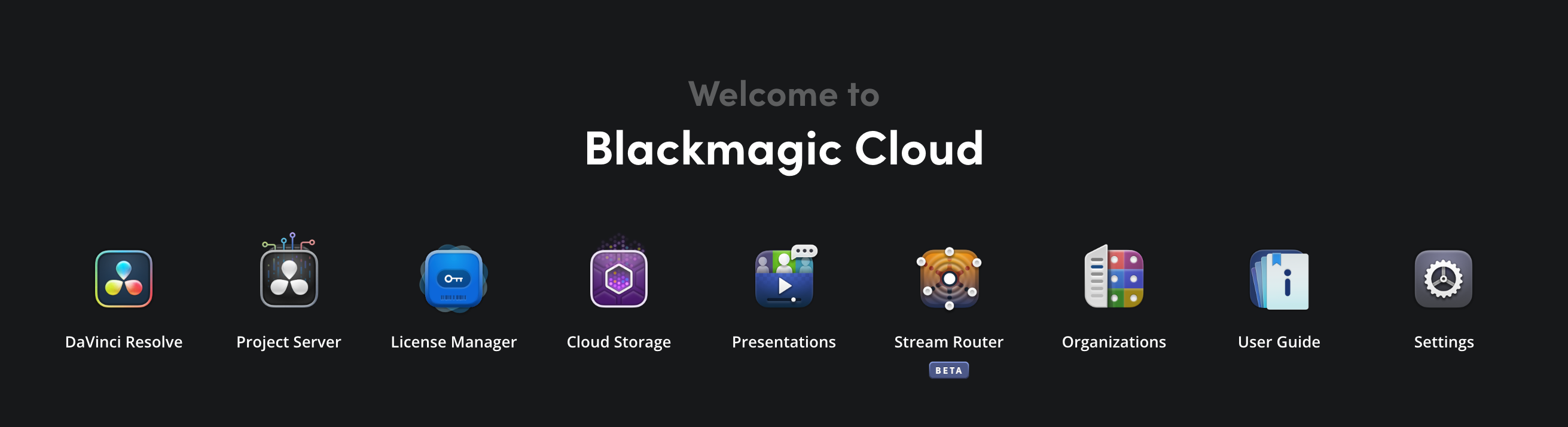
Before creating a stream router, log in to the Blackmagic Cloud account profile where you would like your stream router to appear. You can create a stream router in your personal profile or in an organization profile. Once logged in, click the ‘stream router’ icon in the Blackmagic Cloud dashboard.
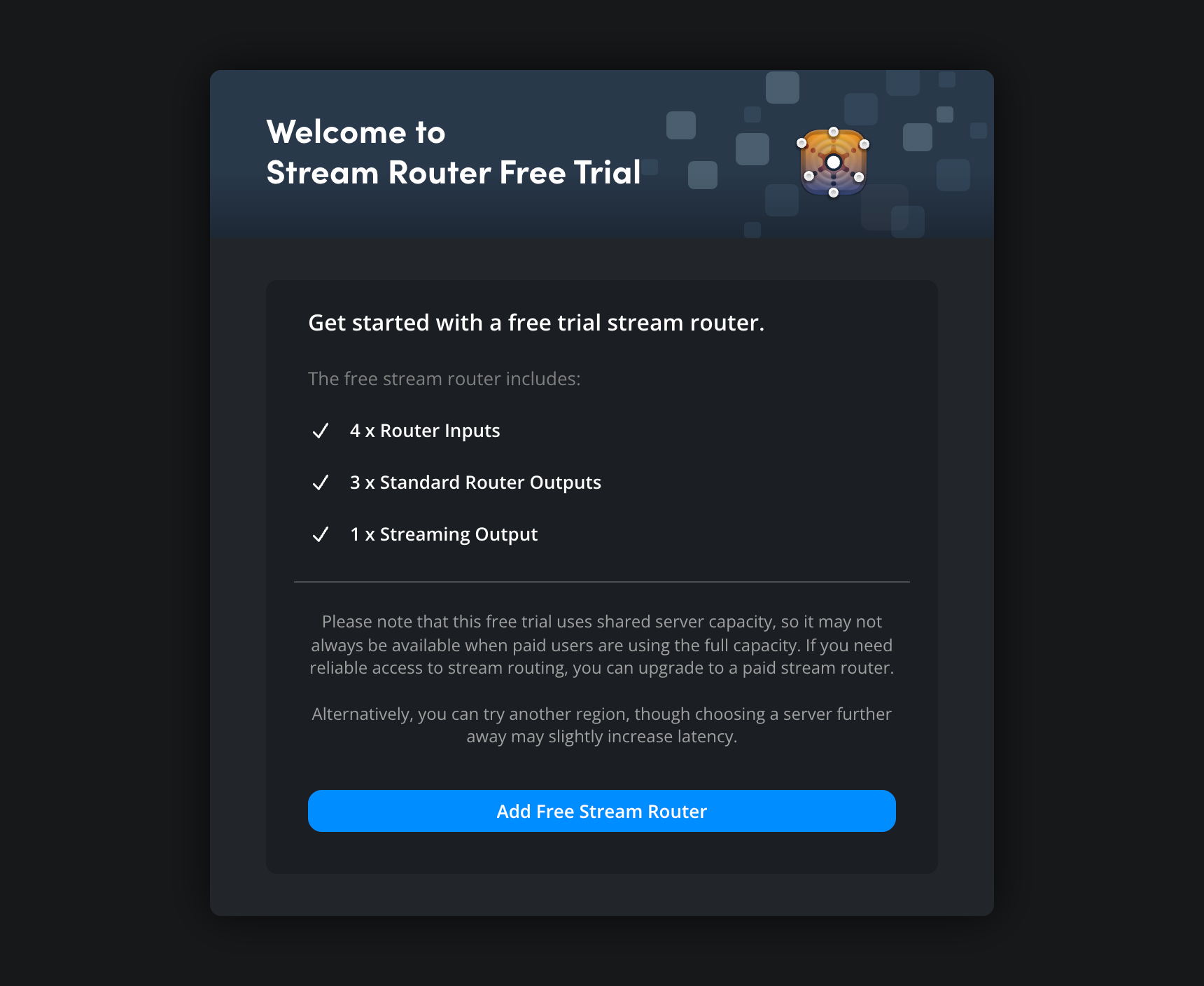
If you are logged in to your personal profile you will automatically receive an invitation to create a stream router free trial. This stream router includes four inputs, four standard outputs and one streaming output. Click ‘add free stream router’ to continue. You will have the option to name your stream router and set the router region on the next screen.
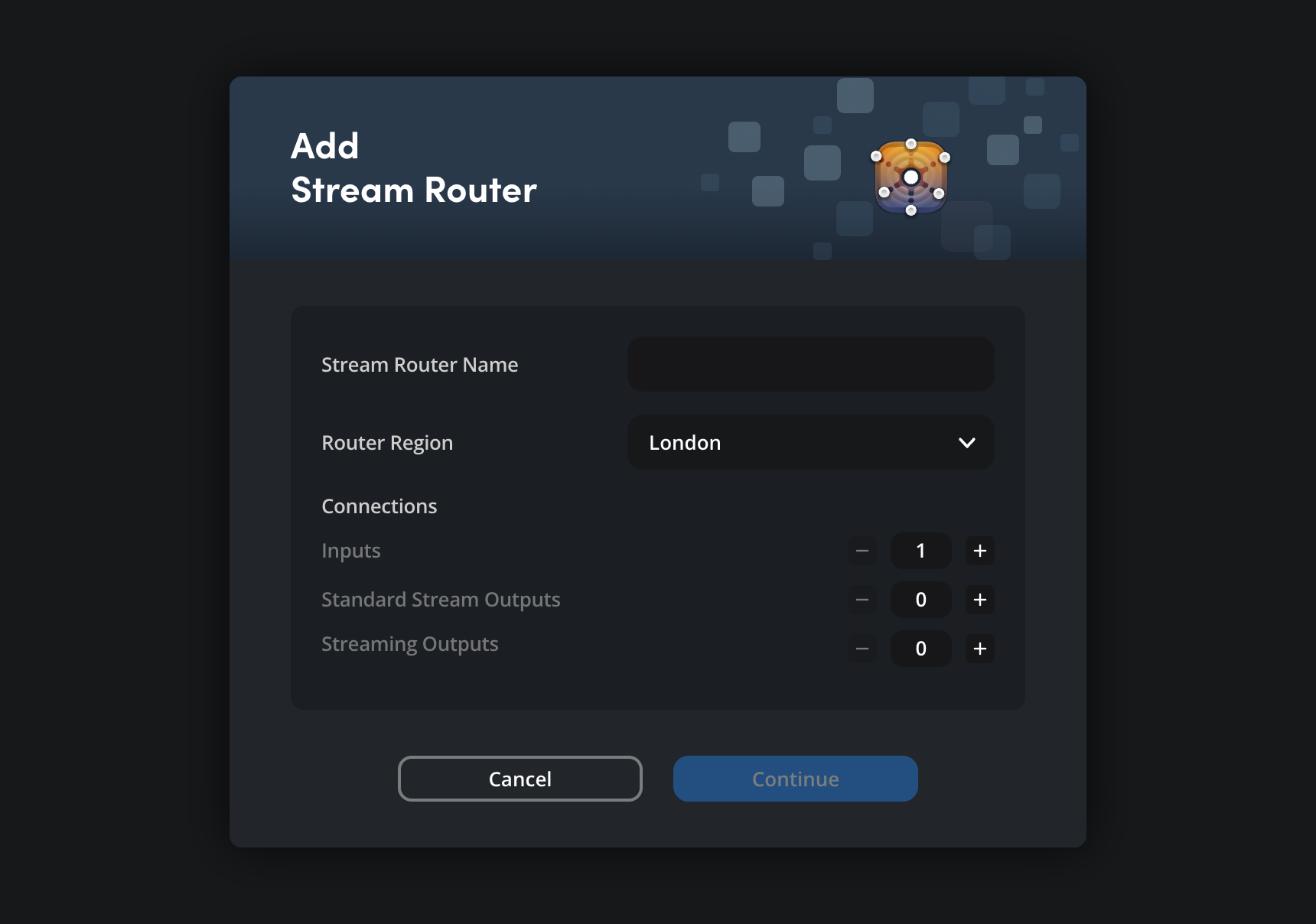
If you are the owner of an organization and have purchased router outputs in the ‘manage services’ section of your account, the ‘add stream router’ options will be displayed. These options let you name your stream router, select a server location and set the number of router connections. If you have yet to purchase stream router outputs, you’ll be prompted to go to the ‘manage services’ section in your account settings.
Stream Router Name
Enter a name for your Blackmagic Cloud Stream Router. It’s a good idea to give your stream router a unique name that is easily recognizable. This will make it easier for remote operators to recognize when connecting to your stream router’s inputs and outputs.
Router Region
Select a region for your stream router from the list, this is the geographical location of the server where your stream router will be hosted. In general, it is best to choose the region closest to you.
You can rename a stream router, or change the router region for a free trial stream router by clicking the settings icon at the top right of the screen and selecting ‘router settings’. More information is provided in the ‘additional stream router settings’ section.
Adding Stream Router Connections
The connection options let you set the number of inputs and outputs for sources and destinations on your Blackmagic Cloud Stream Router. Use the ‘+’ or ‘-‘ buttons to add or remove connections, or type a number in the box. You can create up to 15 inputs per stream router and a total of 15 outputs. There are two types of outputs including standard streaming outputs as one type and streaming outputs as another. These can be used in any combination, provided the combined number does not exceed 15.
Inputs
Inputs are for sources such as Blackmagic PYXIS 6K, Blackmagic Camera App and Blackmagic Streaming Encoder.
Standard Stream Outputs
Standard stream outputs are for connecting to destinations such as Blackmagic Streaming Decoder, Blackmagic Remote Monitor and ATEM Television Studio HD8 ISO.
Streaming Outputs
The Streaming outputs let you stream to online platforms such as YouTube, Instagram, and Twitch.
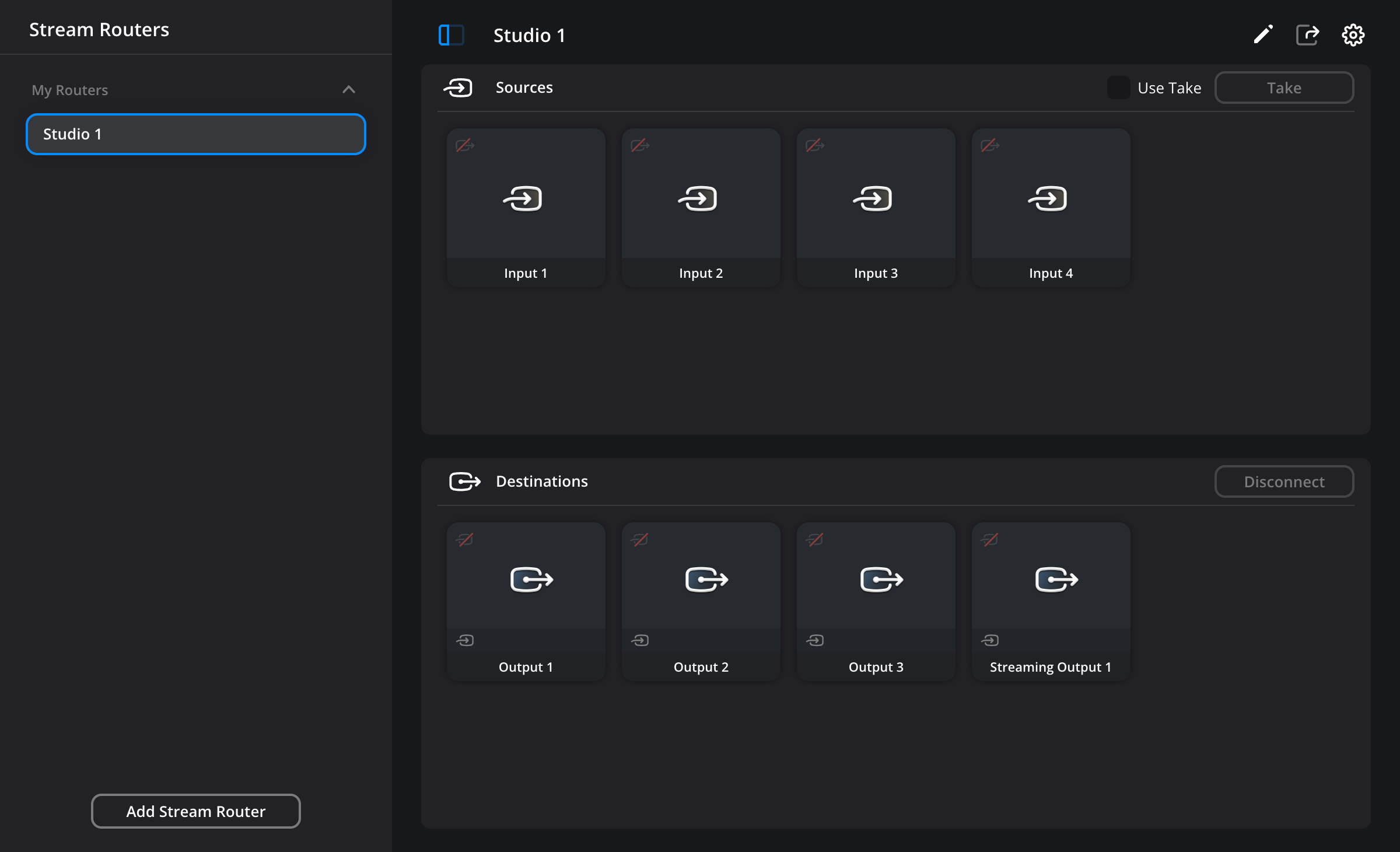
Once you have set the desired number of inputs and outputs, click the ‘continue’ button at the bottom of the ‘add stream router’ window to create your stream router. The example below shows a stream router with four inputs, three standard stream outputs and one streaming output.
A full list of Blackmagic Design equipment that is supported for Blackmagic Cloud Stream Router is provided in the ‘supported sources and destinations’ section.
Creating Additional Stream Routers
You can create up to 10 Blackmagic Cloud Stream Routers in each of your account profiles. For example, you could create 10 stream routers in your personal profile and another 10 stream routers in an organization profile.
If you require more than 10 stream routers in a single profile, you can contact Blackmagic Design support by going to https://www.blackmagicdesign.com/support/ and clicking ‘send us an email’.

To create an additional stream router, click the ‘add stream router’ button in the bottom of the stream router side panel to open the ‘add stream router’ options.
Switching Between Stream Routers
To switch between different Blackmagic Cloud Stream Routers in your profile, select a stream router by clicking on it in the side panel. Any active routes will remain connected when you switch between cloud routers.
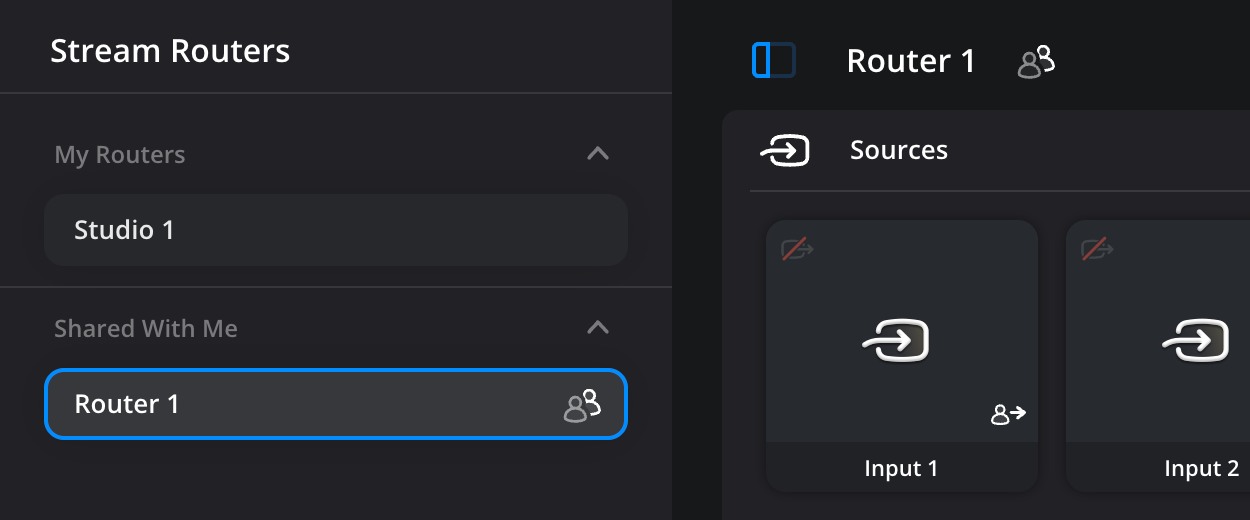
The side panel includes any stream routers in your profile, as well as stream routers you have been added to by other Blackmagic Cloud users. Information on sharing stream routers is provided in the ‘sharing a stream router’ section of this guide.

