
Managing Licenses
DaVinci Resolve Studio rental licenses can be unassigned from users or deactivated from connected computers in the ‘license manager’ page. Unassigning a license from a user means they will no longer be able to access DaVinci Resolve Studio using their cloud license. Deactivating a computer allows a user to remove their license from their current computer and then activate the same license on a different computer.
Unassigning Licenses
Unassigning licenses from an individual in a Blackmagic Cloud organization or from your personal profile is a slightly different process from unassigning licenses connected with a Blackmagic Cloud group.
Unassigning an Individual or Personal License
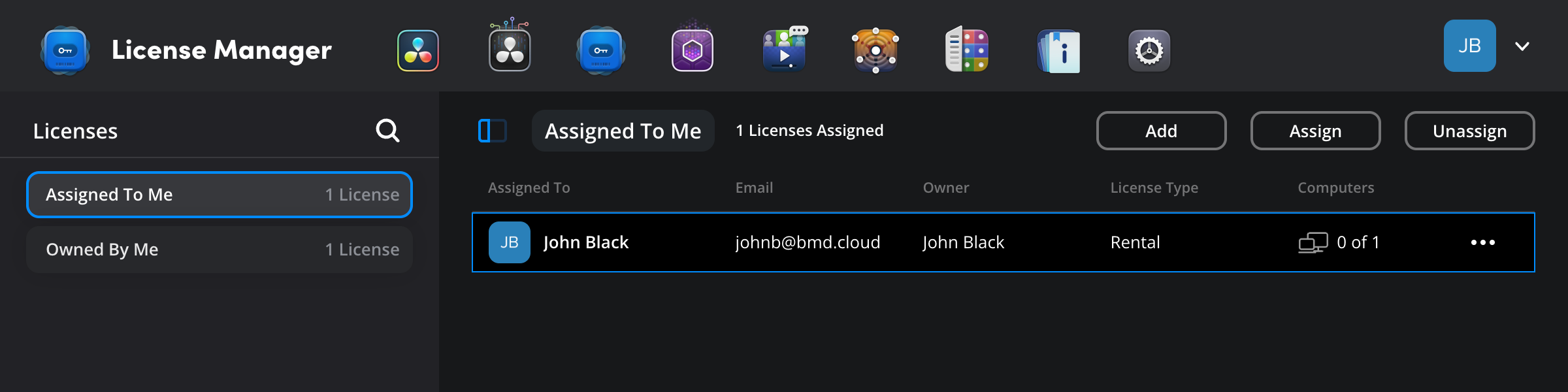
- To unassign an individual license in an organization, click ‘individuals’ in the ‘licenses’ panel. To unassigned a license in your personal profile, click ‘assigned to me’.
-
In the main panel, click on the name of the user that you want to unassign the license from, then click the ‘unassign’ button.
-
You will be asked to confirm your choice, click ‘unassign’ to continue or ‘cancel’ to go back.
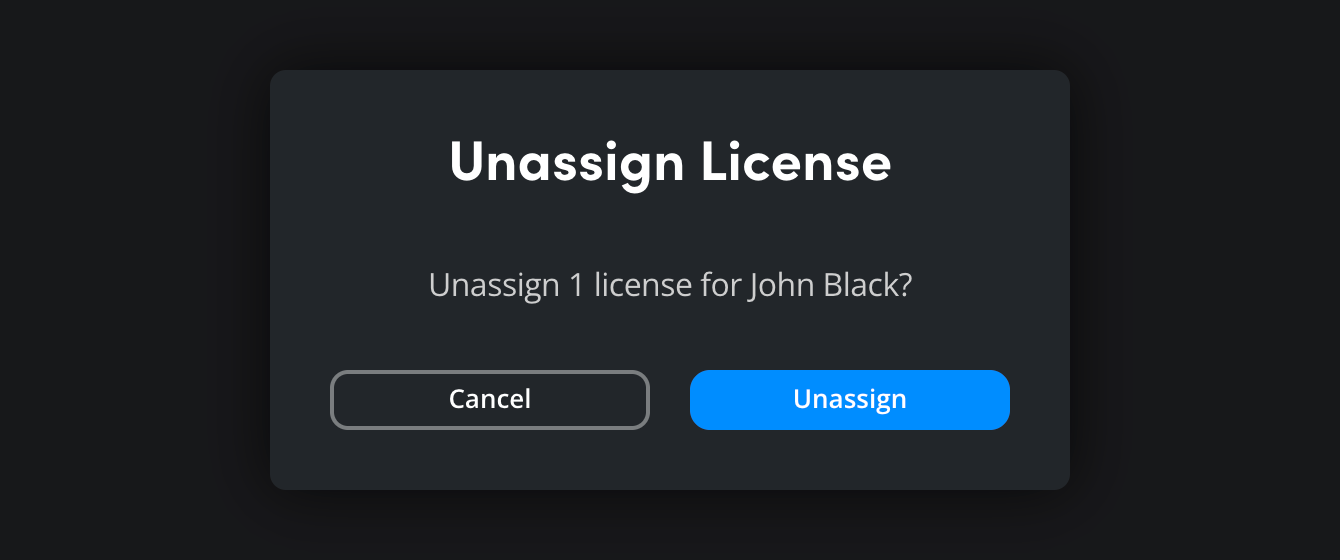
Once the license has been unassigned it becomes available and can be assigned to a different user straight away.
Unassigning Licenses from a Group
Licenses linked to group members act a bit like a pool and can’t be removed from individuals within the group. When a user is removed from a group, their license will automatically become unassigned. If a new member is then added to the group, they will be assigned the license automatically. Alternatively, the license can be assigned to a different group or individual member of the organization.
To remove a member from a group:
- Go to the Blackmagic Cloud ‘settings’ page and select ‘members and groups’.
- Click the ‘groups’ tab. In the group you want to edit, click the menu and select ‘group settings’.
- Use the ‘group settings’ to remove the member from the group.
Deactivating a Computer
Deactivating a computer lets you end a license activation on the current computer, you can then reactivate the same license on a different computer. This can be useful if you regularly switch between a workstation or a laptop.
To deactivate a computer:
-
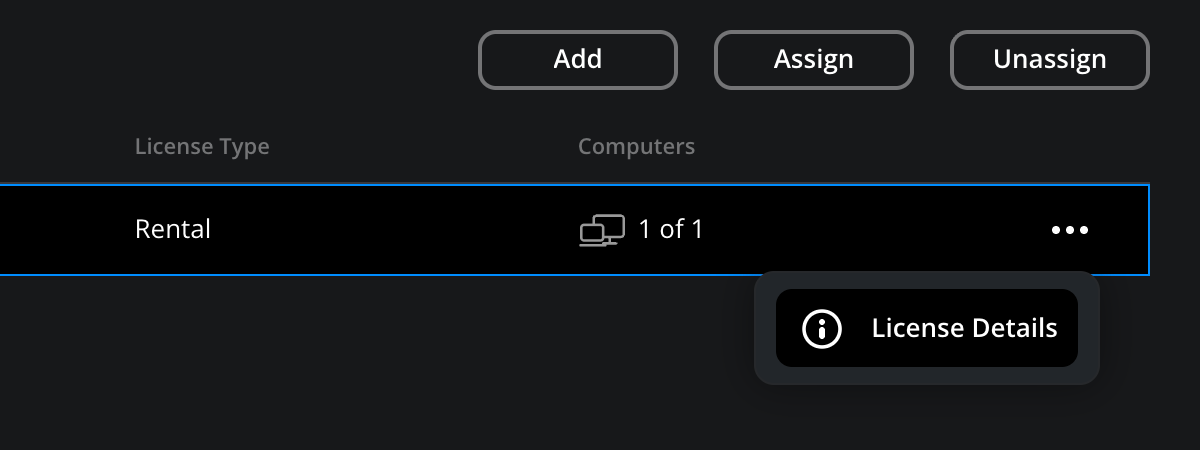
In the main panel, locate the user whose computer you want to deactivate. Click the menu button and select ‘license details’.
-
The ‘license details’ panel will open. This displays information about any active sessions, including the serial number of the computer, DaVinci Resolve Studio version and when the license was last active.
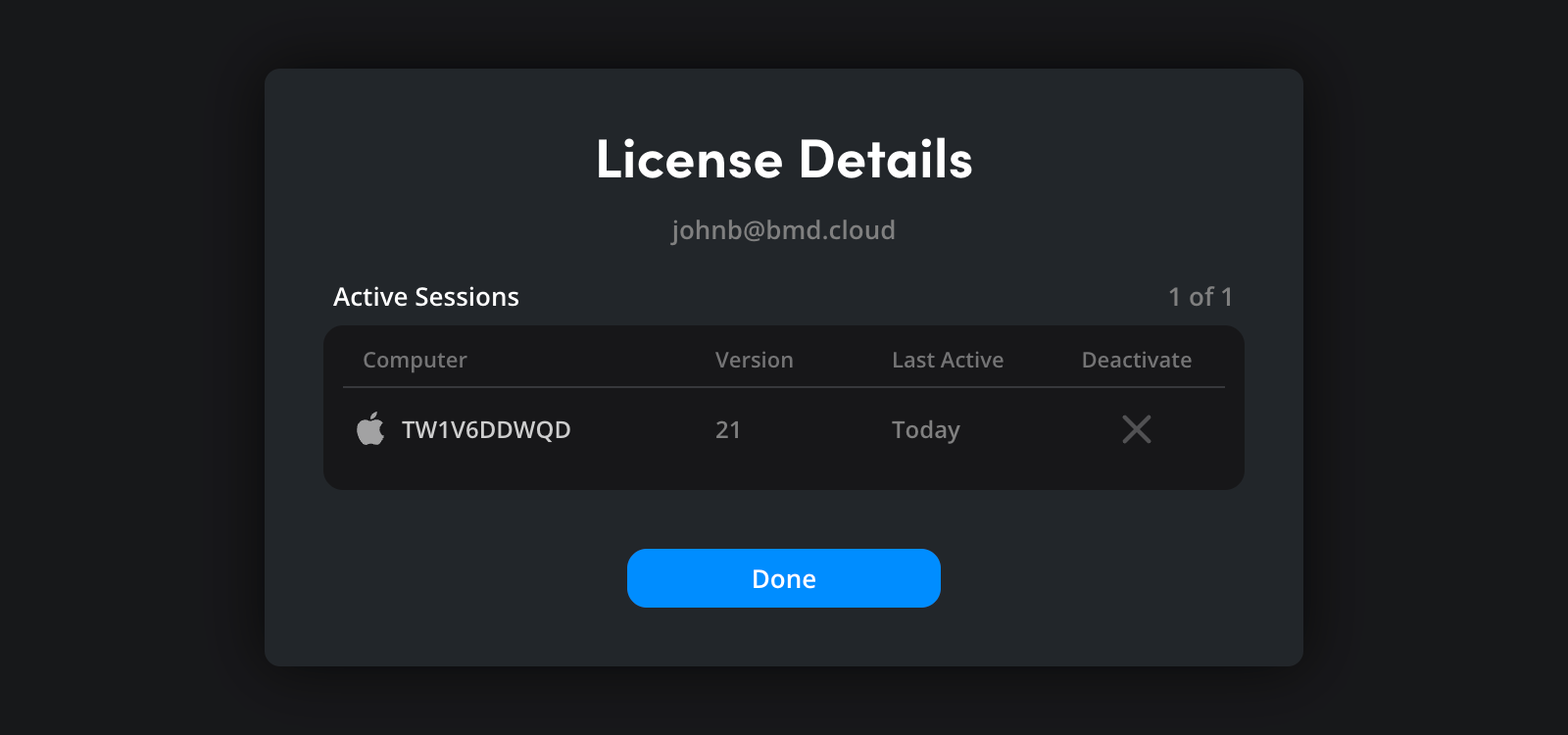
To deactivate the computer, click the ‘x’ icon under ‘deactivate’ and click ‘done’.
The license can now be activated on a different computer by signing in to DaVinci Resolve Studio. For more information, refer to the ‘logging in to DaVinci Resolve’ section of this guide.
You can also deactivate a license from inside DaVinci Resolve Studio by selecting ‘deactivate’ from the ‘help’ menu.

