
Accepting an Invite to a Blackmagic Cloud Organization
When you send someone an invitation to a Blackmagic Cloud organization, they will receive an email notification. If they are already a Blackmagic Cloud user, a notification will also be displayed the next time they access their Blackmagic Cloud account.
Accepting an Invitation in Blackmagic Cloud
If you have been invited to a Blackmagic Cloud organization and already have a Blackmagic Cloud account, you will receive a notification when you log in. If you are currently logged in, the invitation will appear when you go to the ‘select profile’ page.
Simply click ‘accept’ or ‘decline’. Clicking ‘accept’ will add you to the organization straight away.
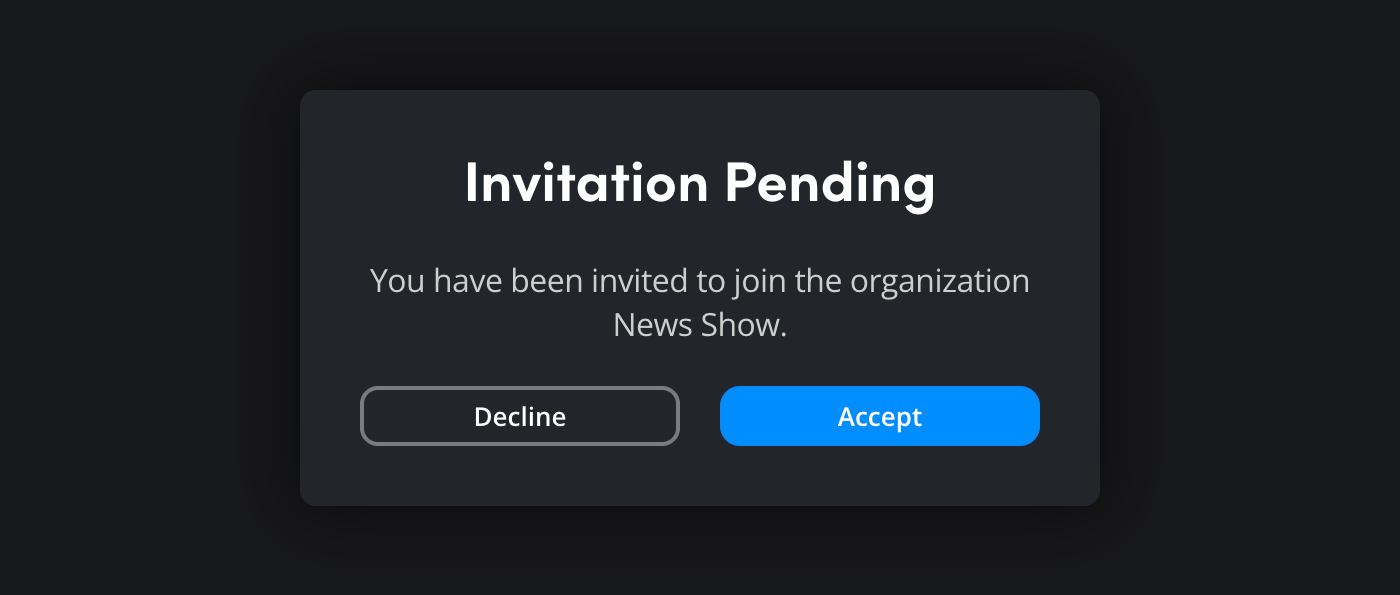
You can also view and respond to any pending invitations in the ‘organizations’ page in your account. To do this, click ‘organizations’ from the Blackmagic Cloud dashboard. In the ‘organizations’ page, click the menu in the top left corner and select ‘invited’.

On the ‘invited’ page, any pending invites will be displayed along with the option to decline or accept each invitation.
Accepting an email Invitation
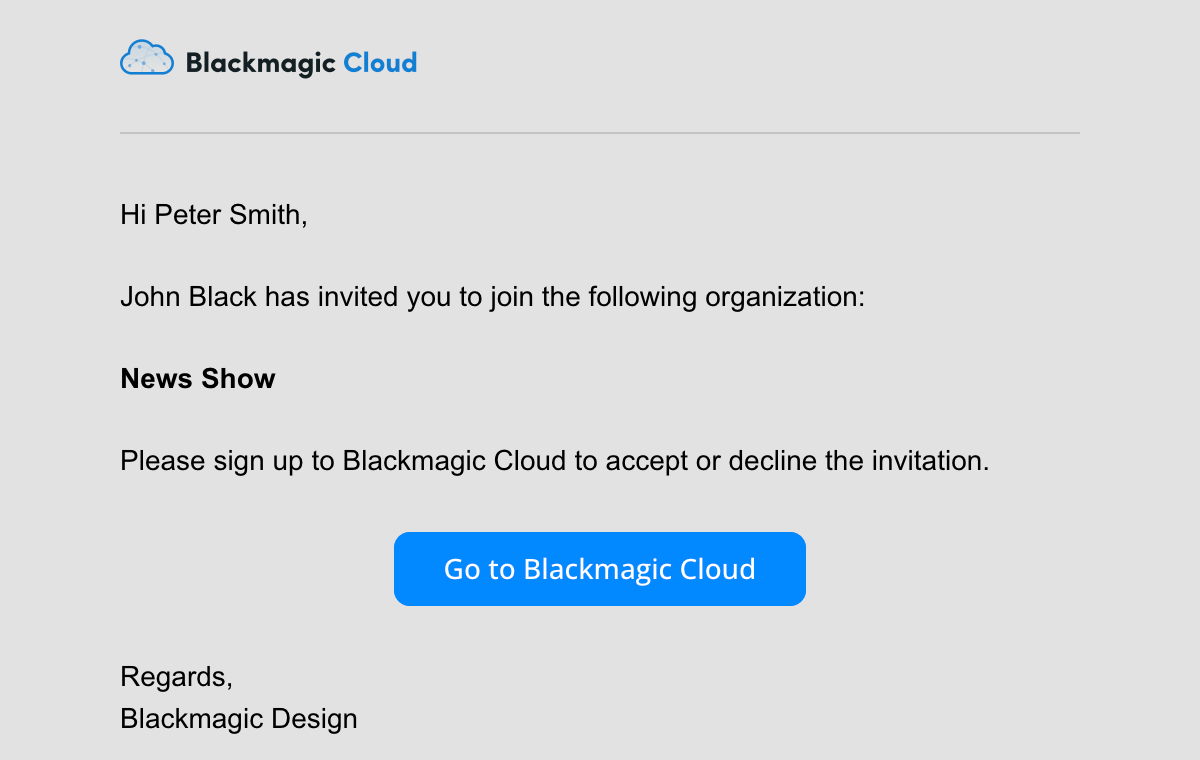
When you invite someone to an organization, they will also receive an email with a link to join the organization. If the person you invite does not have a Blackmagic Cloud account, they will be prompted to create one.
To accept an email invitation:
-
Look for an email from ‘Blackmagic Cloud’ in your email account’s inbox.
-
The email will contain the name of the organization you have been invited to and the name of the Blackmagic Cloud user who has sent the invite.
-
Click the ‘go to Blackmagic Cloud’ button to accept the invitation.

