
Uploading Clips to a Presentation
You can upload clips to a presentation from a DaVinci Resolve timeline, or directly via the ‘clips’ tab in the ‘presentations’ page. It’s worth noting that clips uploaded to Blackmagic Cloud presentations count towards your overall cloud storage, so it’s a good idea to make sure you have enough space before uploading or exporting.
Uploading from DaVinci Resolve
Blackmagic Cloud presentations and DaVinci Resolve work in conjunction with each other to provide an easy way to exchange notes between presentation members and colorists and editors working in DaVinci Resolve. Any markers, comments and annotations added to a presentation are automatically added to the DaVinci Resolve timeline and vice versa.
To upload a clip from DaVinci Resolve:
-
In DaVinci Resolve’s ‘cut’, ’edit’, or ‘color’ page, load the timeline that you want to add to your presentation. If you only want to upload a section of your timeline, mark ‘in’ and ‘out’ points for the section you want to upload.
-
Click the ‘quick export’ button.

-
In the ‘quick export’ window, click the ‘presentations’ icon. In the ‘upload to’ menu choose the presentation that you want to upload your clip to. This menu will display all the presentations that you are an owner of, or have been given ‘editor’ permissions to.
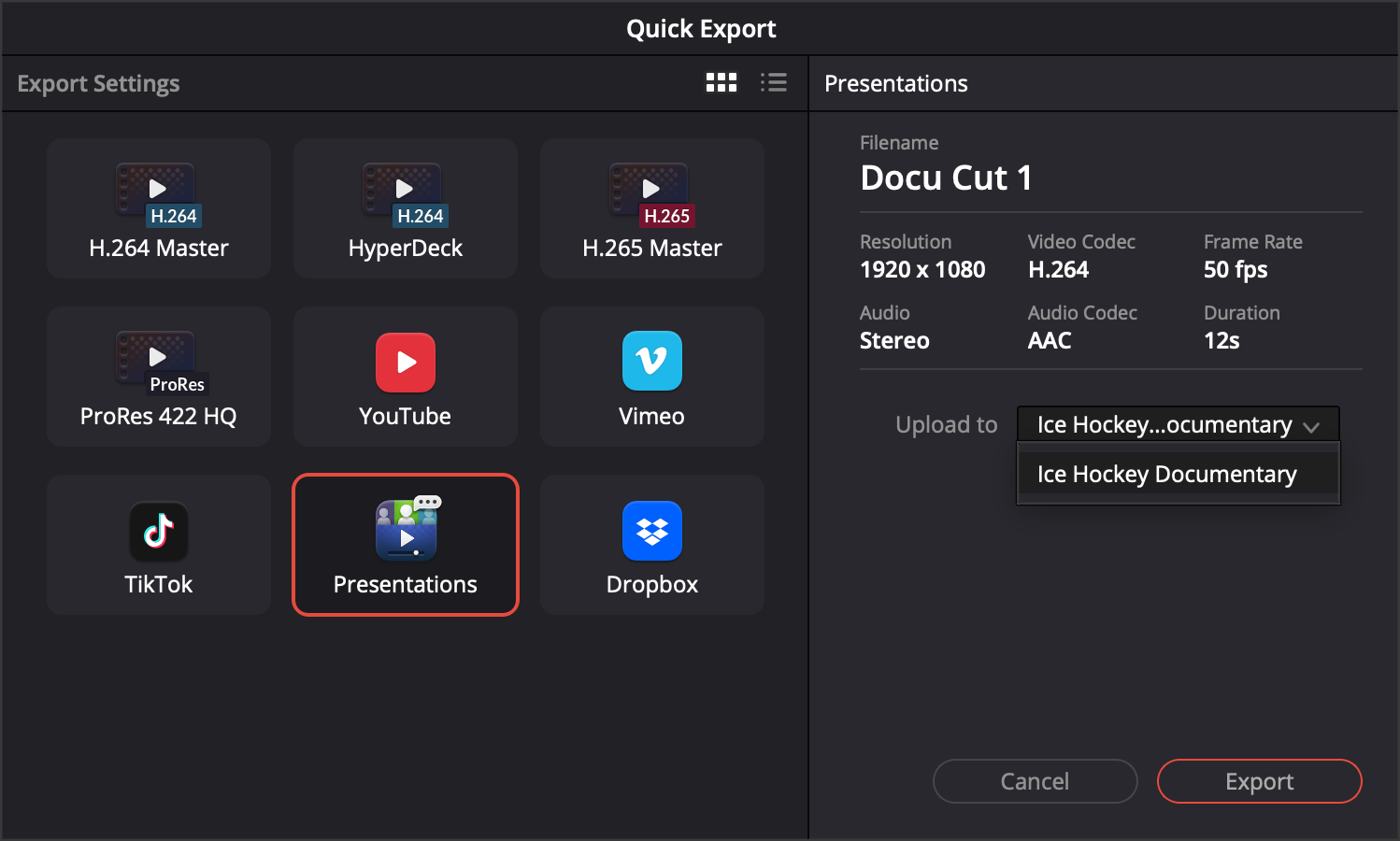 Click the ‘export’ button.
 -
The ‘quick export’ window will open and display the remaining export time. Once the export is complete, DaVinci Resolve will automatically upload the clip to your presentation.
-
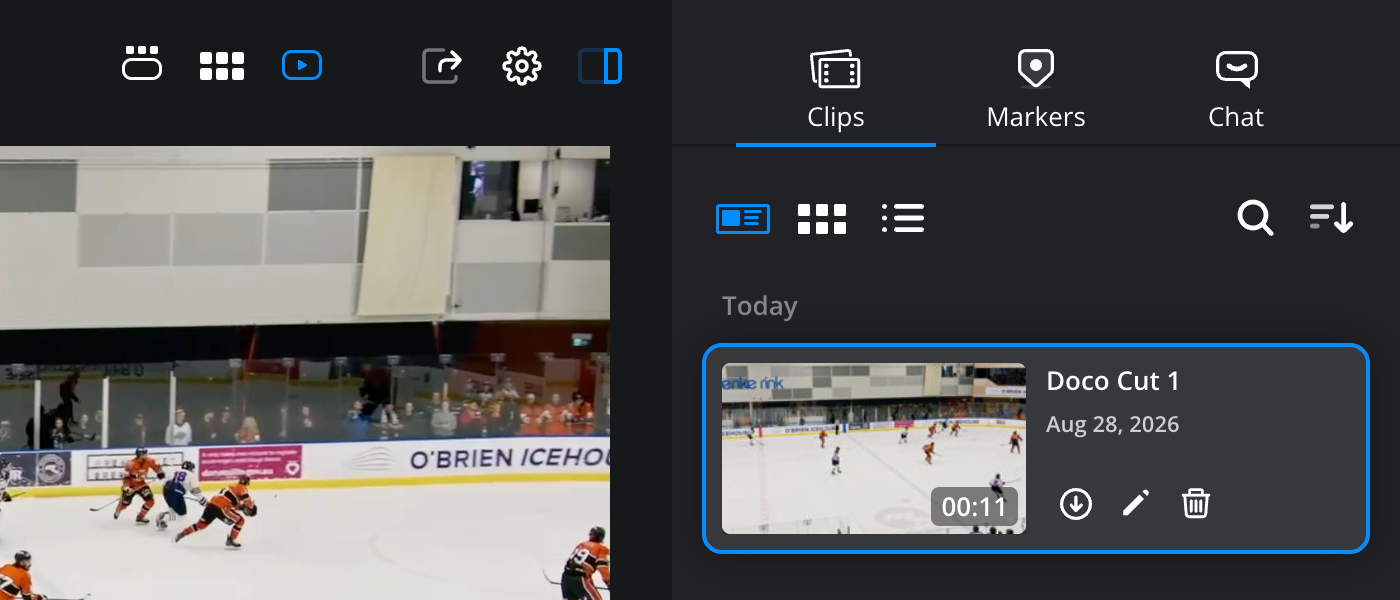
Once the upload is complete, your clip will appear in the Blackmagic Cloud presentations page in the ‘clips’ tab. If you don’t see your clip straight away, simply refresh the ‘presentations’ page in your browser.
Uploading Clips to the Presentations Page
If you have an exported clip that you want to upload to a presentation, you can upload it directly to the ‘presentations’ page in Blackmagic Cloud. H.264, H.265 and ProRes codecs are supported.
To upload a clip:
-
In the ‘presentations’ page, open the right hand sidebar and click the ‘clips’ tab.
-
In the ‘clips’ tab, click the ‘upload media’ button.

-
On your computer, navigate to the clip that you want to upload and click ‘open’.
-
The clips upload status will be displayed in the ‘clips’ tab. Once the clip has finished uploading it will be processed in the background before becoming available.
File Specifications for Uploaded Clips
The following file specifications are supported for clips uploaded directly to the presentations page.
Resolution and Frame Rates
- Maximum resolution of 2160 x 4096
- Minimum resolution of 640 x 360
- Supported frame rates: 23.98, 24, 25, 29.97, 30, 47.95, 48, 50, 59.94, 60, 90, 95.90, 96, 100, 119.88 and 120.
H.264 Specifications
- Quicktime and MP4 files in .mov and .mp4 formats
- Baseline, Main, High, High10 and High422 profiles
- 8-bit and 10-bit color depth
- Supports frame reordering
- Interlaced files are not supported.
H.265 Specifications
- Quicktime and MP4 files in .mov and .mp4 formats
- Main and Main10 profiles
- 8-bit and 10-bit color depth
- Supports frame reordering
- Profile Extended support for 422 chroma only
- Interlaced files are not supported.
ProRes
- All ProRes codecs, excluding ProRes4444
- Interlaced files are not supported.
Audio
- 48KHz Sample rate
- AAC and LPCM formats are supported.
Audio Channels
If an uploaded clip has a single audio channel, it will be duplicated to a stereo output. Two input channels become a stereo output directly. Any additional audio channels will pass through channels 1 and 2 as a stereo output.
Output Format
When you upload a clip to the ‘presentations’ page, it will be encoded to the following format:
H264 Main profile
- 2 audio channels at 48KHz
- Output resolution maintains the input aspect ratio.

