
Presentation Settings
The ‘presentation settings’ allow presentation owners to rename a presentation, plus enable and disable additional options such as video conferencing.
To open the ‘presentation settings’, click the settings wheel icon at the top of the viewer.

General Tab
The general tab contains options to rename your presentation, toggle video conferencing on or off and enable or disable a presentation.
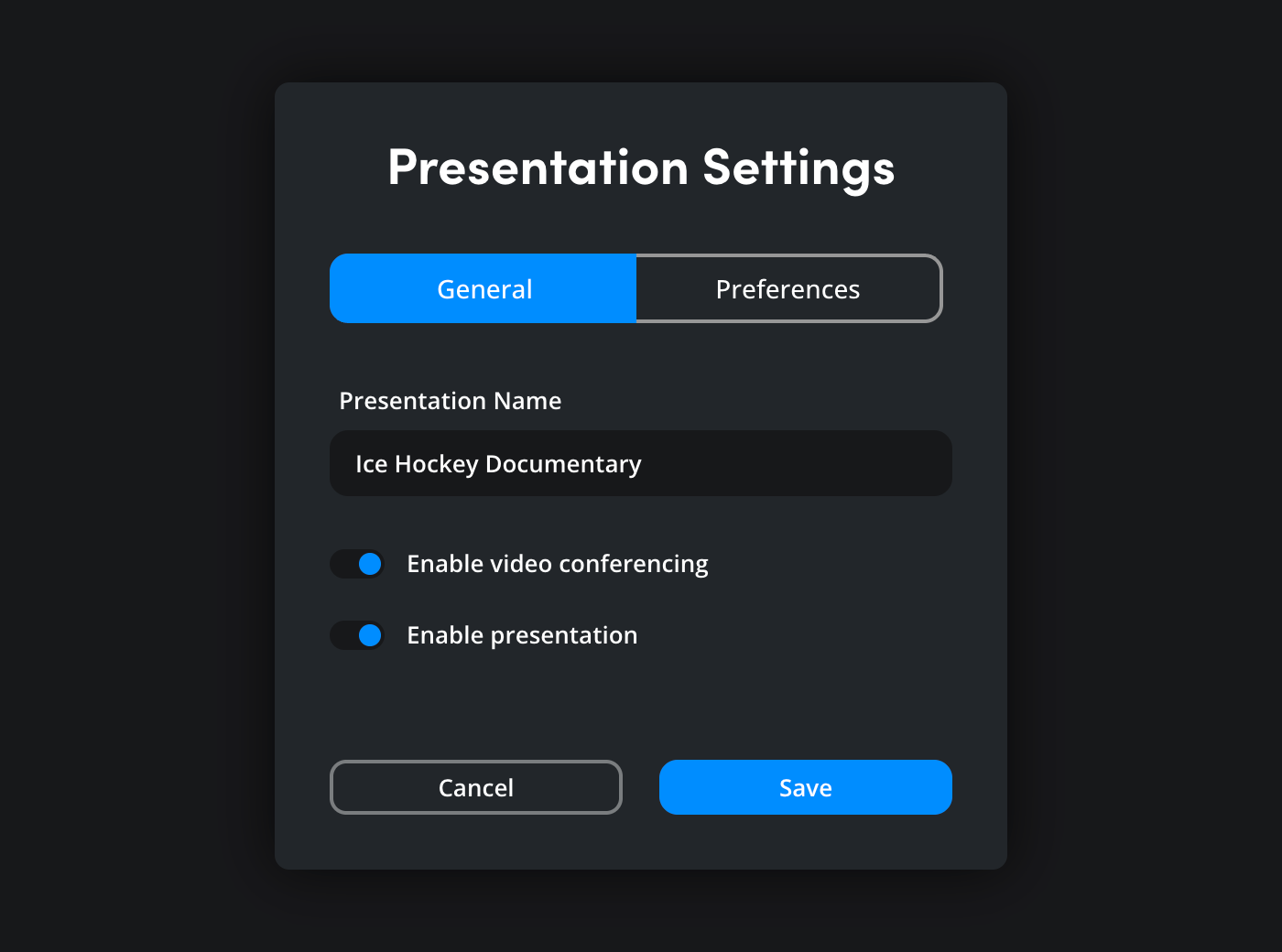
Presentation Name
To change the name of a presentation, type a new name in the ‘presentation name’ field. The presentation name will be updated in the list in the left hand sidebar.
Enable Video Conferencing
Use this option to enable or disable video conferencing for your presentation. When video conferencing is disabled, the ‘presentation view’ and ‘speaker view’ icons at the top of the viewer will be unavailable.
Enable Presentation
You can choose to enable or disable a presentation using this toggle switch. When a presentation is disabled it will be locked until it is enabled again. Disabled presentations keep all clips, markers and comments, but cannot be modified.
Preferences Tab
The ‘preferences’ tab includes controls for members to start a sync session, allowing guests to add markers and toggle clip downloads on or off.
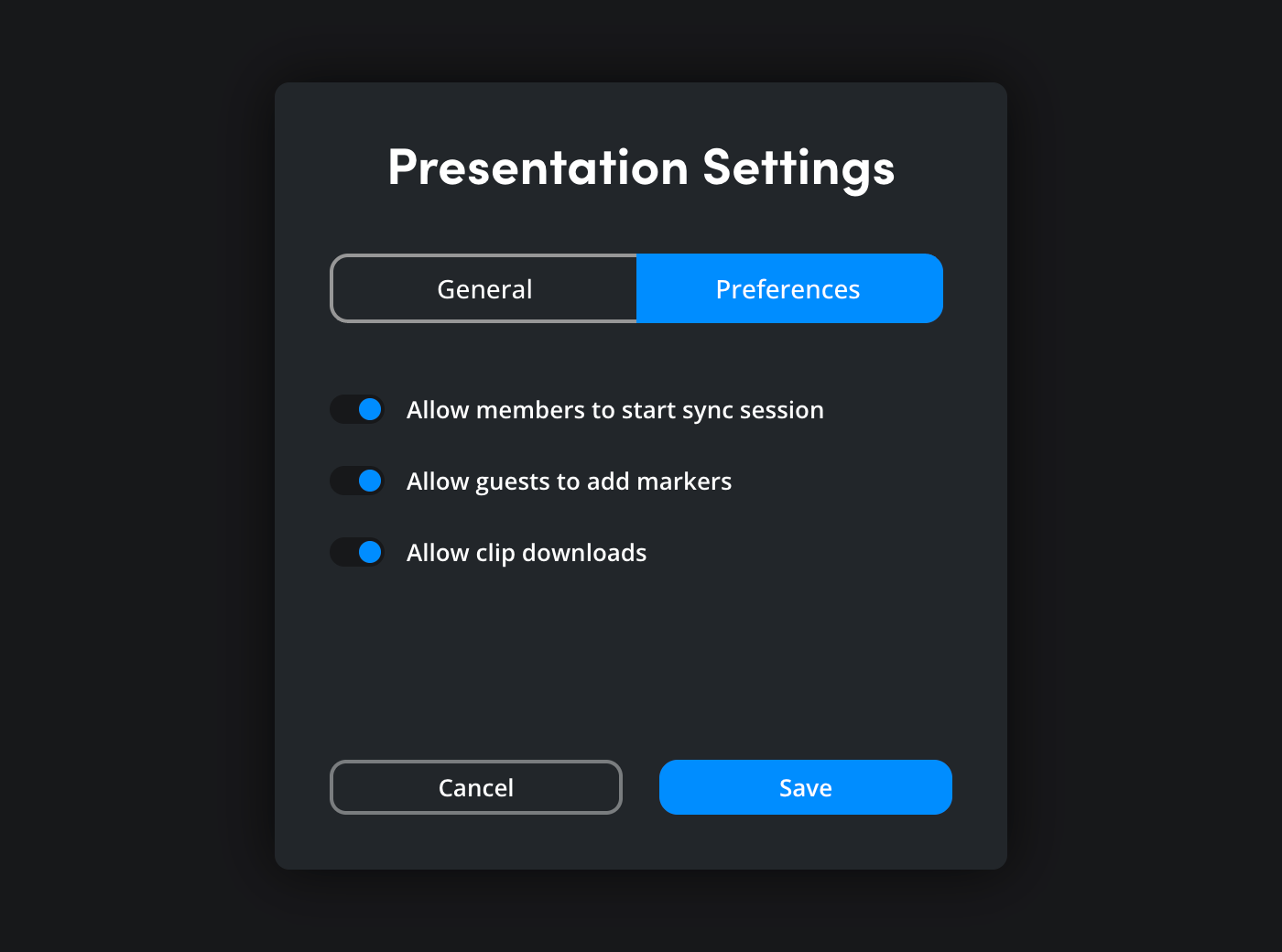
Allow Members to Start Sync Session
Toggle this switch on if you want to allow presentation members to start a sync session. When this option is toggled off, only presentation owners will be able to start a sync session. More information on starting a presentation and a sync session is available in the ‘starting a presentation’ section.
Allow Guests to Add Markers
Enable this option if you want to allow presentation guests to add markers to a clip.
Allow Clip Downloads
If you want to allow members and guests to download presentation clips you can enable this option.

