
Logging in to DaVinci Resolve
Once a DaVinci Resolve Studio license has been assigned, it can be used to log in to DaVinci Resolve Studio. Each rental license allows DaVinci Resolve Studio to be activated on a single computer. More information on managing licenses, including moving licenses between computers is provided in the next section.
You can download the latest version of DaVinci Resolve Studio at https://www.blackmagicdesign.com/support/family/davinci-resolve-and-fusion
To log in to DaVinci Resolve Studio:
-
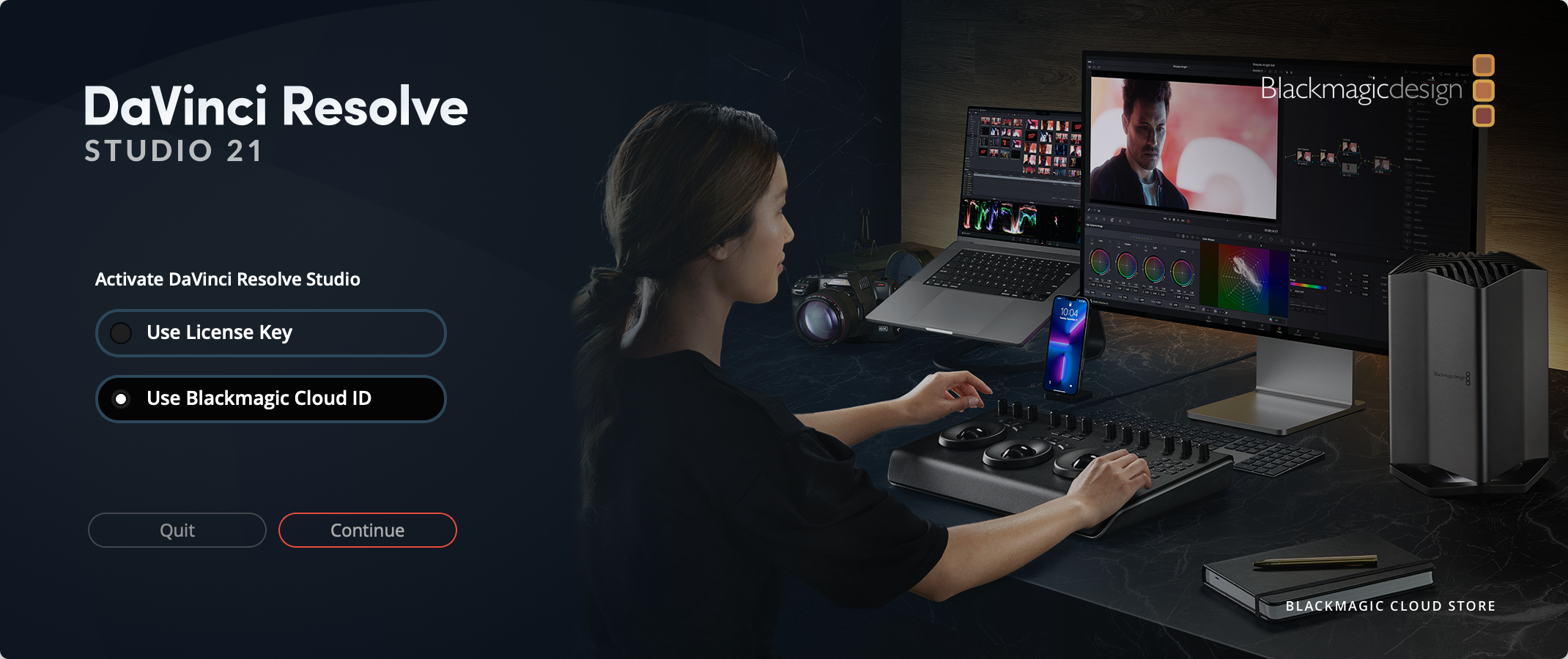
Open DaVinci Resolve Studio. On the activation screen, select ‘use Blackmagic Cloud ID’ and click ‘continue’.
-
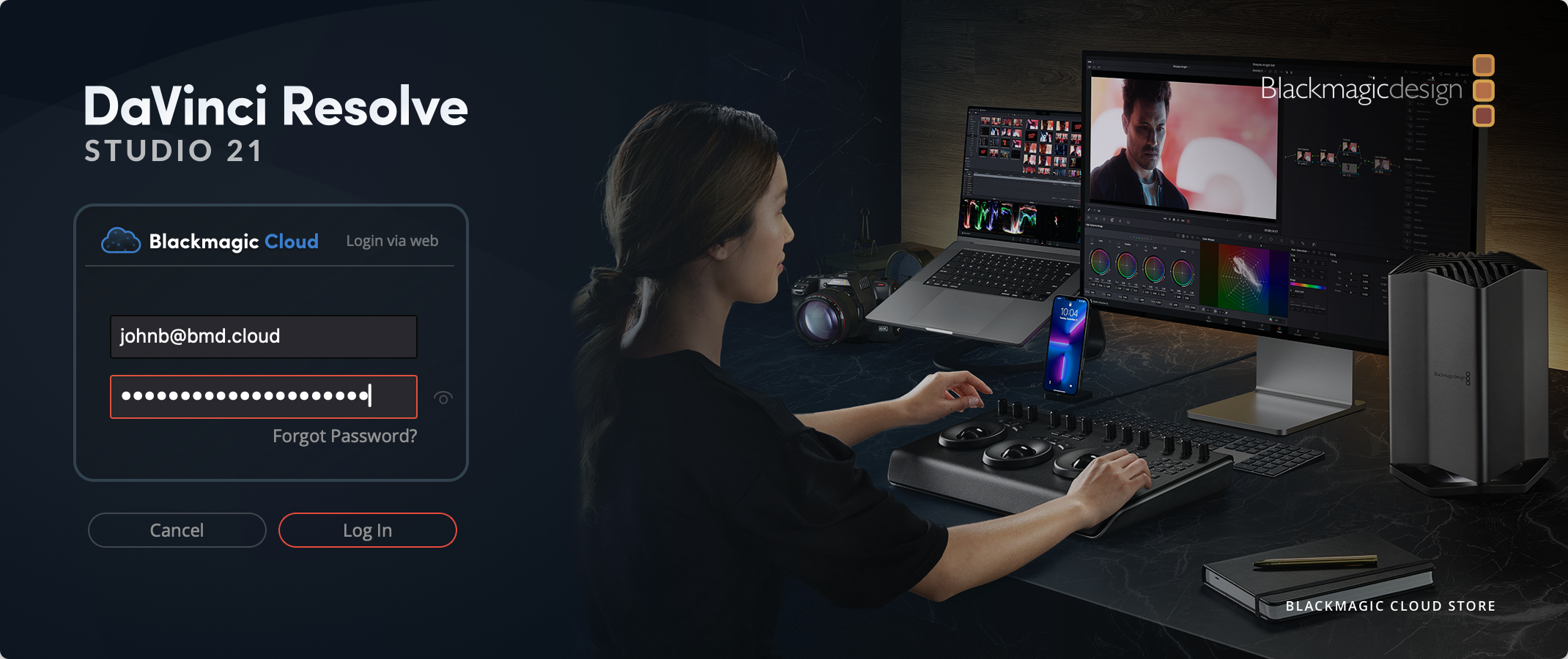
Enter your Blackmagic Cloud ID email address and password. Click ‘log in’.
-
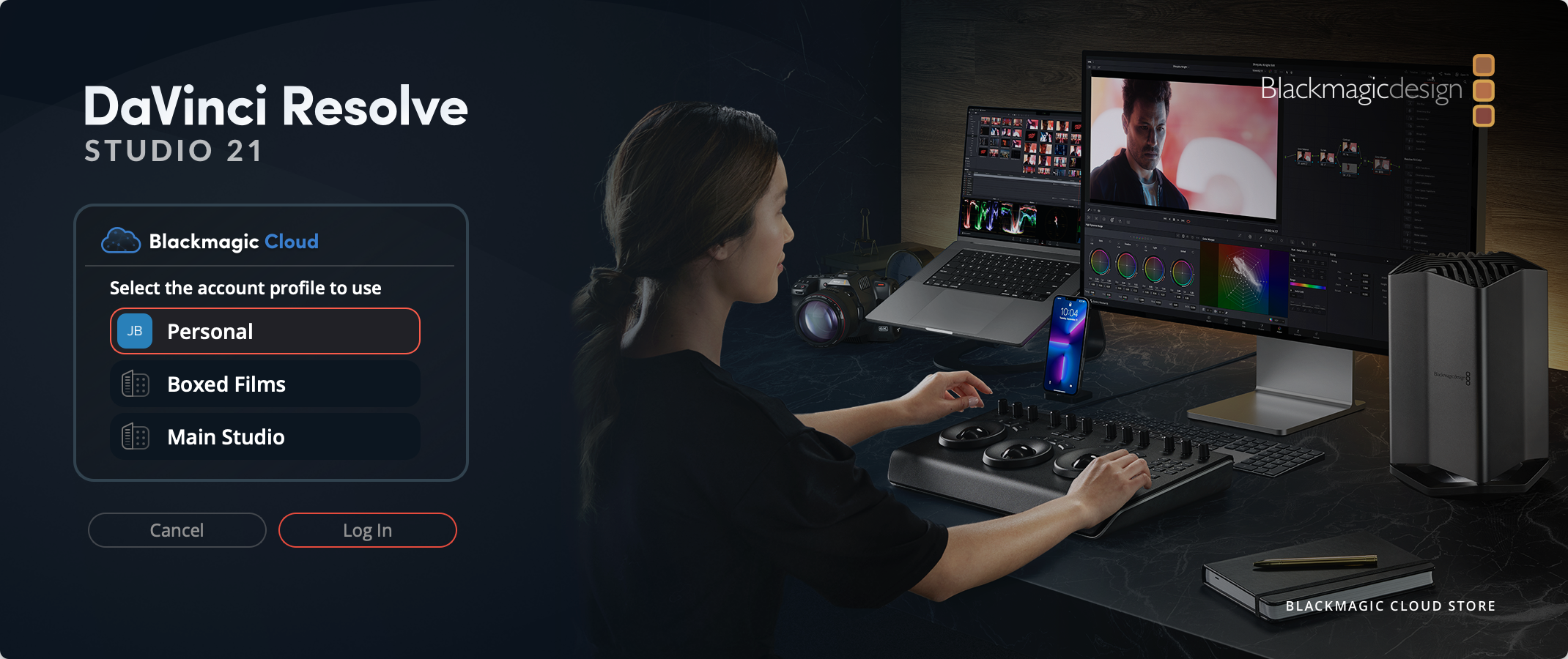
On the next page you will see a list of profiles associated with your account. If you have purchased a DaVinci Resolve Studio rental license in your personal profile, select ‘personal’ from the list.
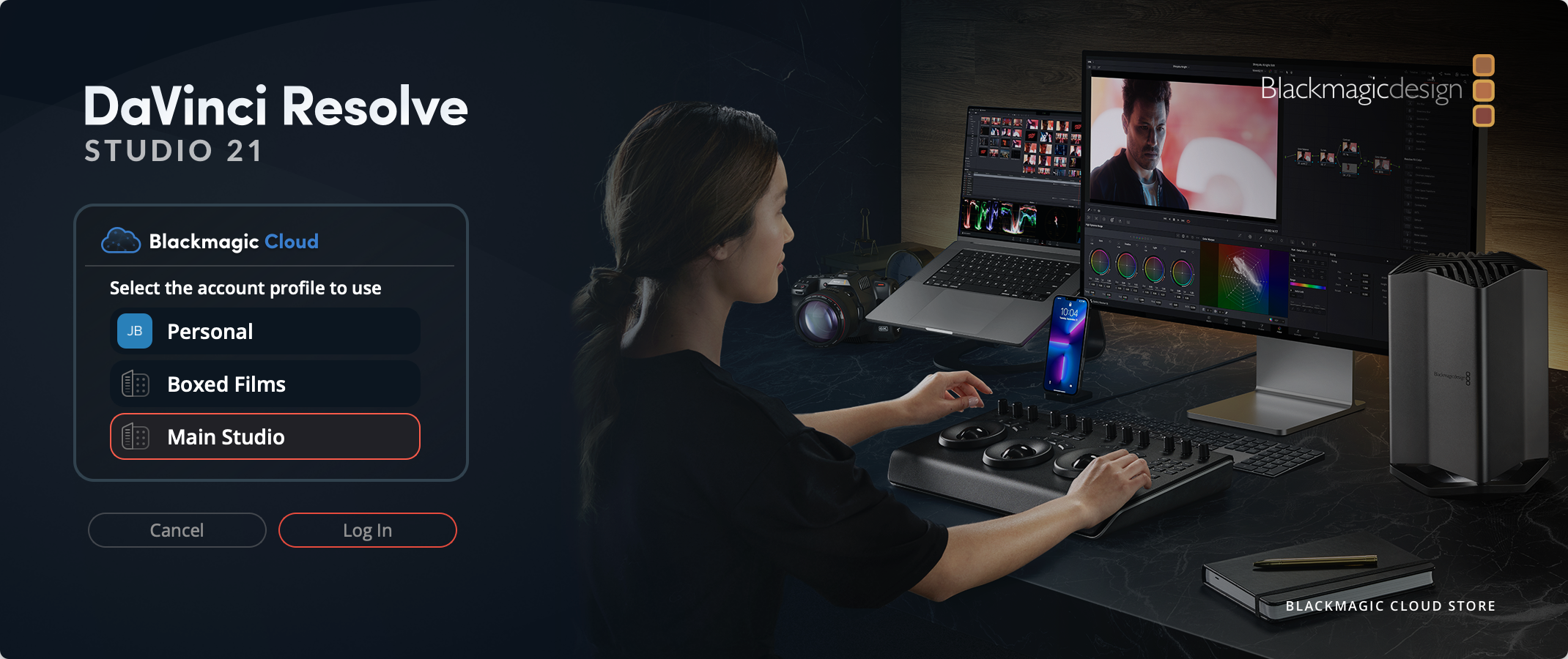
 If you have been assigned a license in a Blackmagic Cloud organization, select the name of the organization from the list and click ‘log in’.
- A message will be displayed to confirm the license assigned to your account has been successfully activated. Click ‘continue’.
Once DaVinci Resolve loads, you will be able to select a project from a local, network or cloud project library.

